


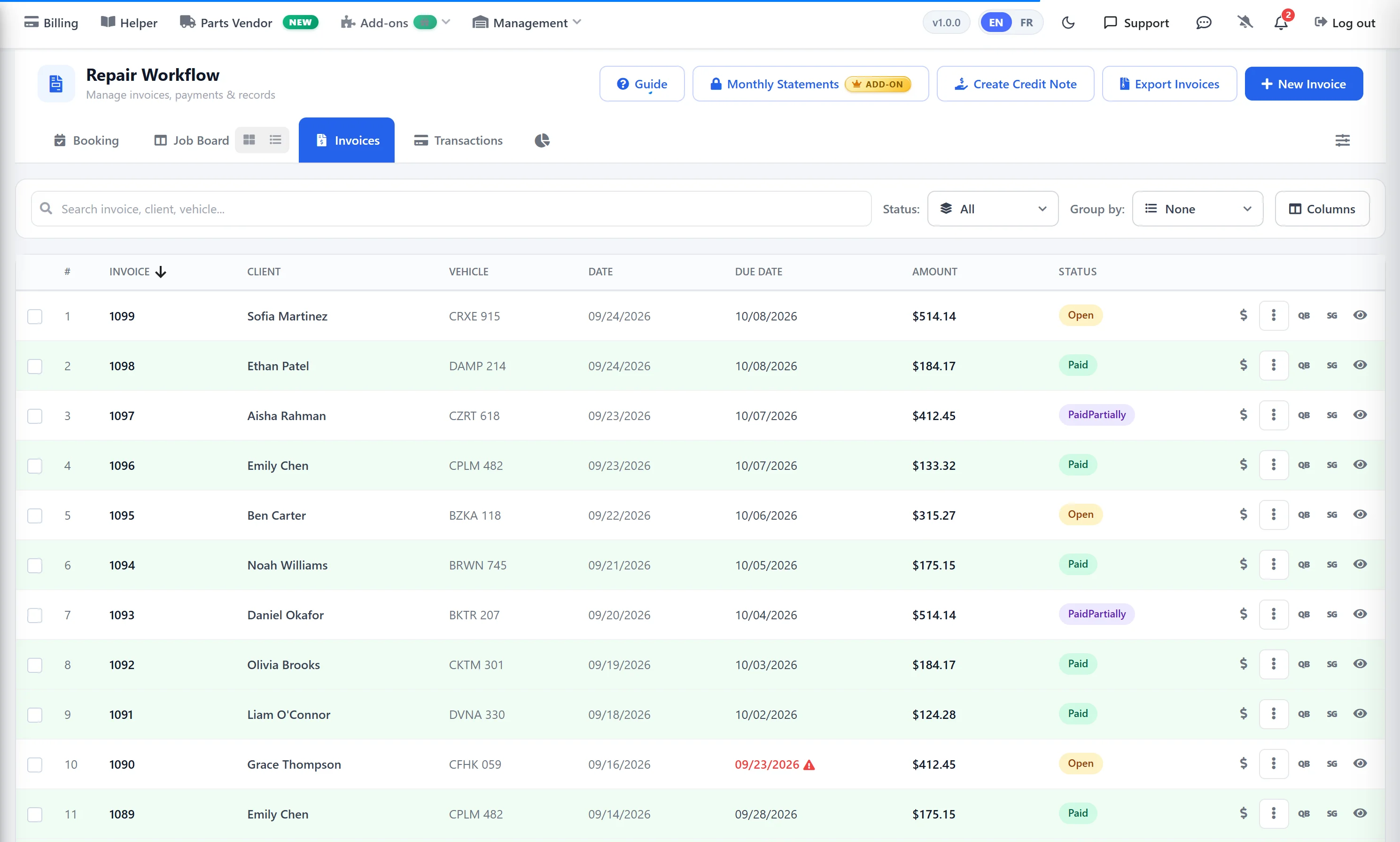
From finished job to paid invoice
One workflow from the job board to the bank — nothing typed twice.
Invoice the job
Drag the finished job to Complete/Invoice. The estimate becomes the invoice — same client, vehicle, parts, labour and taxes.
Send it
Email the PDF invoice with a pay-online link, or print it at the counter.
Get paid
Record cash, card, cheque or bank transfer, or let the customer pay online. The status updates to Paid or Partially Paid.
Stay in sync
Invoices flow to QuickBooks or Sage, and every payment is logged against its invoice.
Professional invoices in seconds
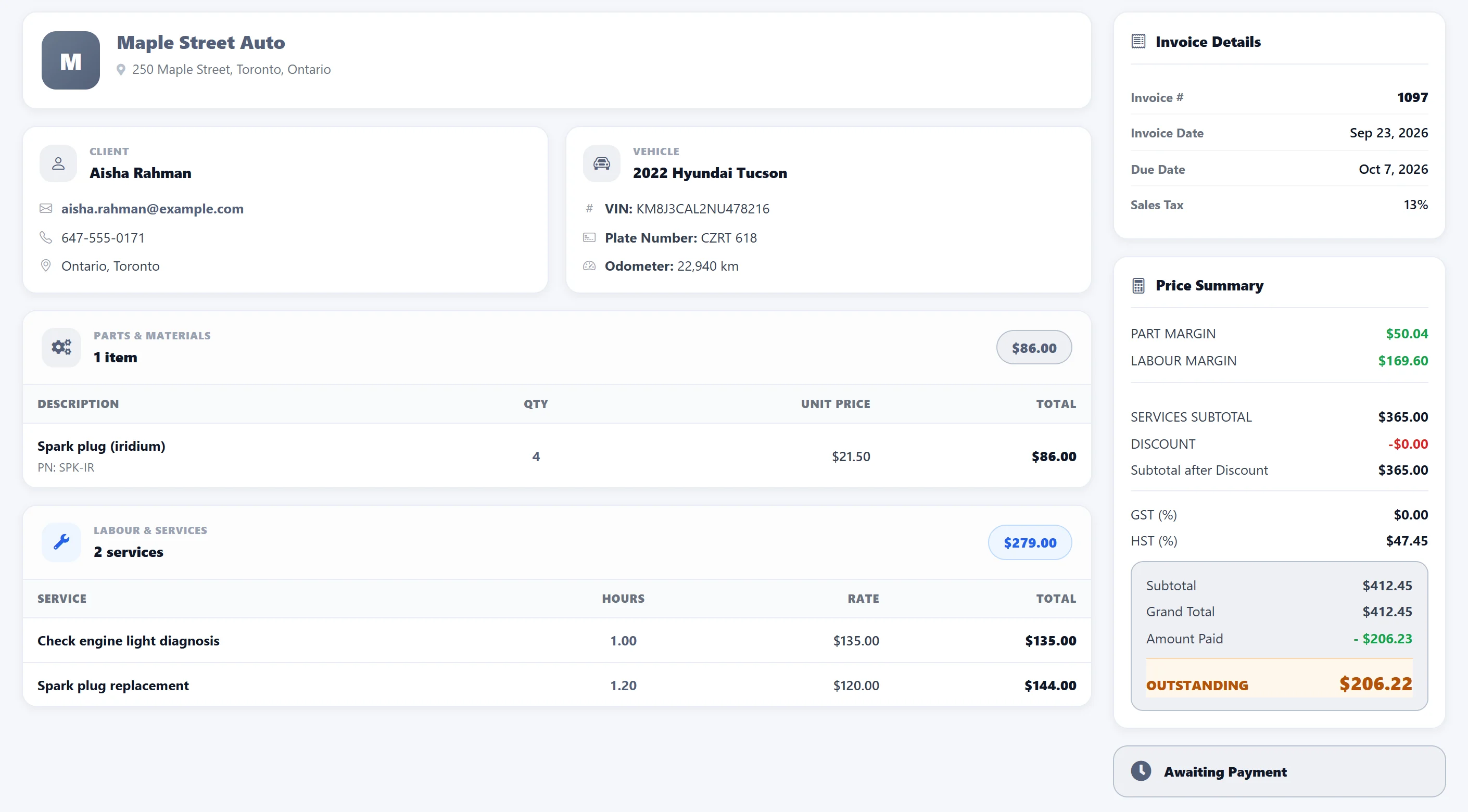
The invoice is built from the work you already estimated. Add anything that came up during the job and totals and taxes update instantly.
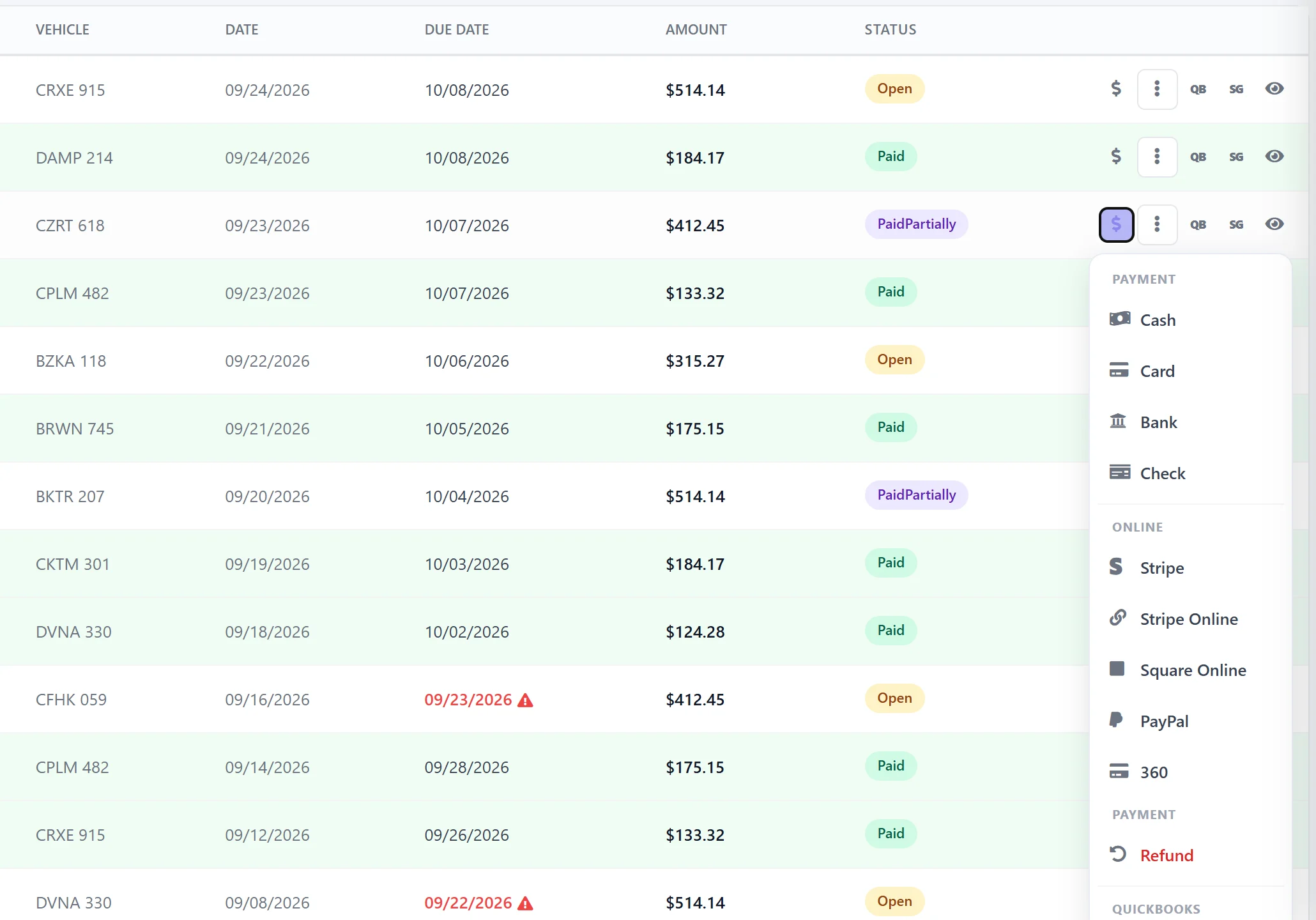
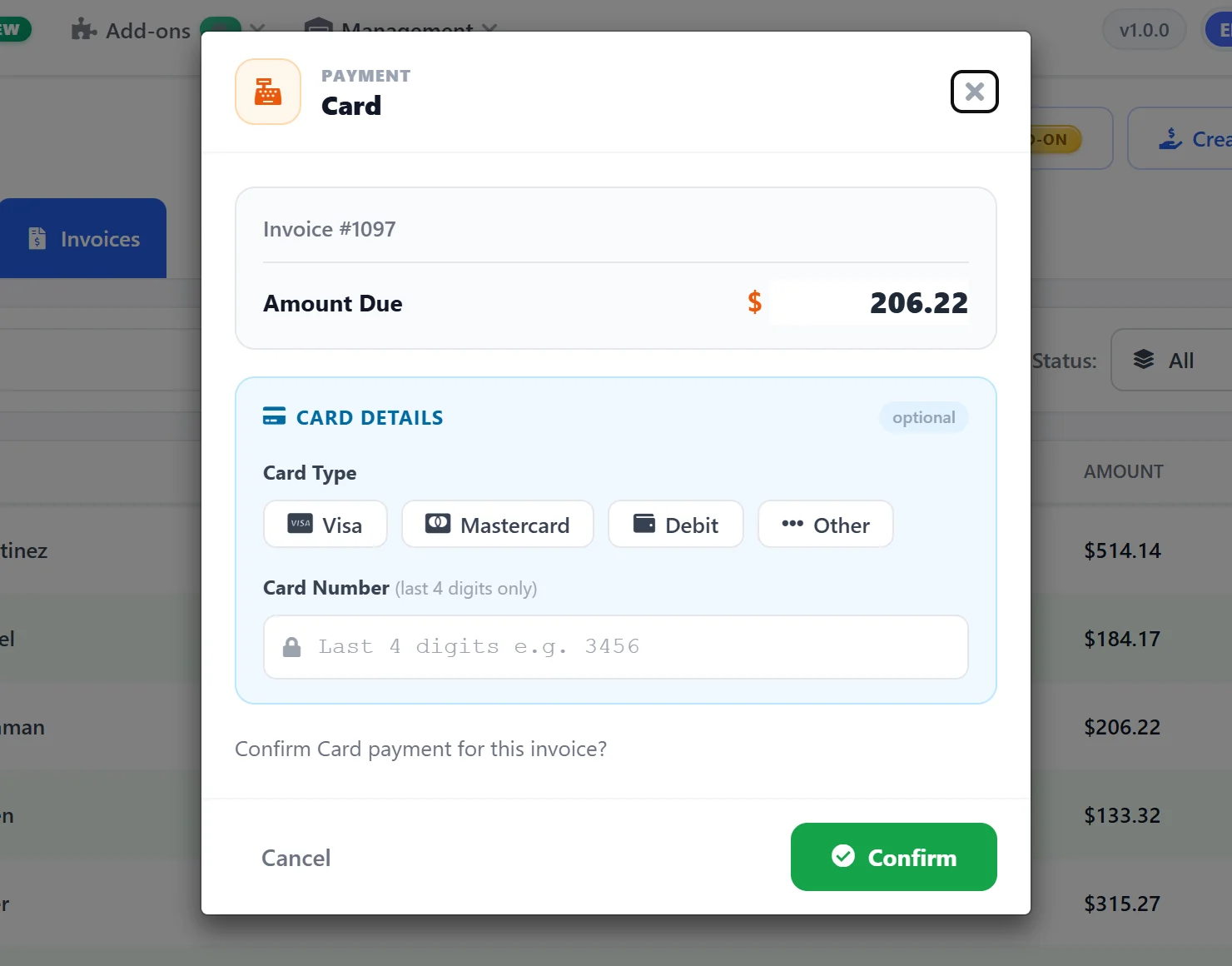
Take any payment — in full or in part
Click Pay on the invoice and choose how the customer is paying. Split a bill across several payments and every one is logged.
Let customers pay from anywhere
No need for the customer to come back to the counter. Send a secure payment link by email.
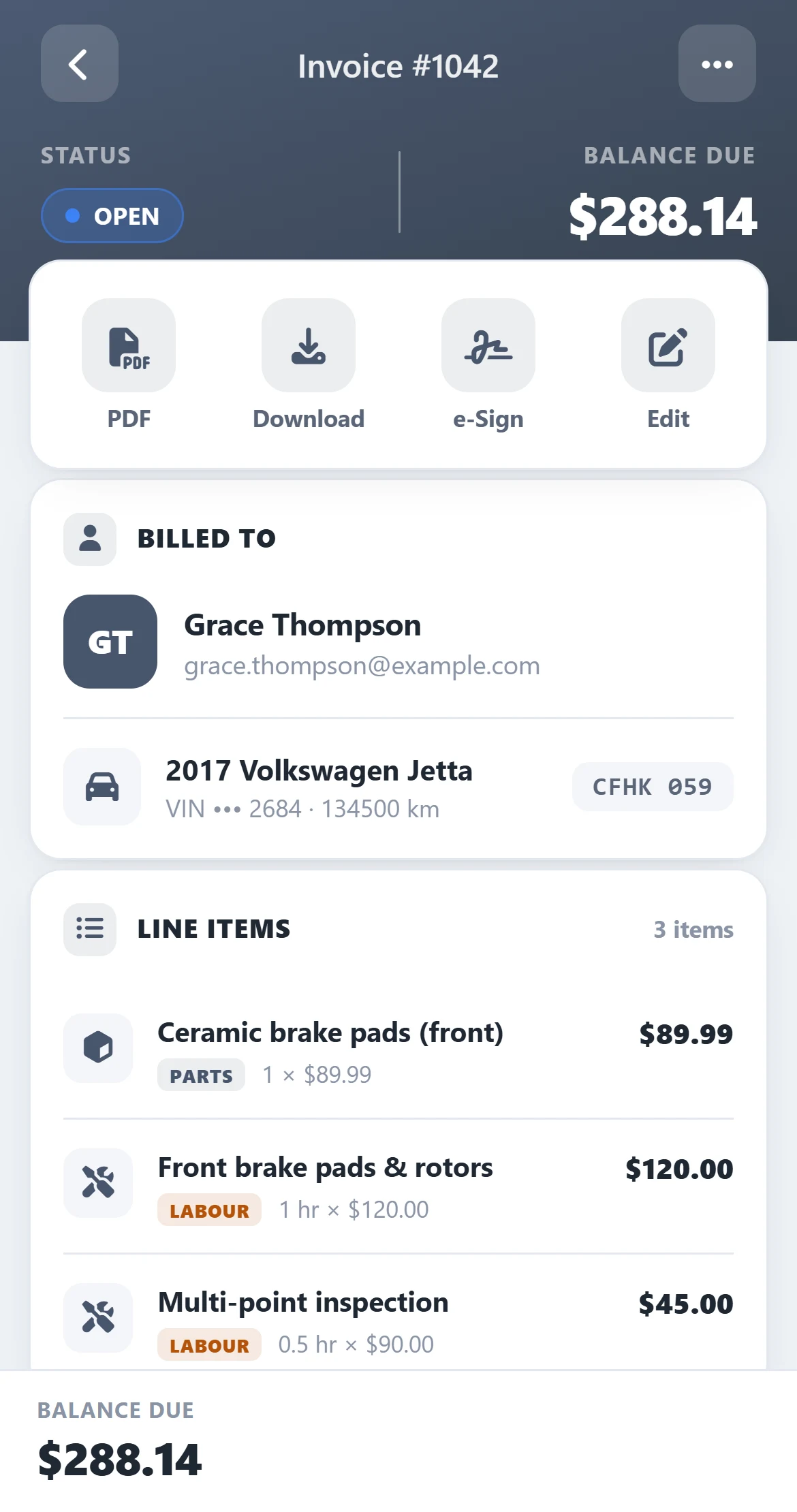
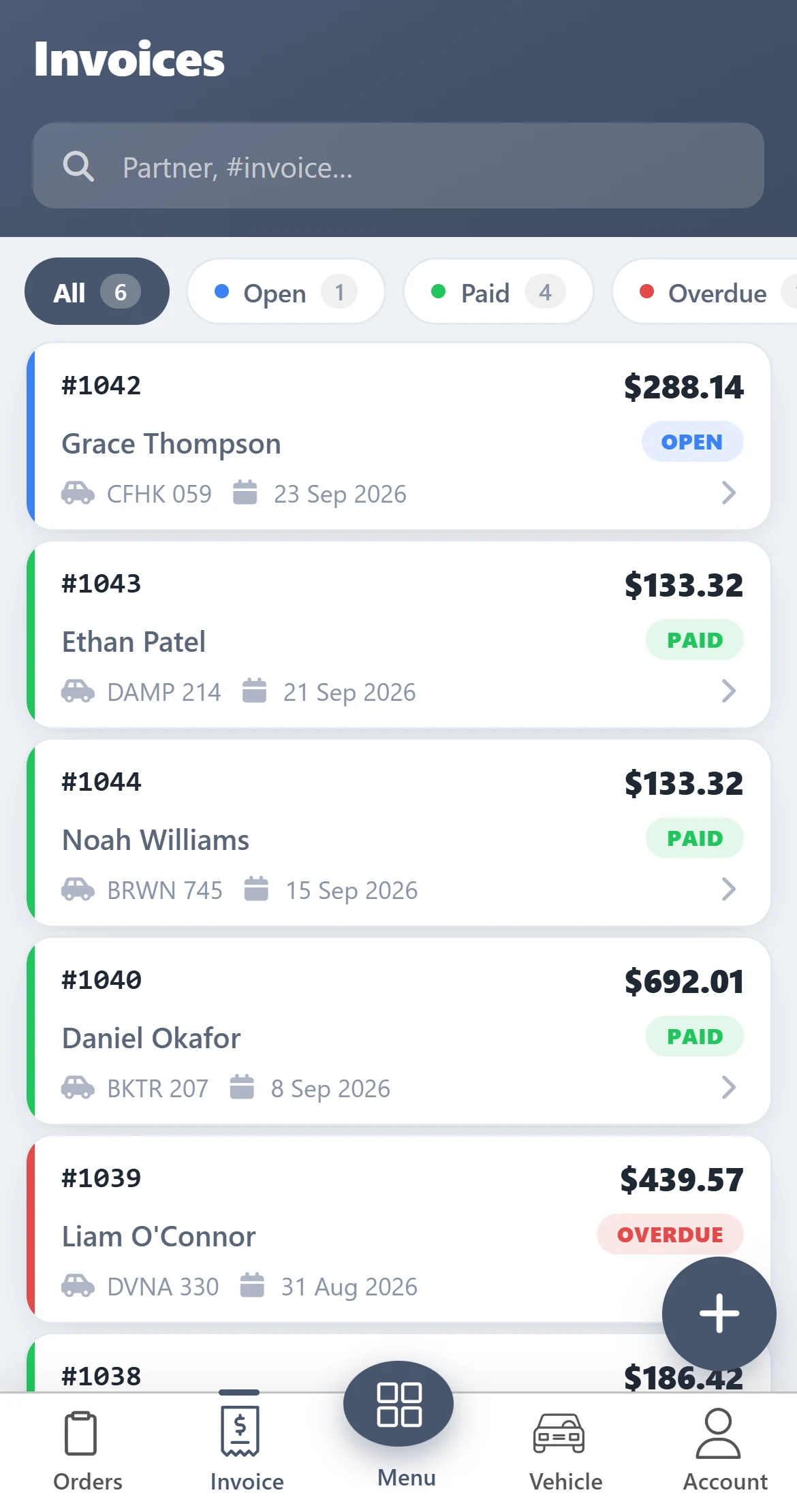
Know exactly who owes you
Stop digging through paper and spreadsheets. Every invoice, every balance and every payment lives in one place.
Your books, without the double entry
Invoices you create in AutoSoftWay go straight to your accounting software.
Invoices & estimates
Invoices and estimates sync with their customers and tax codes.
Customers & tax codes
Customers and tax codes travel with every invoice you sync.
Invoices, payments & refunds
Invoices, estimates, payments, refunds and expenses sync to Sage.
Sales & payments
Sales, margin and parts-profit reports plus a log of every payment and refund.
Invoicing & payments — your questions answered
What payment methods can my shop take?
Cash, credit or debit card, cheque (with the cheque number) and bank transfer (with the reference number) are recorded right on the invoice. Online, customers can pay through a Square or PayPal payment link.
Can customers pay an invoice online?
Yes. Email the invoice and the customer gets a PDF copy plus a link to pay online. When the payment goes through, the invoice updates automatically and the customer gets a payment confirmation.
Can I take a partial payment or a deposit?
Yes. Enter any amount and the invoice shows as Partially Paid with the balance still owing; add more payments until it is paid in full. Upfront payments (deposits) taken before the job are deducted on the invoice.
How do I see who still owes me?
The Invoices list shows every invoice with its status (Open, Paid or Partially Paid) and flags the due date in red once an invoice is past due. Filter by status, client, technician, date range or payment method, or group invoices by client or vehicle.
Does it work with QuickBooks or Sage?
Yes. Invoices and estimates (with customers and tax codes) sync to QuickBooks Online, and Sage Business Cloud receives invoices, payments and refunds.
Do I need my own payment processor account?
For online payments, yes: you connect your own Square or PayPal account, so the money goes straight to you. Cash, card, cheque and bank-transfer payments can be recorded without any processor.
Get 10 days free — on us
Register your shop today and unlock the full AutoSoftWay platform — including invoicing, payments, estimates, the job board, digital inspections and scheduling. Card verification is required — nothing is charged during your trial.
Invoice faster. Get paid sooner.
Invoices, payments, payment links and accounting sync — plus the rest of AutoSoftWay — free for 10 days.