AutoSoftWay logo AutoSoftWay

Mobile App – Adding a Work Order

Step 1

To add an estimate for the client via the mobile app, from the dashboard click on ‘Work Orders’.
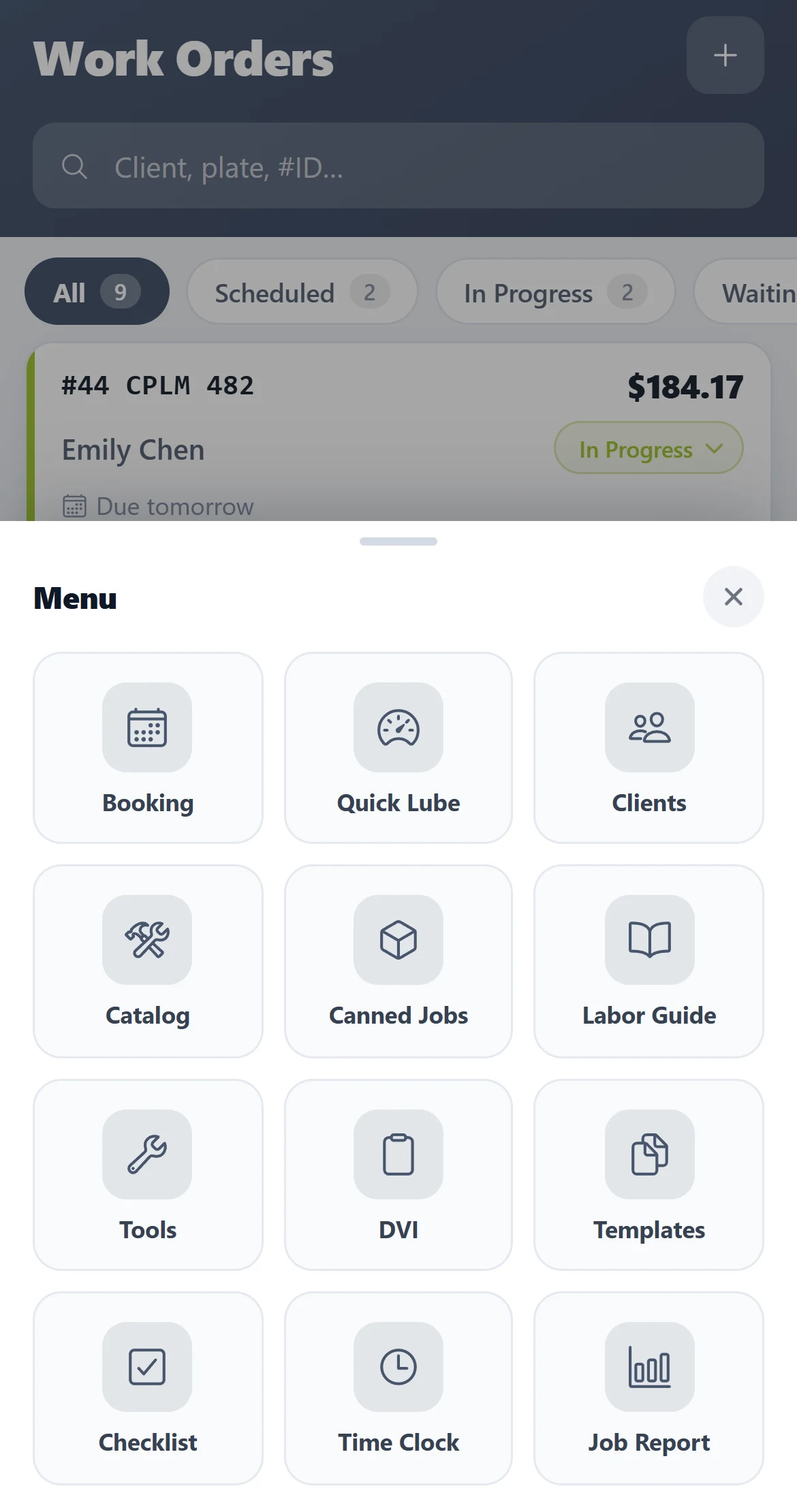
Mobile App – Adding a Work Order: Step 1 — AutoSoftWay screenshot

Step 2

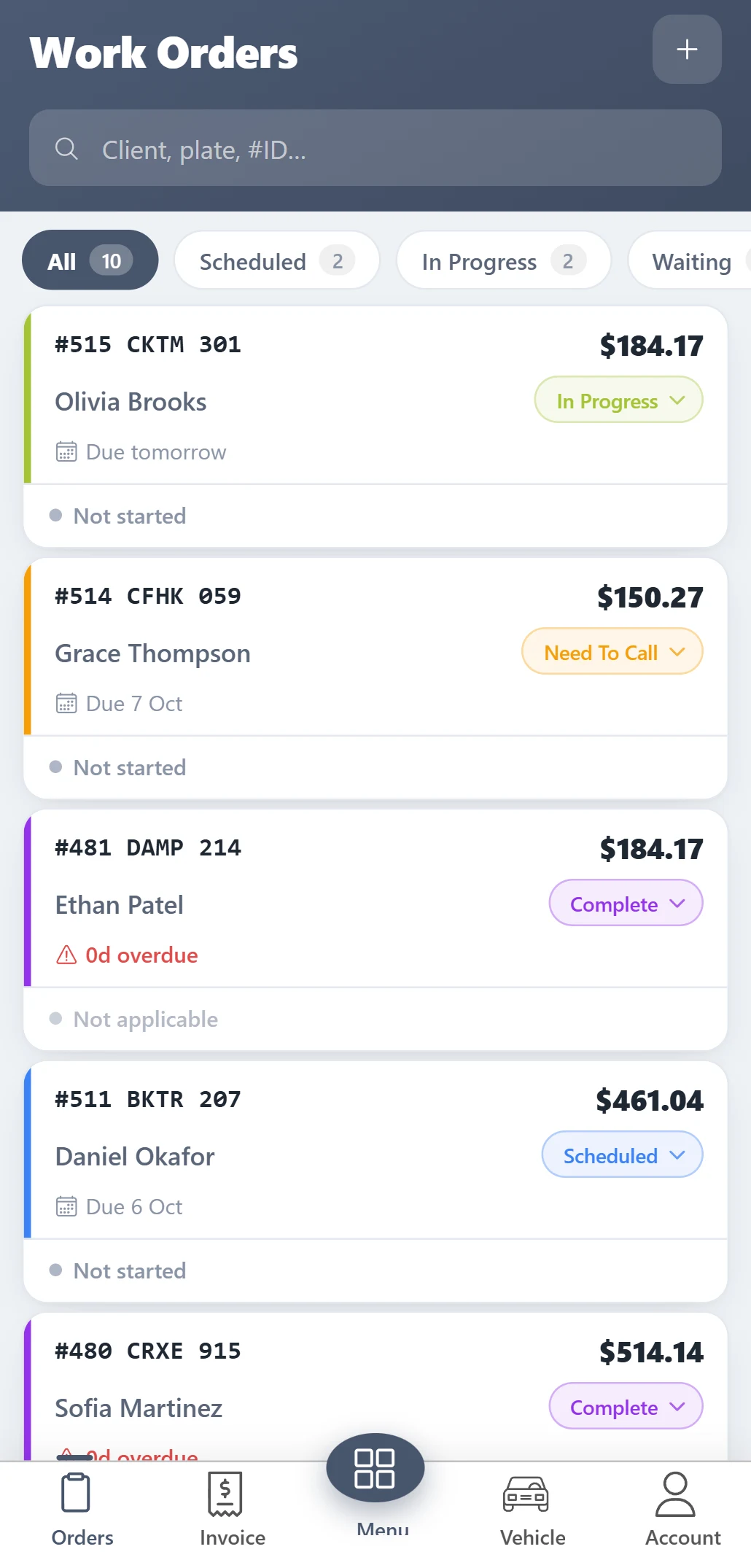
Click to ‘Add’ a new estimate

Mobile App – Adding a Work Order: Step 2 — AutoSoftWay screenshot

Step 3

Proceed to fill in all the information and then ‘Save’
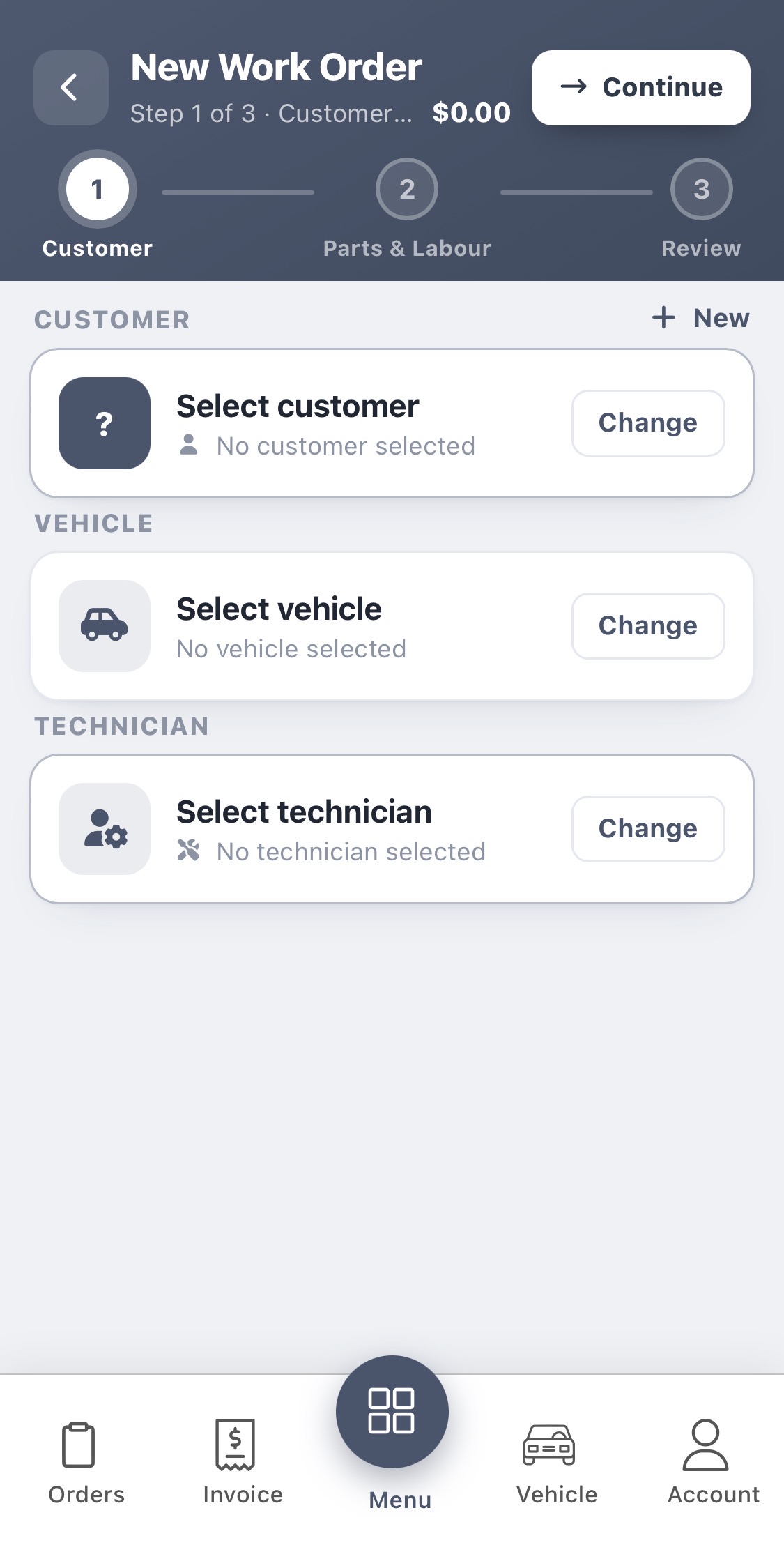
New work order: pick the customer, vehicle and technician
Mobile App – Adding a Work Order: Step 3 — AutoSoftWay screenshot

Part 4

The new estimate has been created and will appear as the first item in the list

Mobile App – Adding a Work Order: Part 4 — AutoSoftWay screenshot