

Step 1
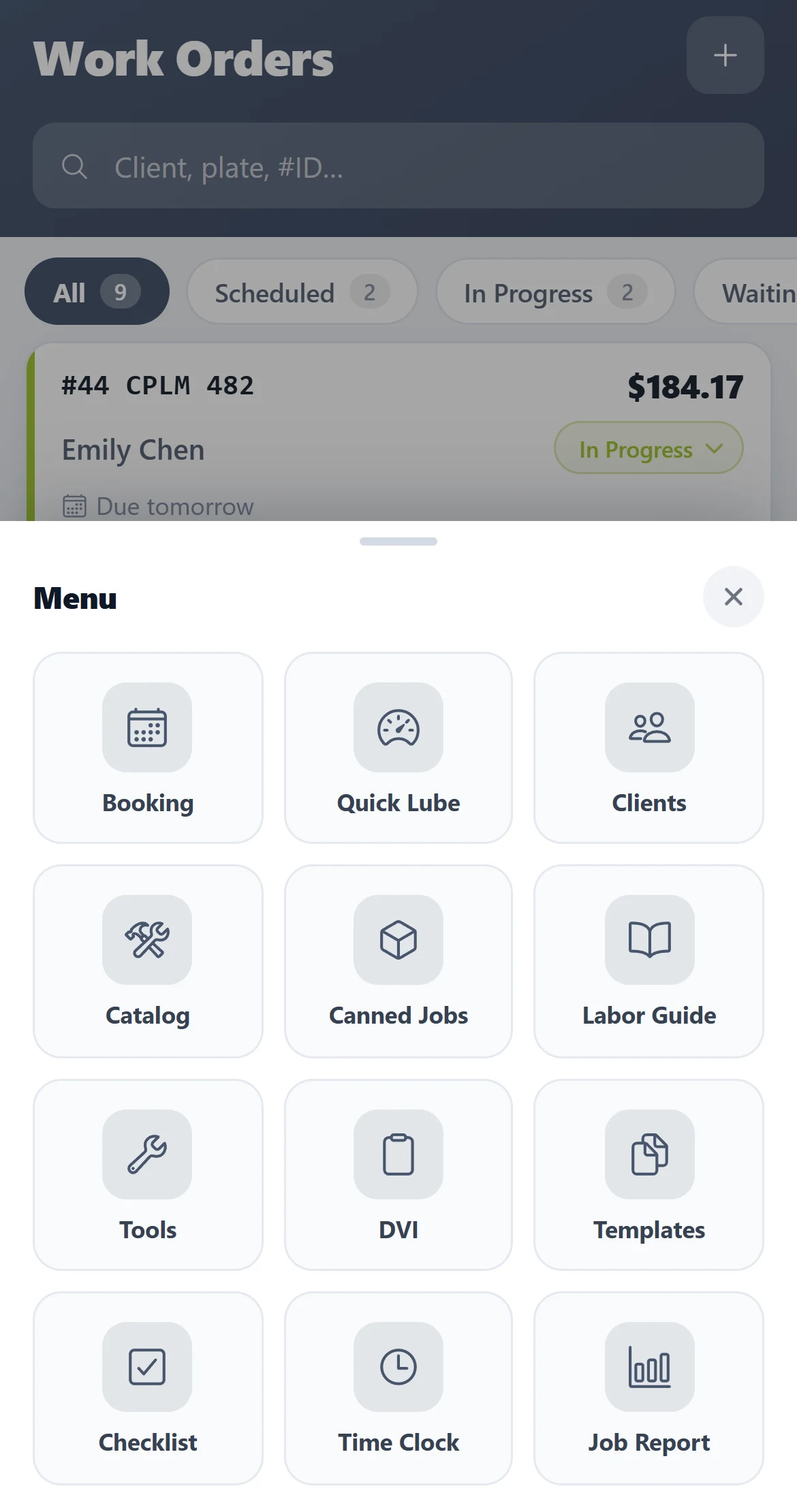
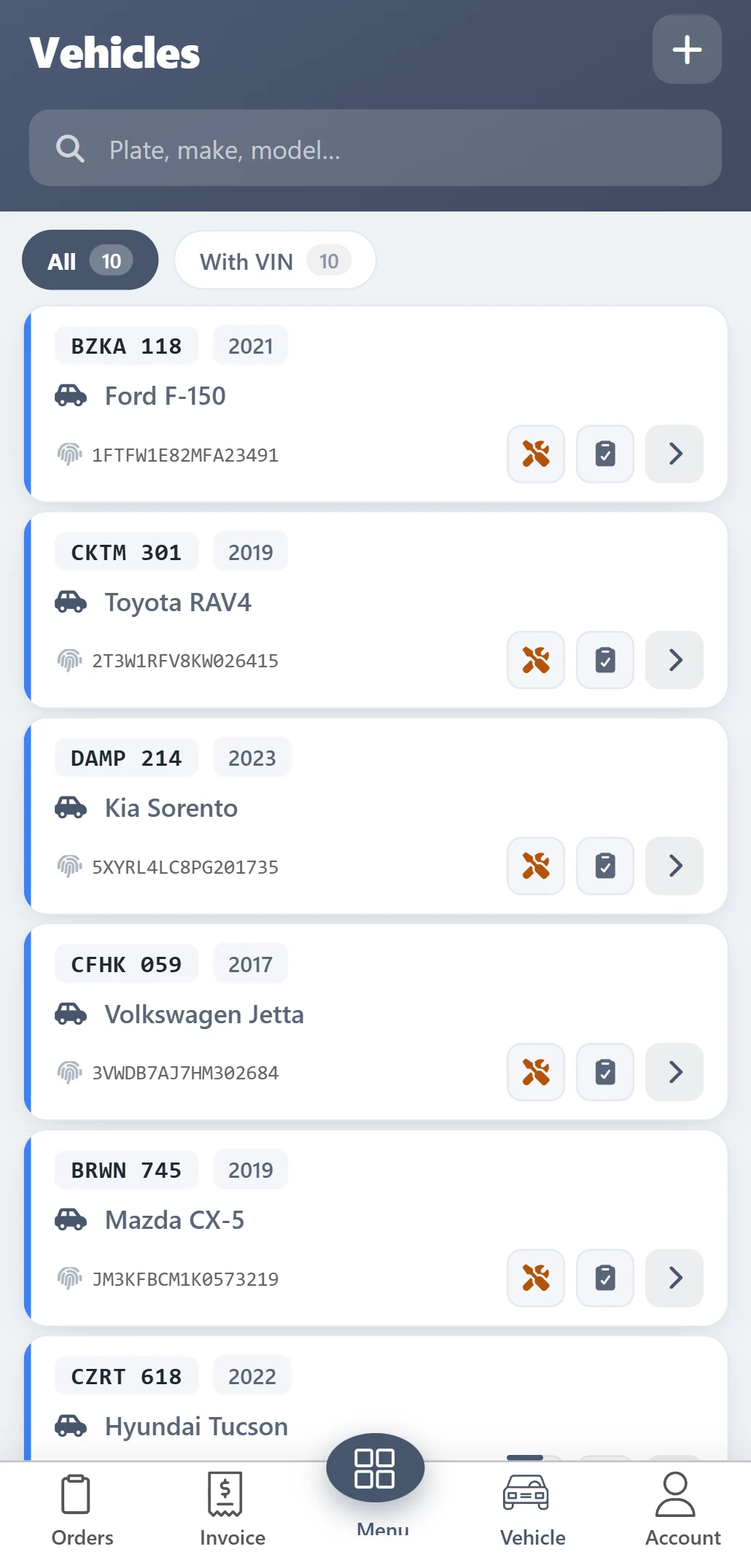
From the dashboard, navigate to the ‘Vehicles’ section and click to open it.
Step 2
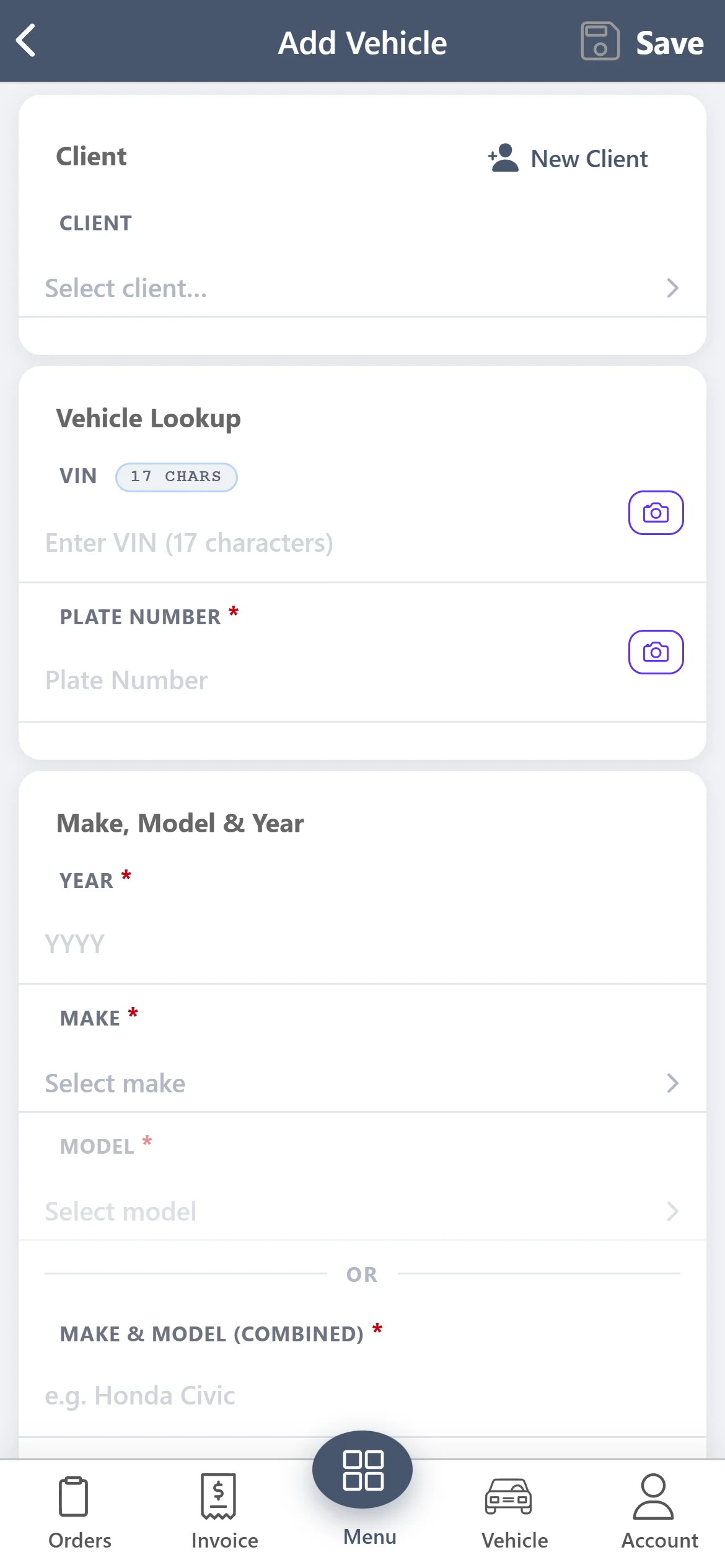
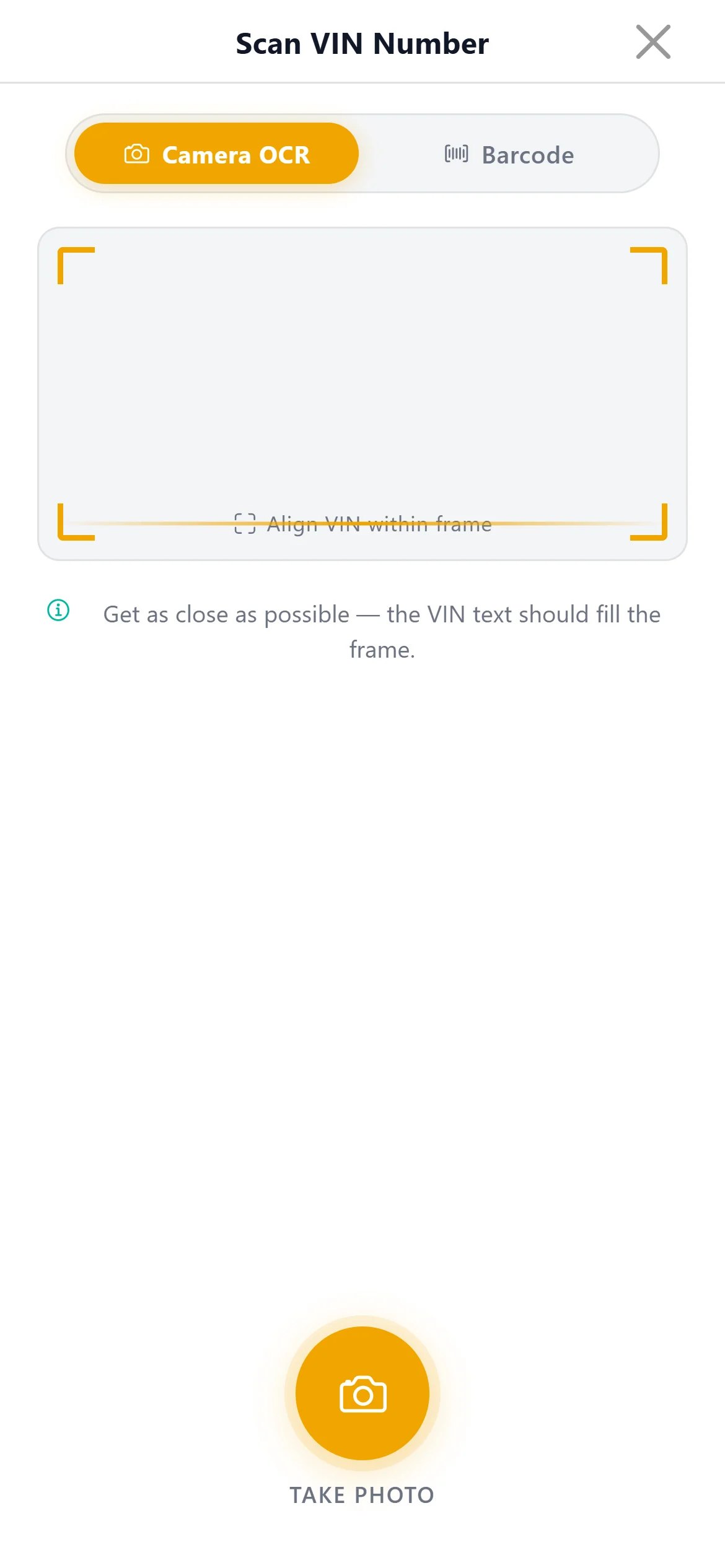
After navigating to the vehicle section of the app, tap on ‘Scan VIN’ to scan the VIN barcode.
Step 3
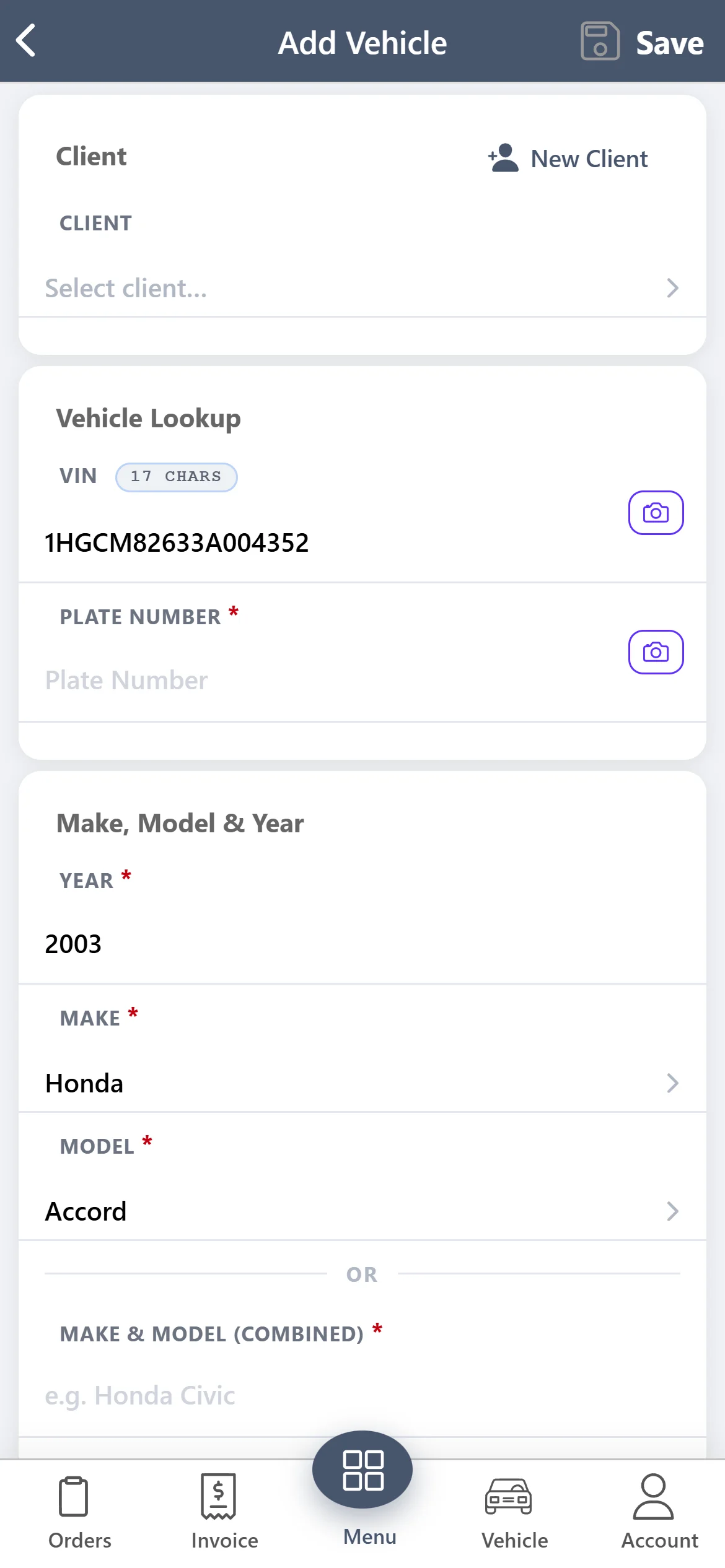
Once the VIN is scanned, it will be automatically added to the system. After that, the shop can proceed to complete the vehicle details.
Step 4
To add a new or existing client, simply fill in all the required information. Once completed, click ‘Save’ to proceed.