AutoSoftWay logo AutoSoftWay

Step-by-Step Guide: How to Create a Website in AutoSoftWay

Step 1

From Getting Started page, click What’s New, then select Website to access and manage your website creation tools. Everything you need for building your shop’s website is in one place.
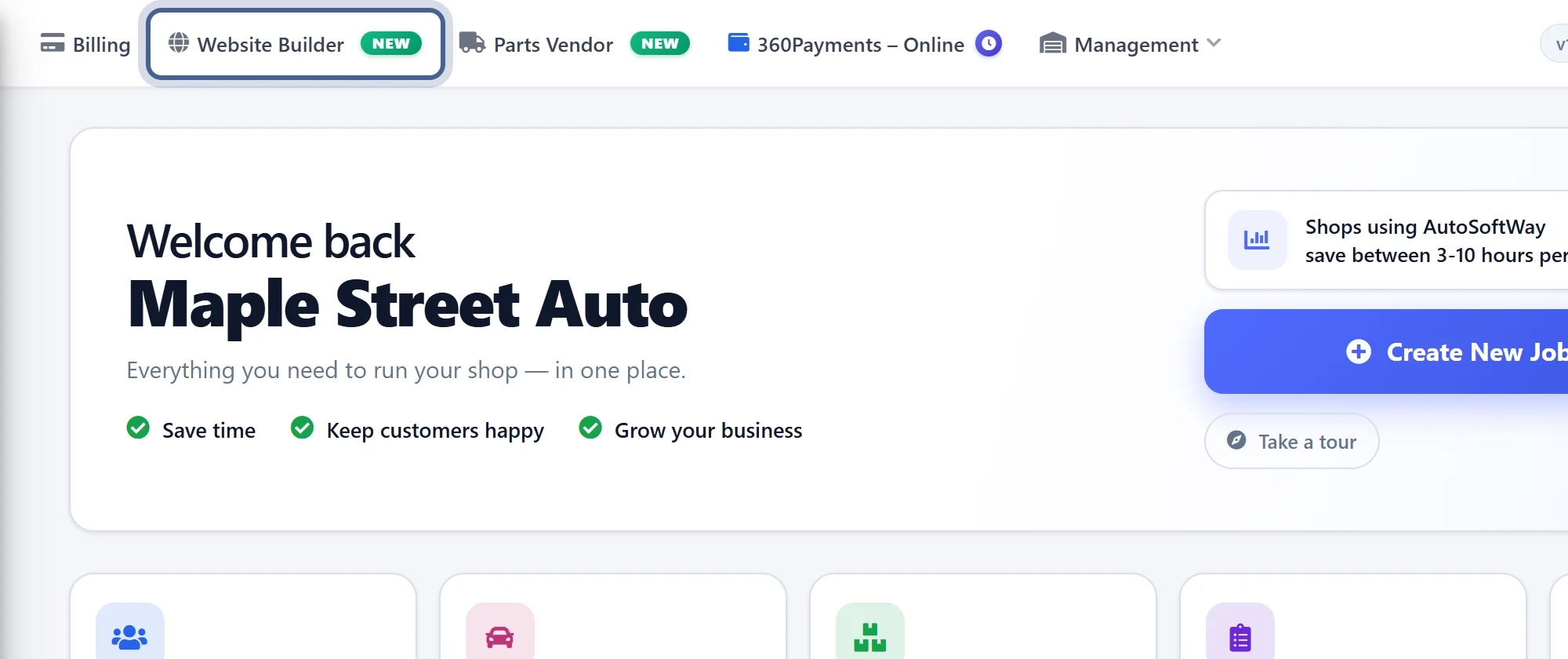
Step-by-Step Guide: How to Create a Website in AutoSoftWay: Step 1 — AutoSoftWay screenshot

Step 2

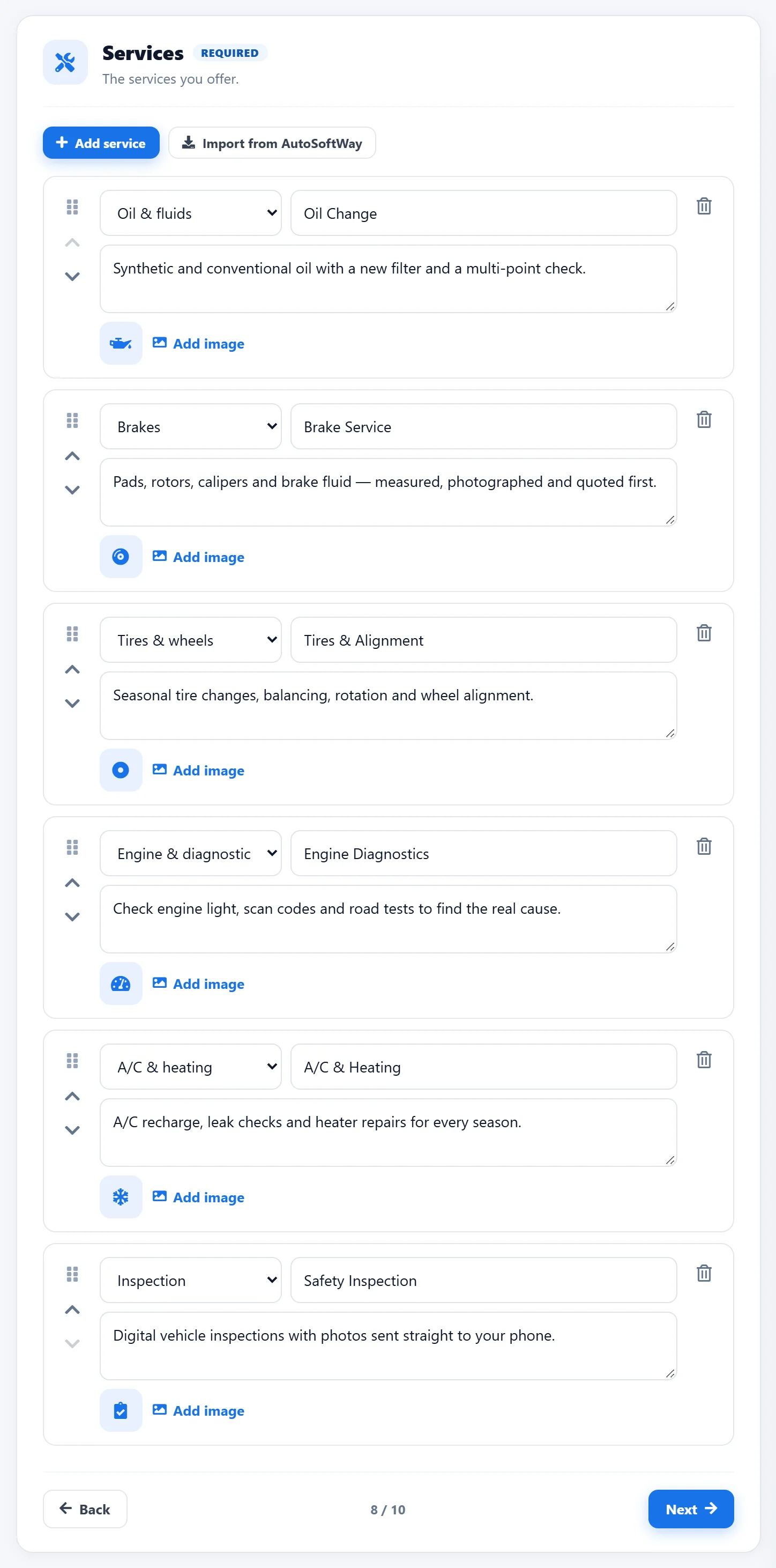
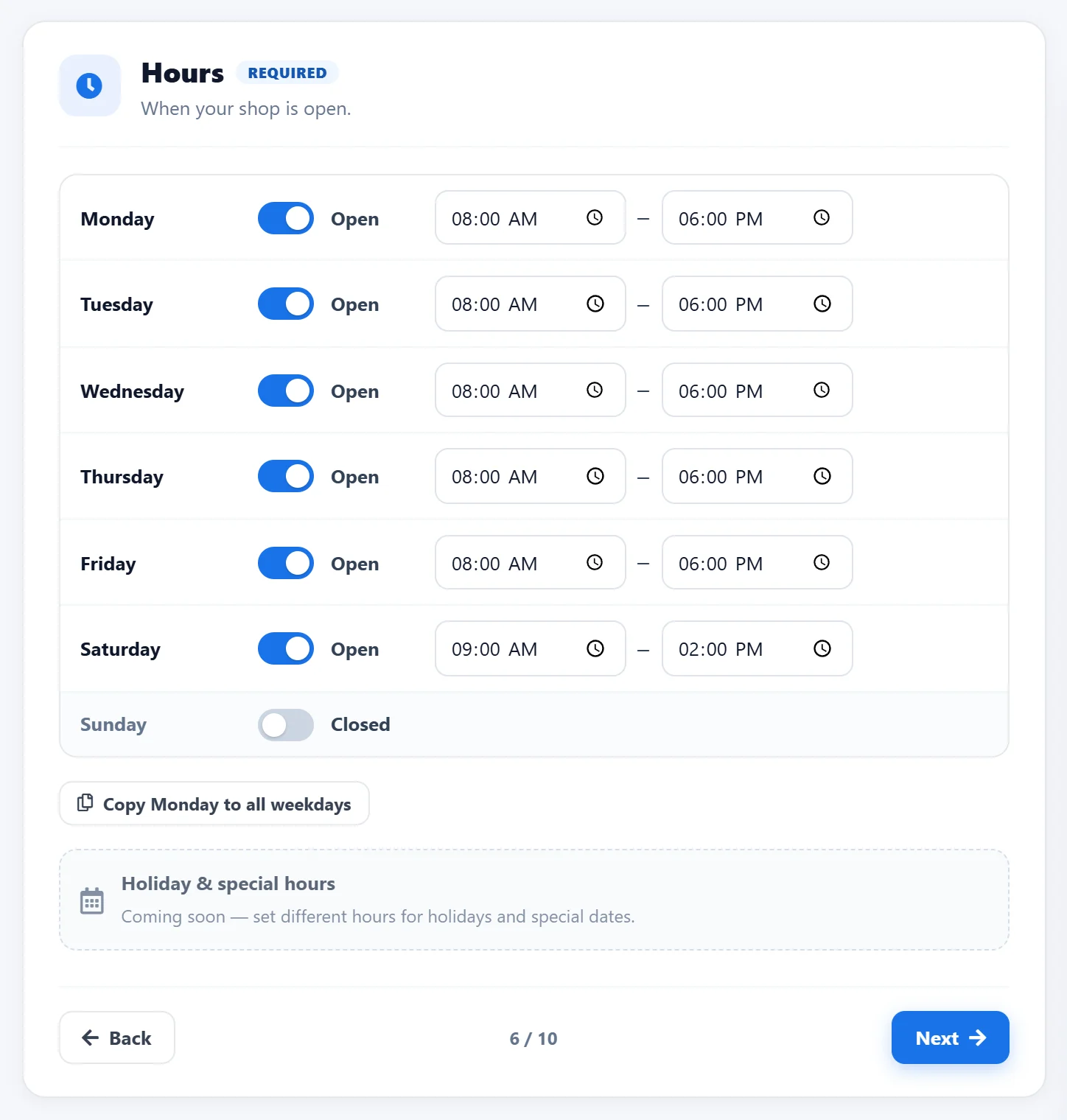
Complete all required information in each tab to ensure your website is generated accurately and includes everything needed.
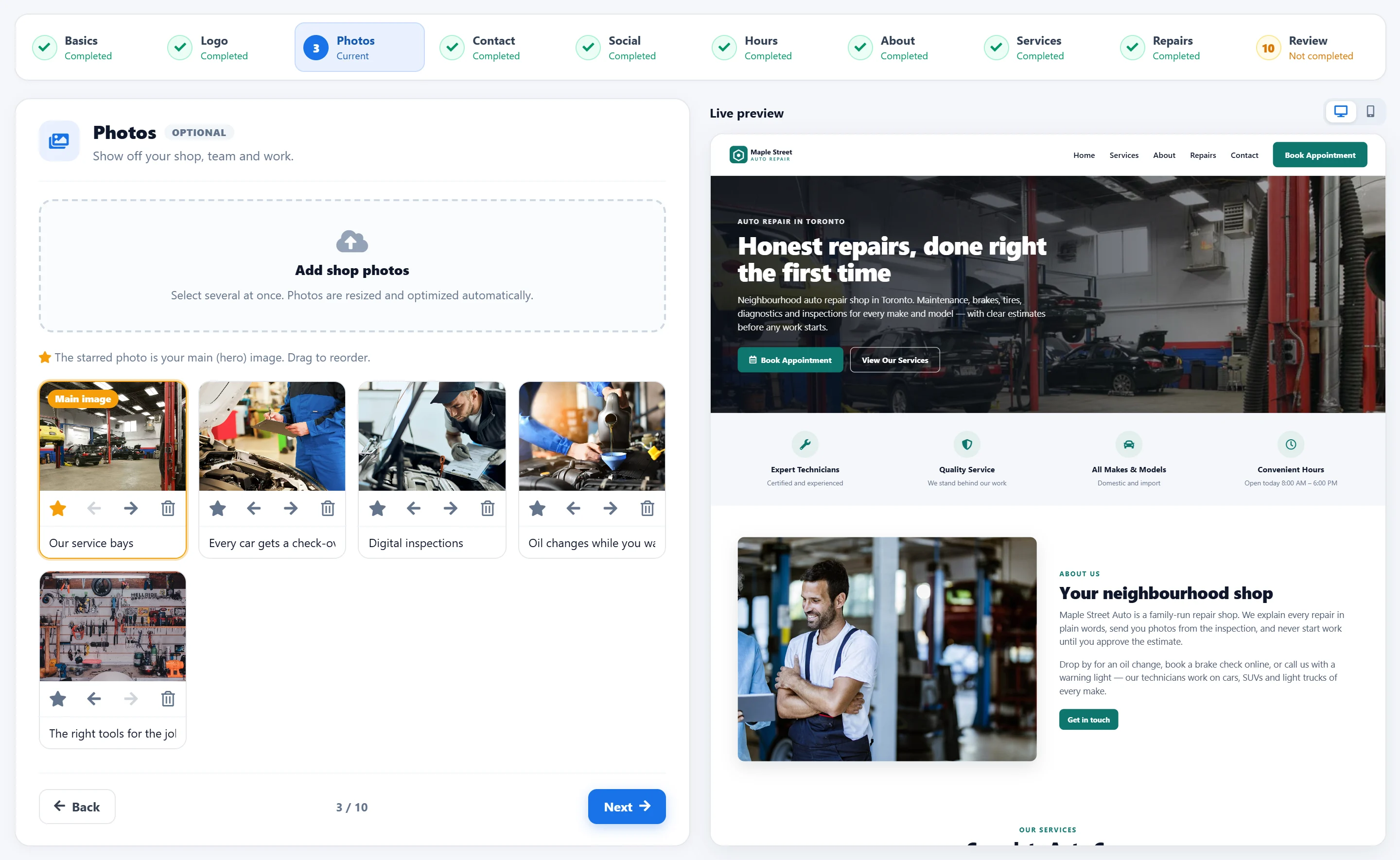
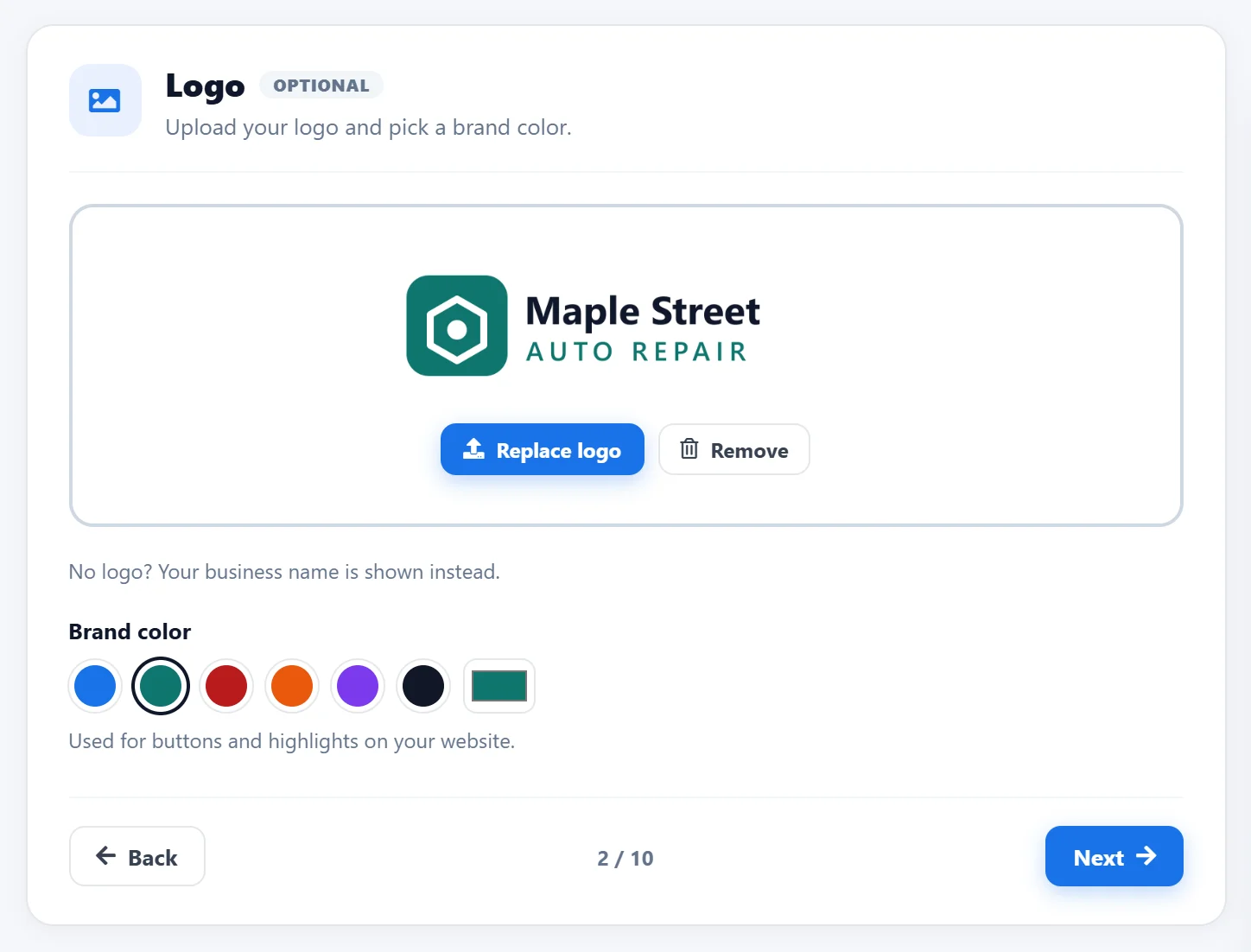
Step-by-Step Guide: How to Create a Website in AutoSoftWay: Step 2 — AutoSoftWay screenshot
Step-by-Step Guide: How to Create a Website in AutoSoftWay: Step 2 — AutoSoftWay screenshot (2)
Step-by-Step Guide: How to Create a Website in AutoSoftWay: Step 2 — AutoSoftWay screenshot (3)
Step-by-Step Guide: How to Create a Website in AutoSoftWay: Step 2 — AutoSoftWay screenshot (4)

Step 3

Once all the information has been completed, click Save. Then, select Open Site to view your website, or click Copy Link and paste it into a new browser tab to open and preview your website. Your newly created website is now ready and live to view.
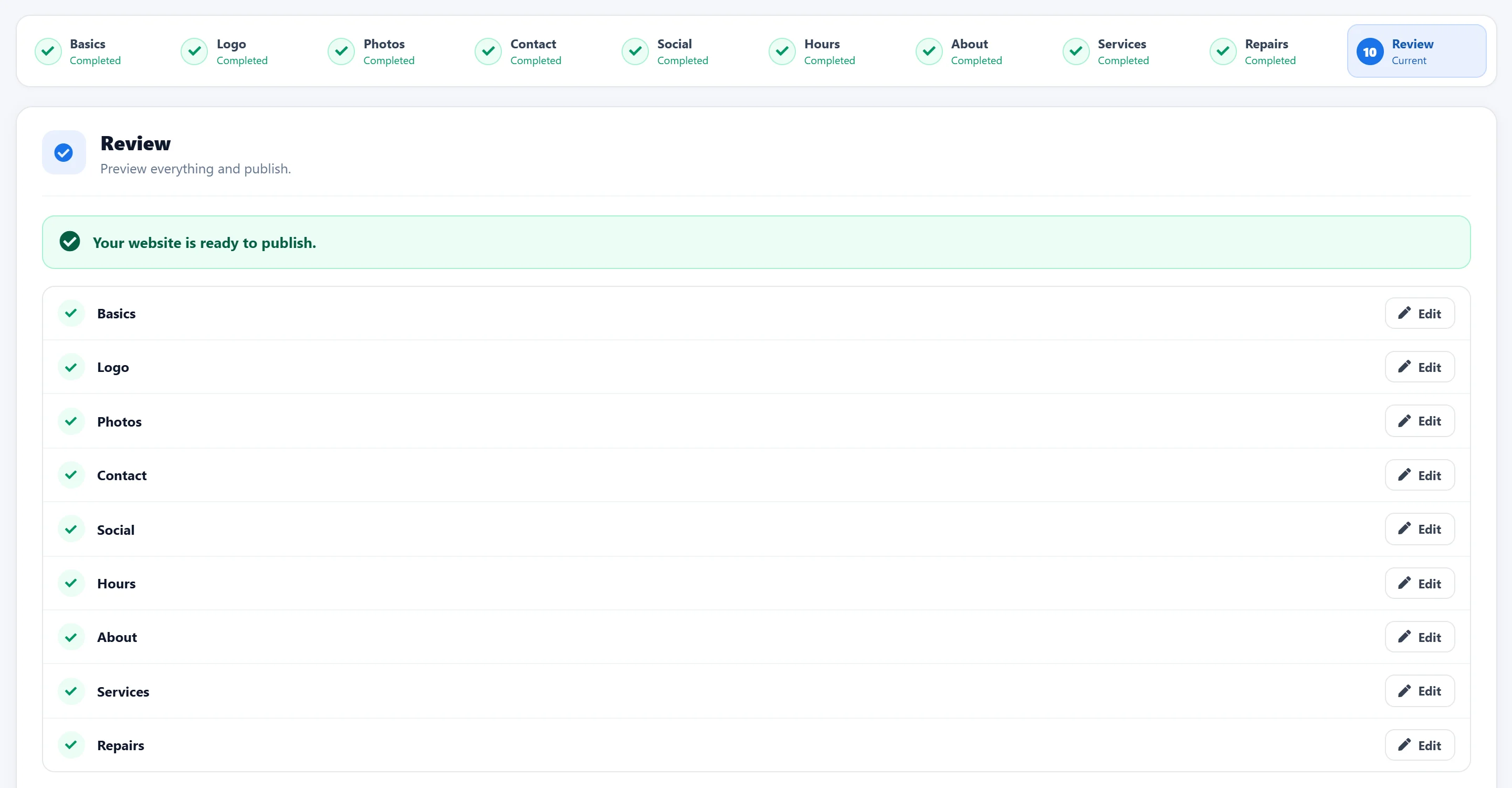
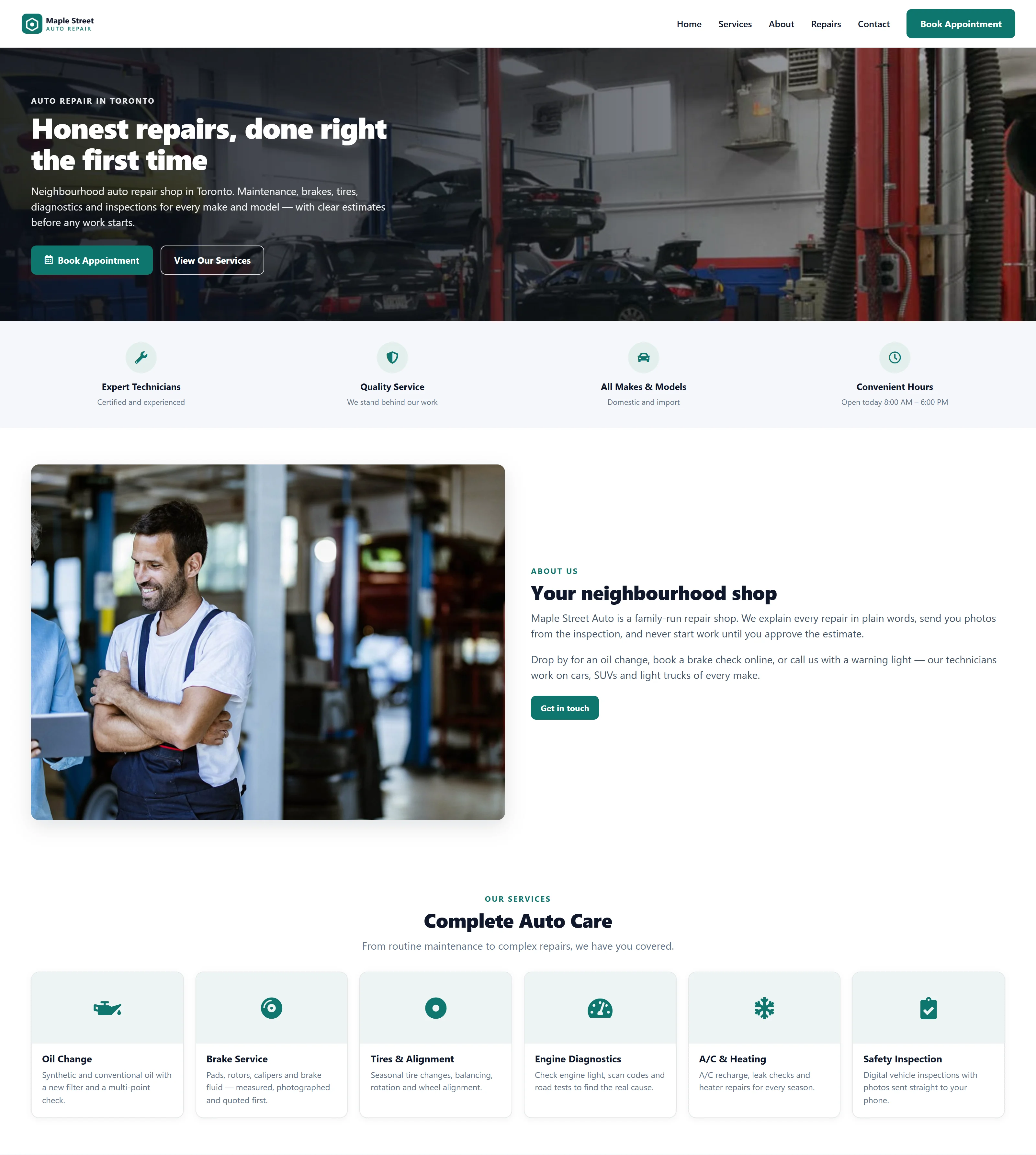
Step-by-Step Guide: How to Create a Website in AutoSoftWay: Step 3 — AutoSoftWay screenshot
Step-by-Step Guide: How to Create a Website in AutoSoftWay: Step 3 — AutoSoftWay screenshot (2)