


Adding employees takes a few clicks. Add your technicians, service advisors and managers so you can easily assign work, track their time and manage what each person can access.
- 1
Open Employees
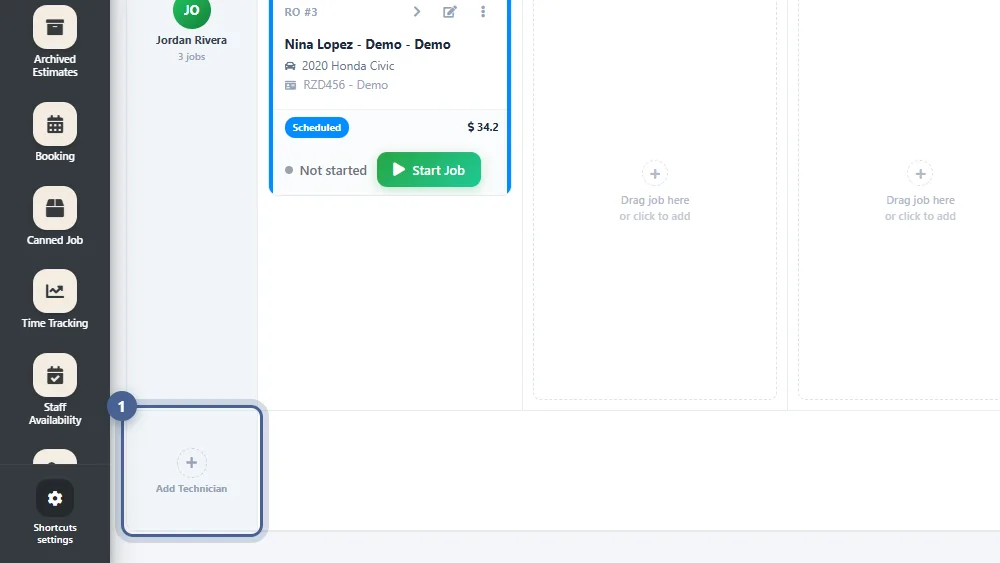
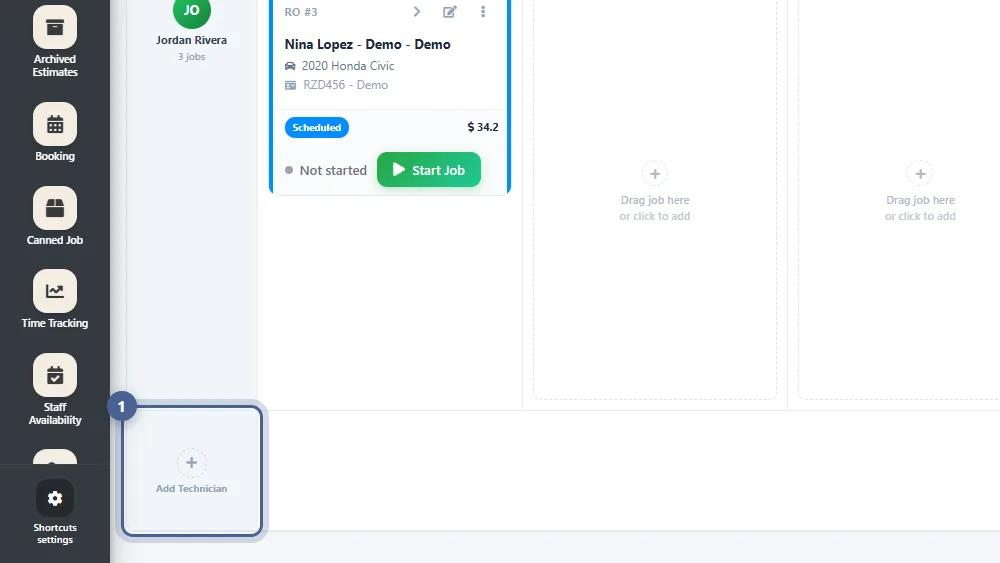
Open the Job Board and click + Add Technician under your technician list. (On a phone, Employees is in the menu’s Quick Links.)
- 2
Click “Add Employee”
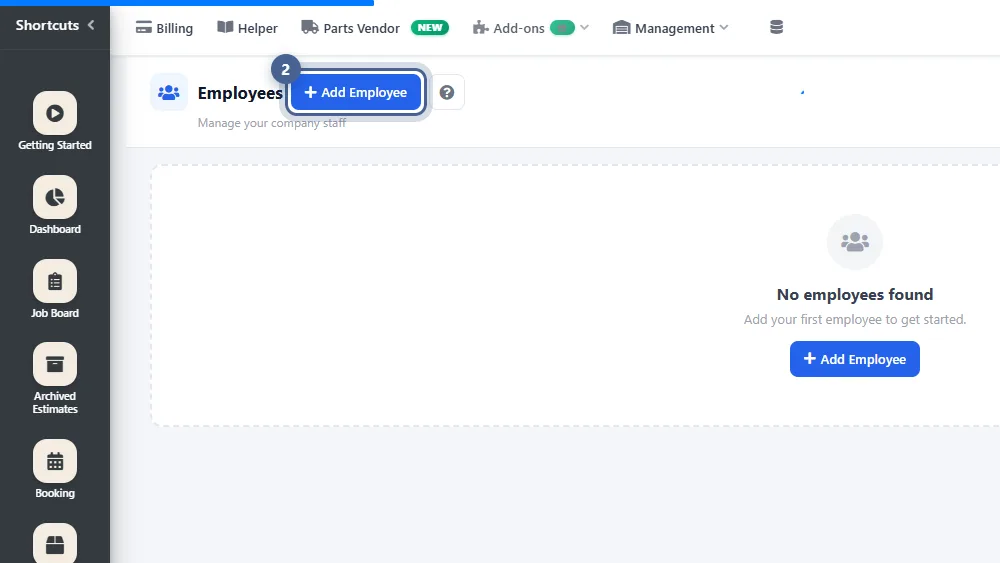
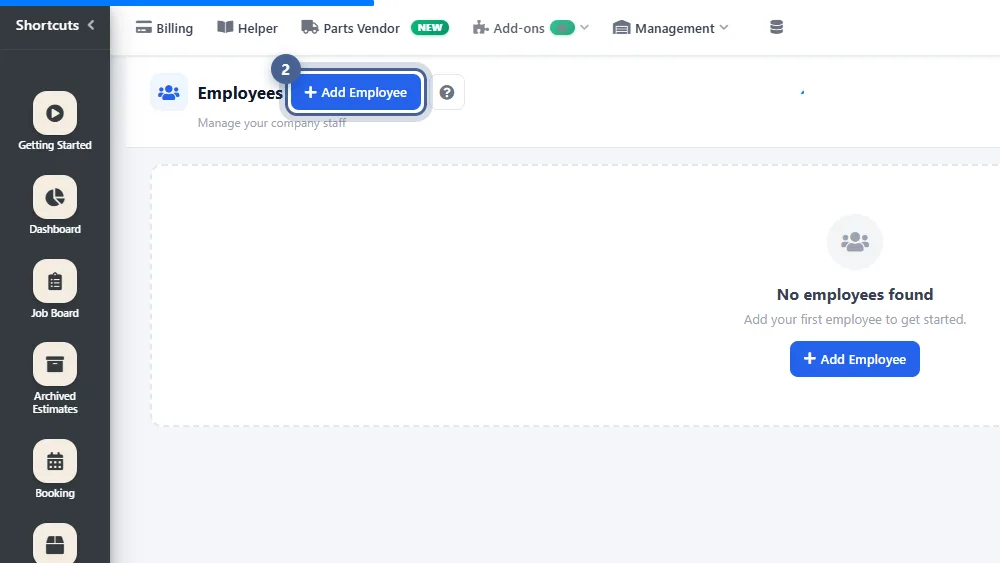
The Employees page lists everyone on your team. Click + Add Employee to open the New Employee panel.
- 3
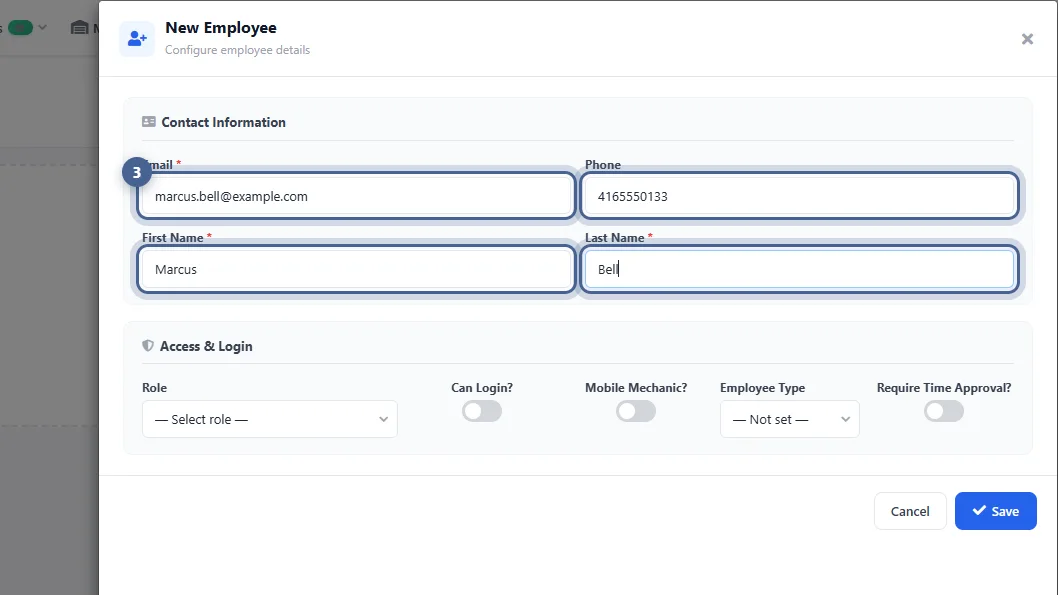
Enter the contact information
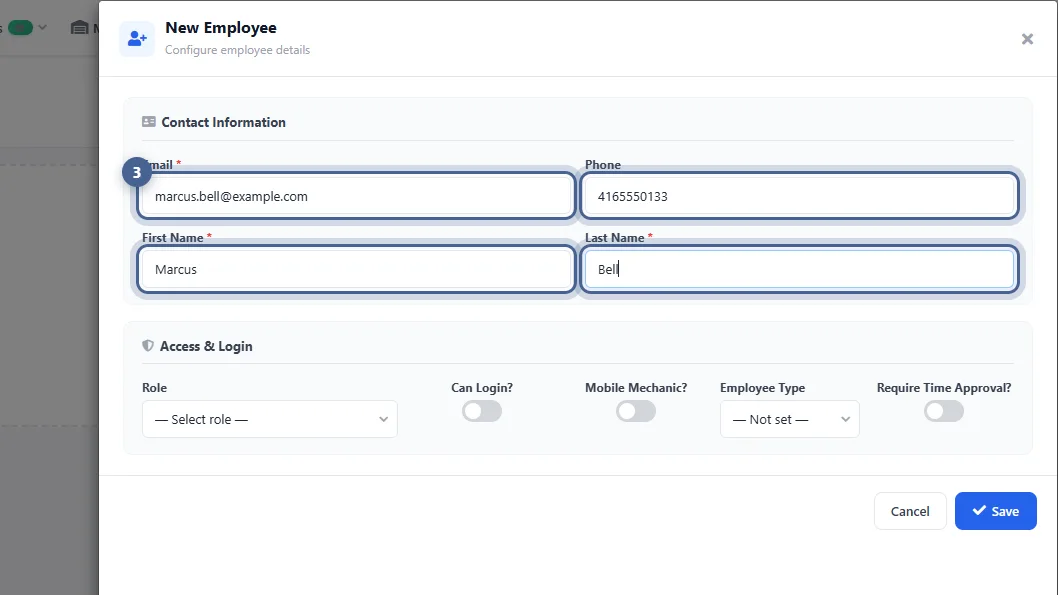
Email, First Name and Last Name are required. The email is also the employee’s username if you let them log in.
- 4
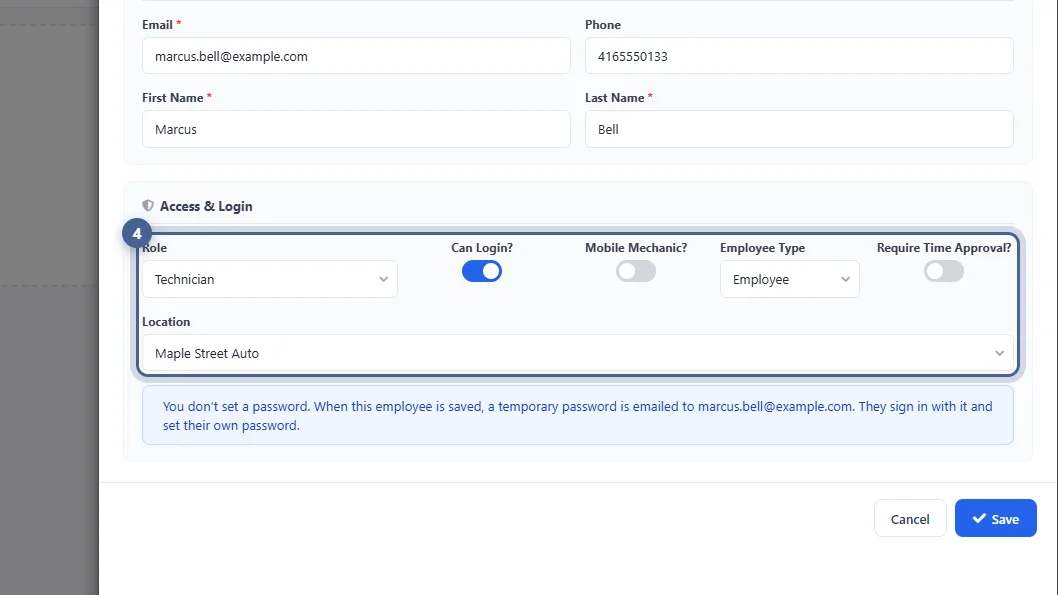
Choose the role and access
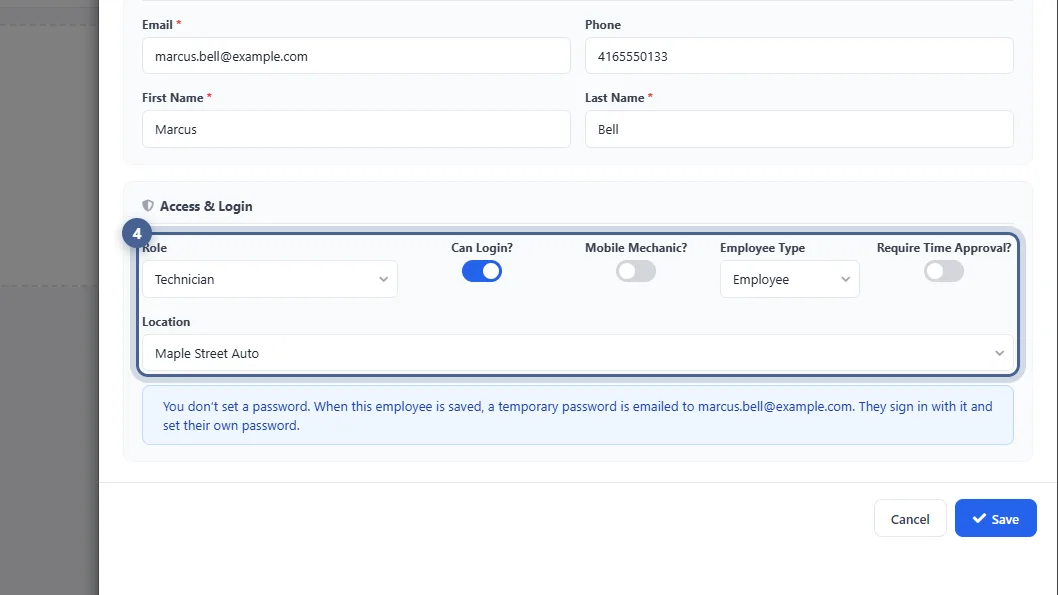
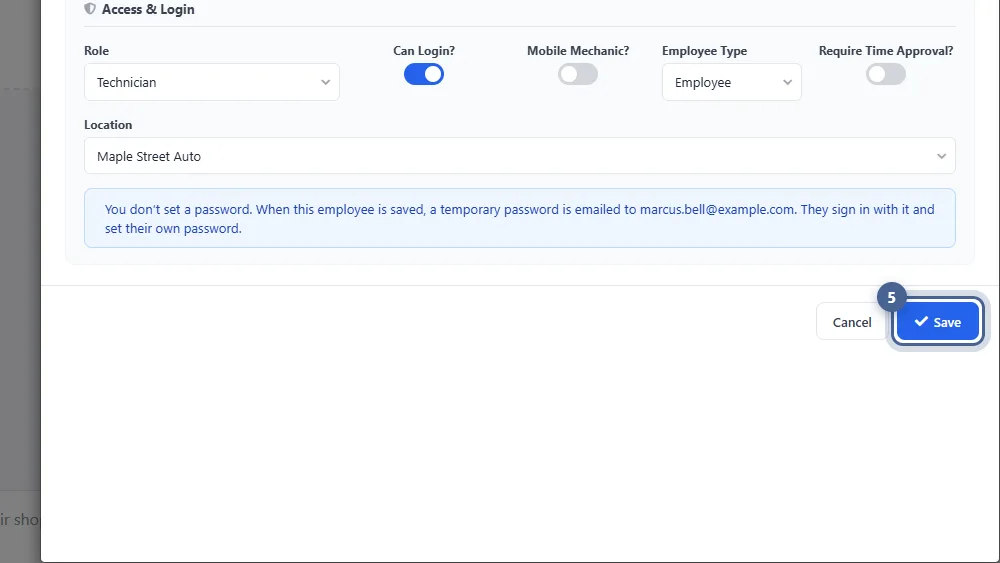
Pick a Role — Technician, Service Advisor, Manager or DVI (inspections only) — which controls what the person can see and do. Turn on Can Login? to give them their own login and choose their Location. Mobile Mechanic? sends them straight to their on-site jobs; Employee Type and Require Time Approval? control how their clocked hours are handled.
- 5
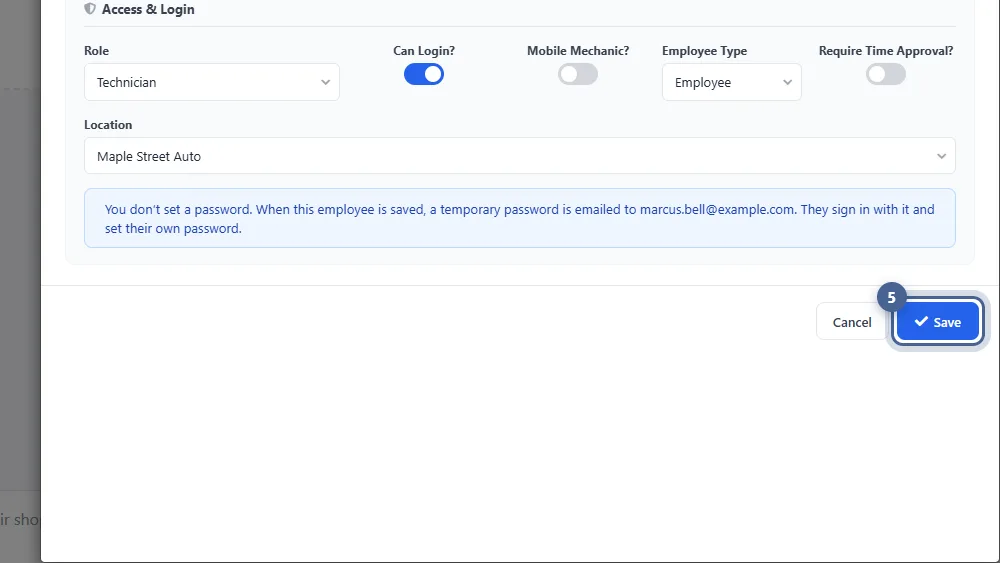
Save the employee
Click Save. You don’t set a password yourself: when Can Login? is on, AutoSoftWay emails the employee a temporary password and they choose their own at first login.
- 6
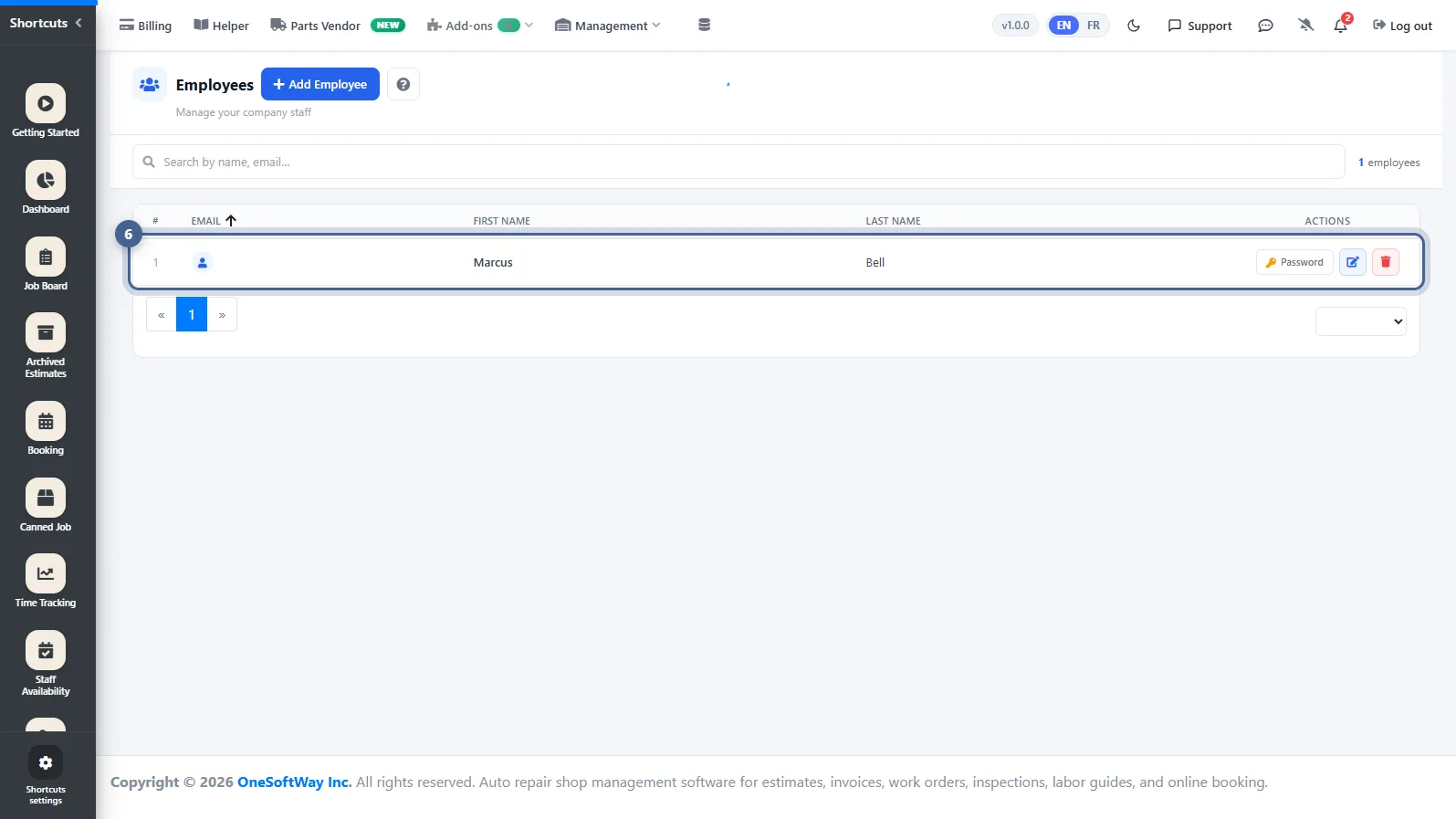
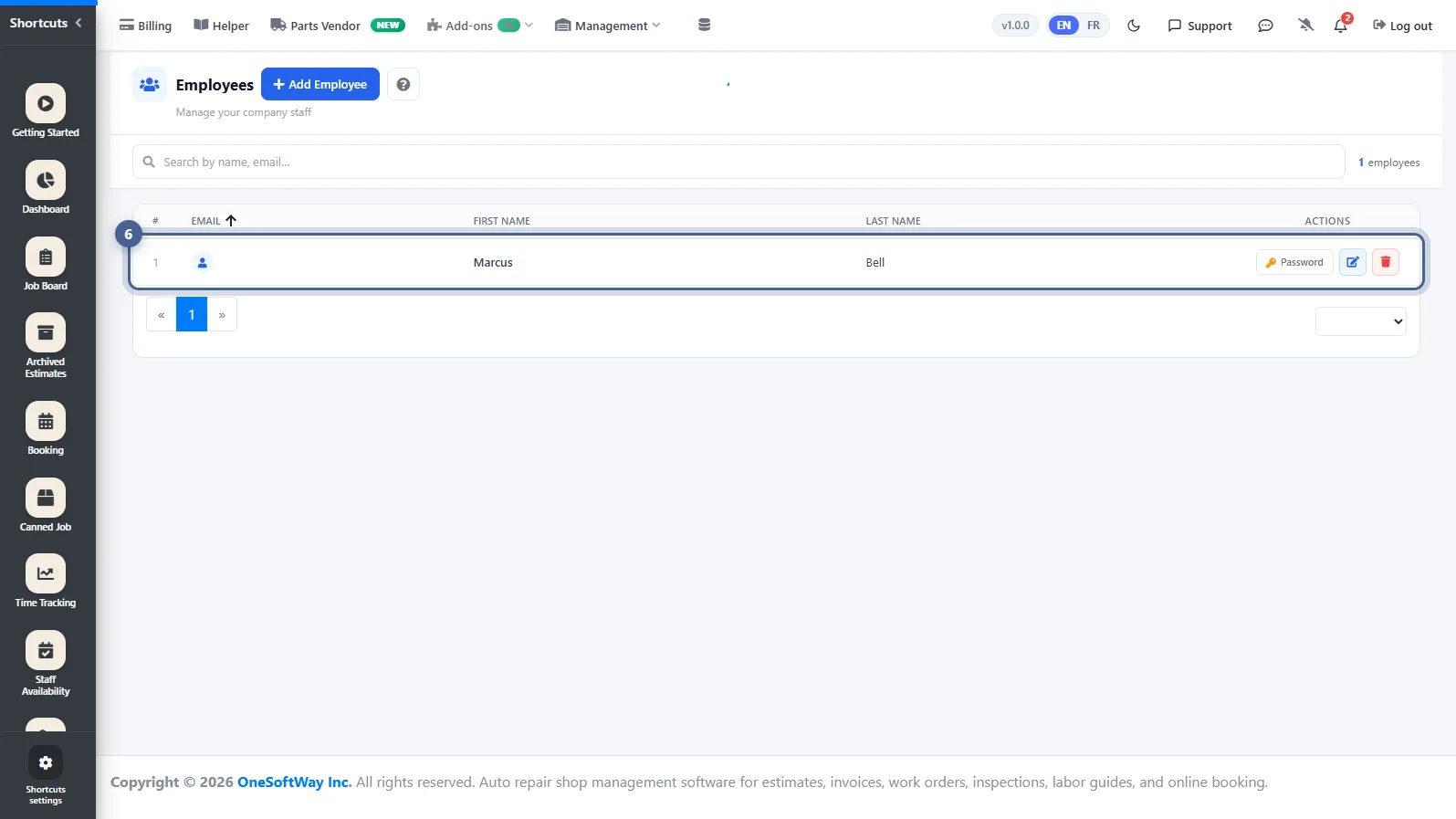
The employee is ready
Marcus now appears in your Employees list. Technicians show up on the Job Board, can be assigned jobs and appointments, and can clock time against their work.
Screenshots taken from AutoSoftWay in September 2026 using a demo shop with sample data.