

14 step-by-step guides
Learn AutoSoftWay step by step
Each guide walks you through a task with real screenshots from AutoSoftWay, with every click highlighted.
-
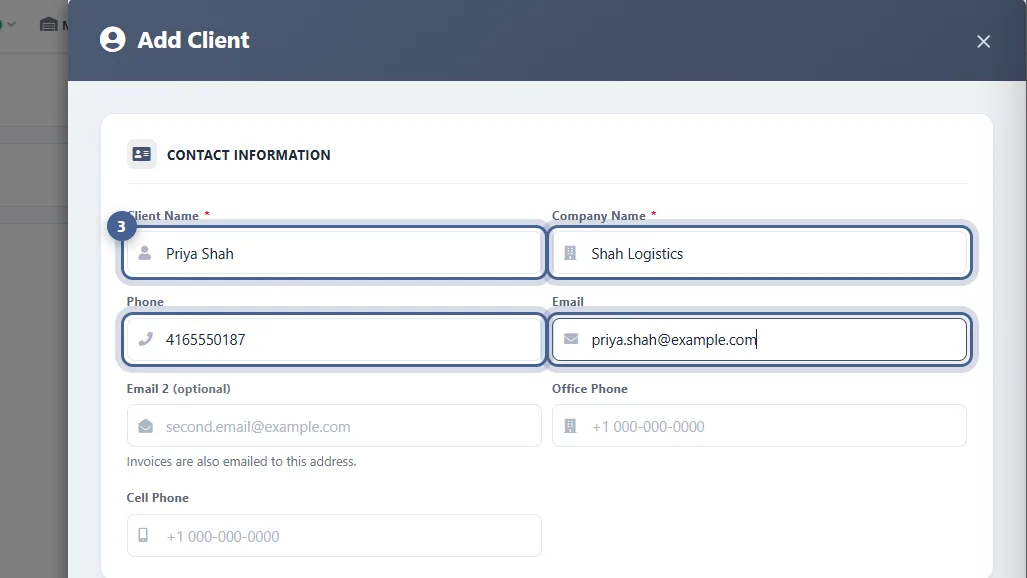 Getting Started Adding Clients Every estimate, invoice and appointment starts with a client. Adding clients takes under a minute: this guide shows how to add a customer — and their first vehicle — so you can manage your customer list effortlessly. 8 steps · about 4 min
-
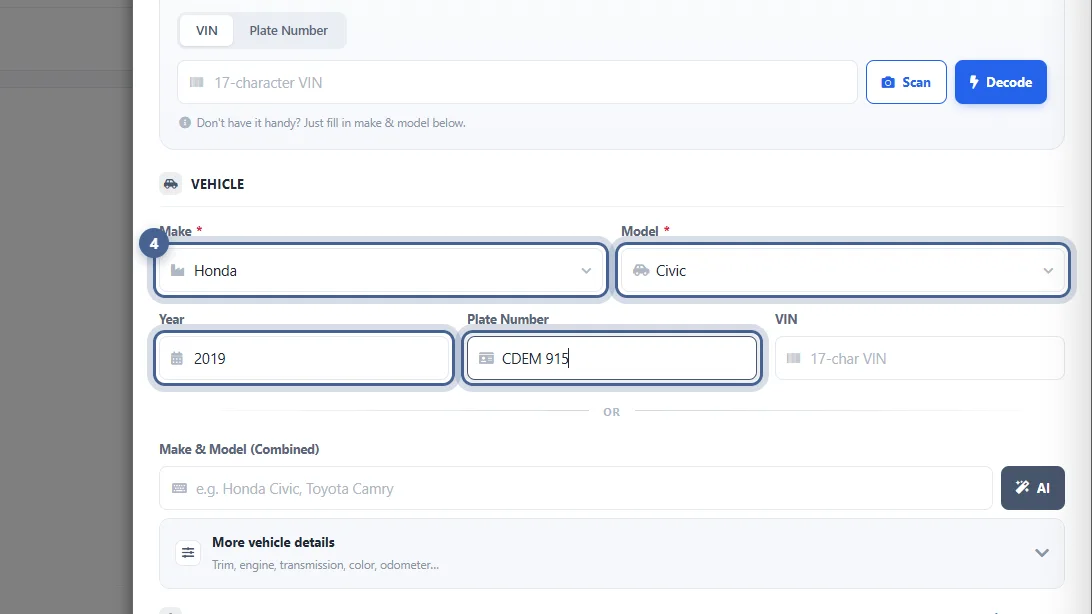 Getting Started Adding a Client’s Vehicle Every job is tied to a vehicle. Easily add a car in seconds — decode it from the VIN, or pick the make and model — and link it to its owner. 7 steps · about 4 min
-
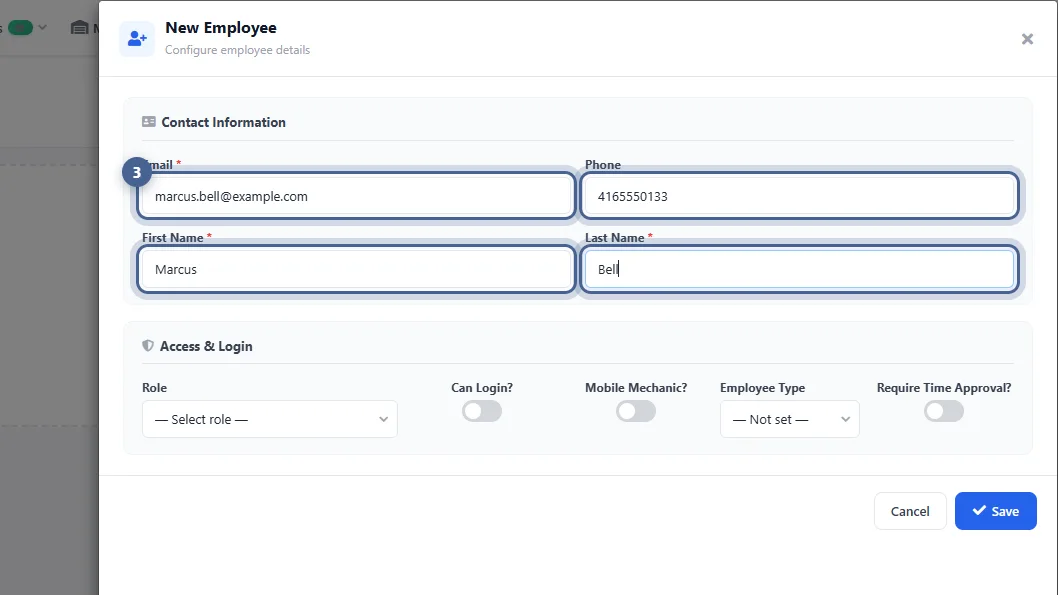 Getting Started Adding Employees Adding employees takes a few clicks. Add your technicians, service advisors and managers so you can easily assign work, track their time and manage what each person can access. 6 steps · about 3 min
-
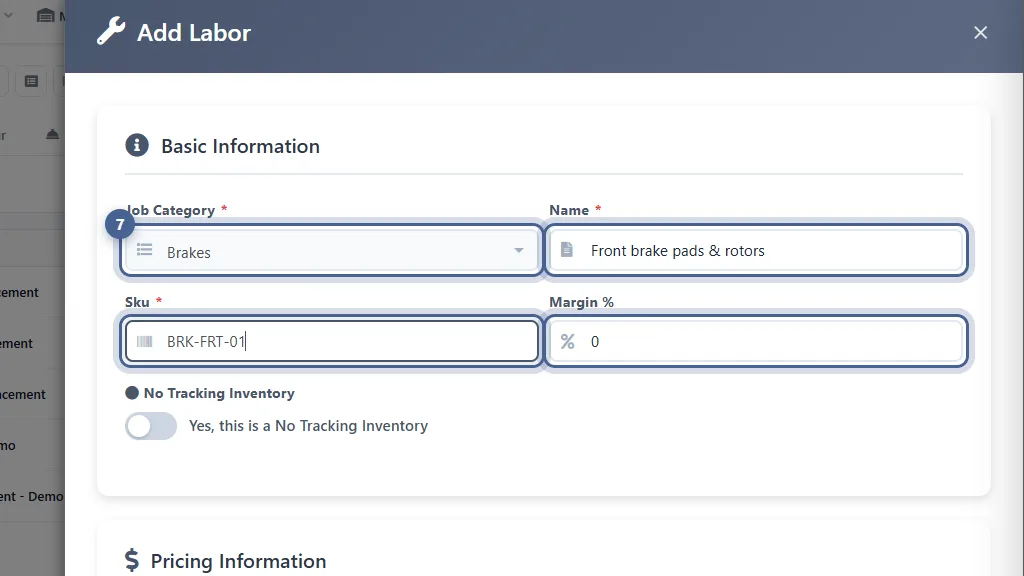 Getting Started Set Up Your Labor Rates Set your shop’s hourly labour and inspection rates once, then build a catalogue of your common jobs so estimates price themselves with ease. 10 steps · about 5 min
-
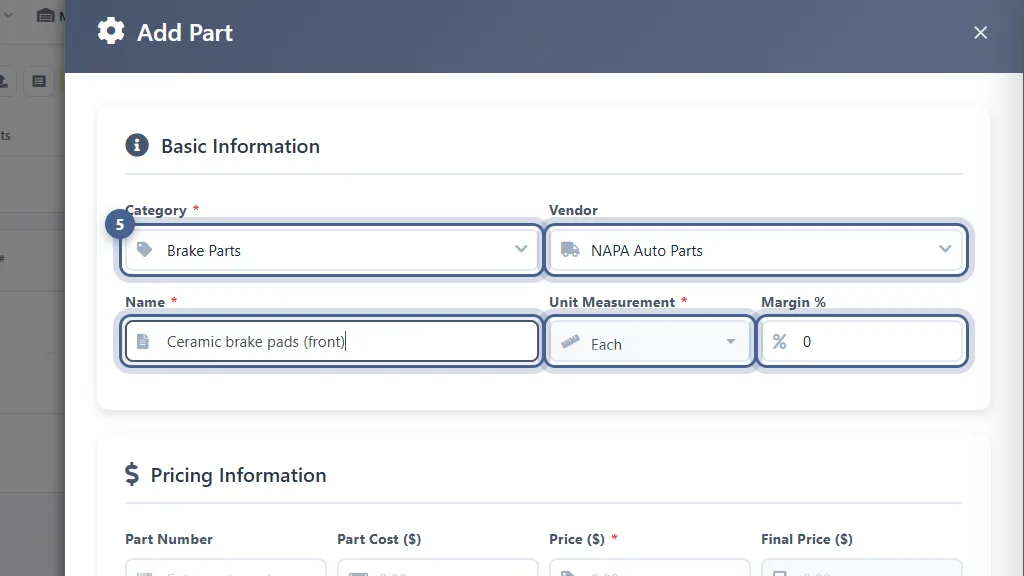 Getting Started Managing Your Product Inventory Managing your product inventory is made simple: build your parts catalogue with costs, prices and stock levels, so estimates price themselves and you always know what’s on the shelf. 10 steps · about 5 min
-
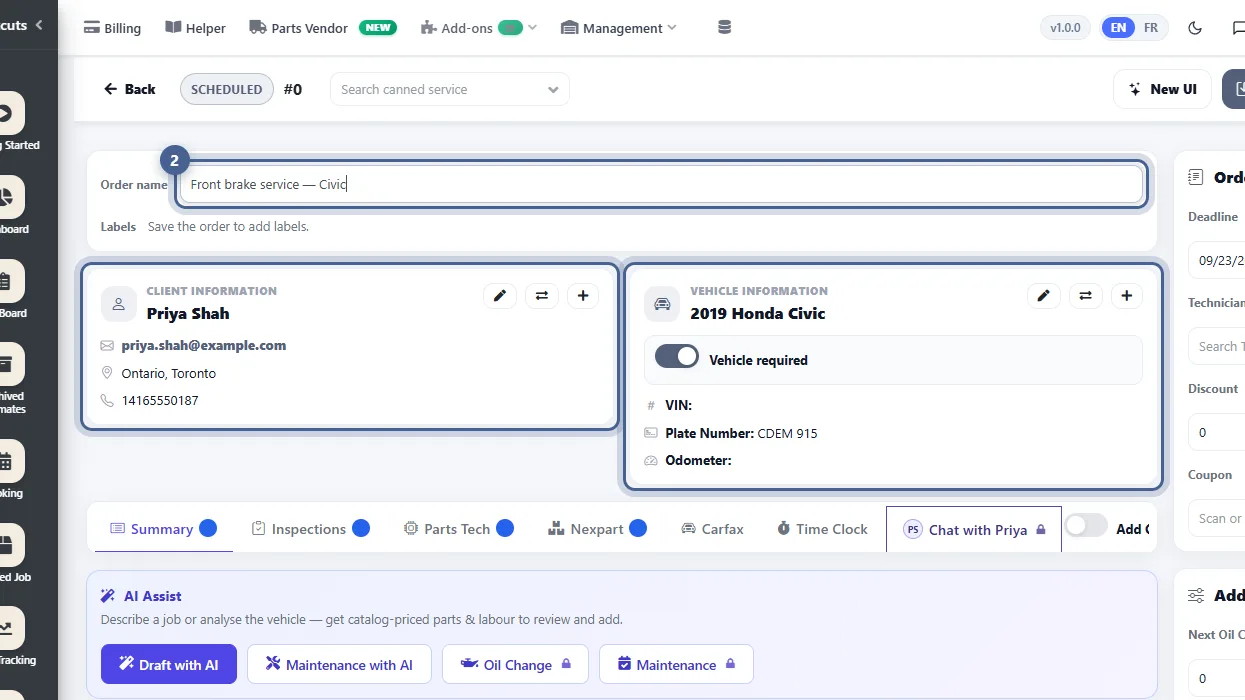 Repair Orders and Invoice Creating an Estimate Creating a professional, accurately priced estimate takes a couple of minutes — client and vehicle, labour, parts — then you send it to the customer to approve. It’s the first step of every work order in auto repair shops using AutoSoftWay. 8 steps · about 4 min
-
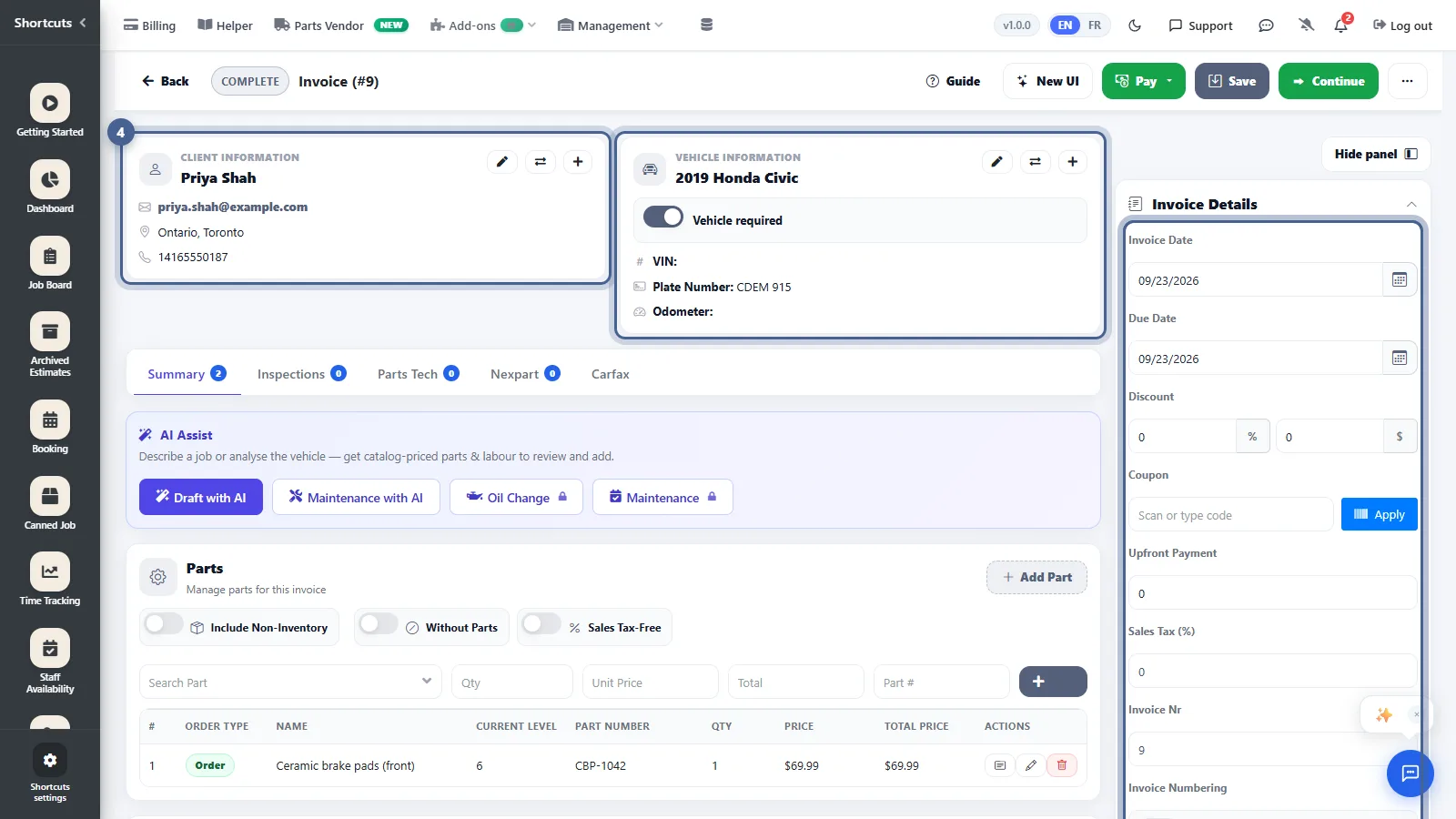 Repair Orders and Invoice Creating an Invoice Generate an invoice from a finished job in two clicks — no retyping — then take payment and send it to your customer with ease. 7 steps · about 4 min
-
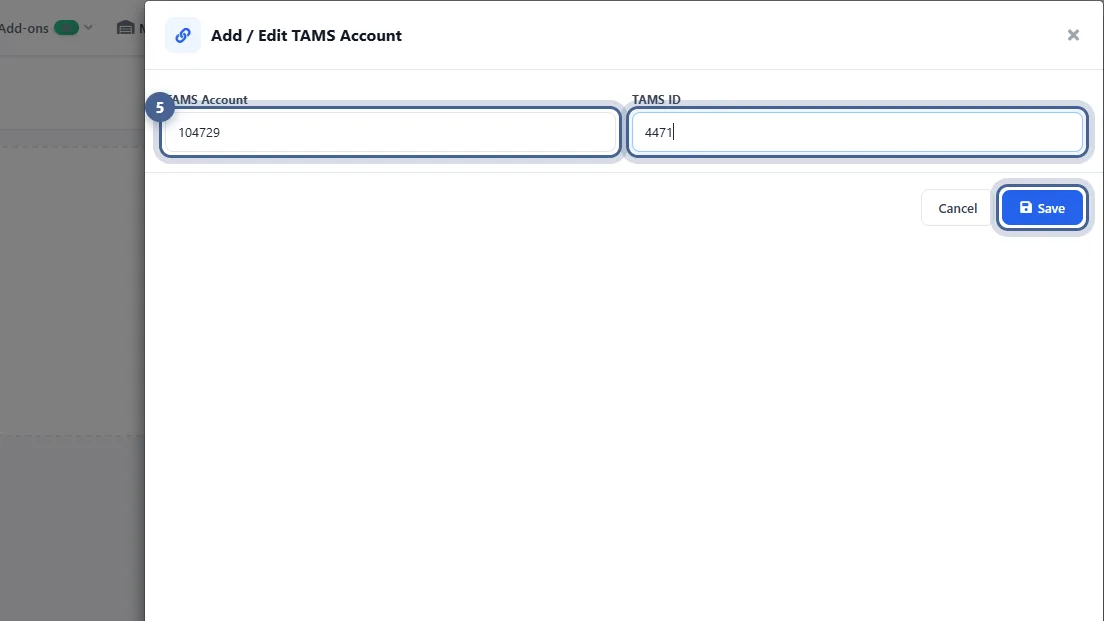 Integrations Set Up NAPA PROLink Set up NAPA PROLink by connecting your NAPA store account to AutoSoftWay, so you can look up and order NAPA parts — with your own pricing — straight from an estimate. 6 steps · about 3 min
-
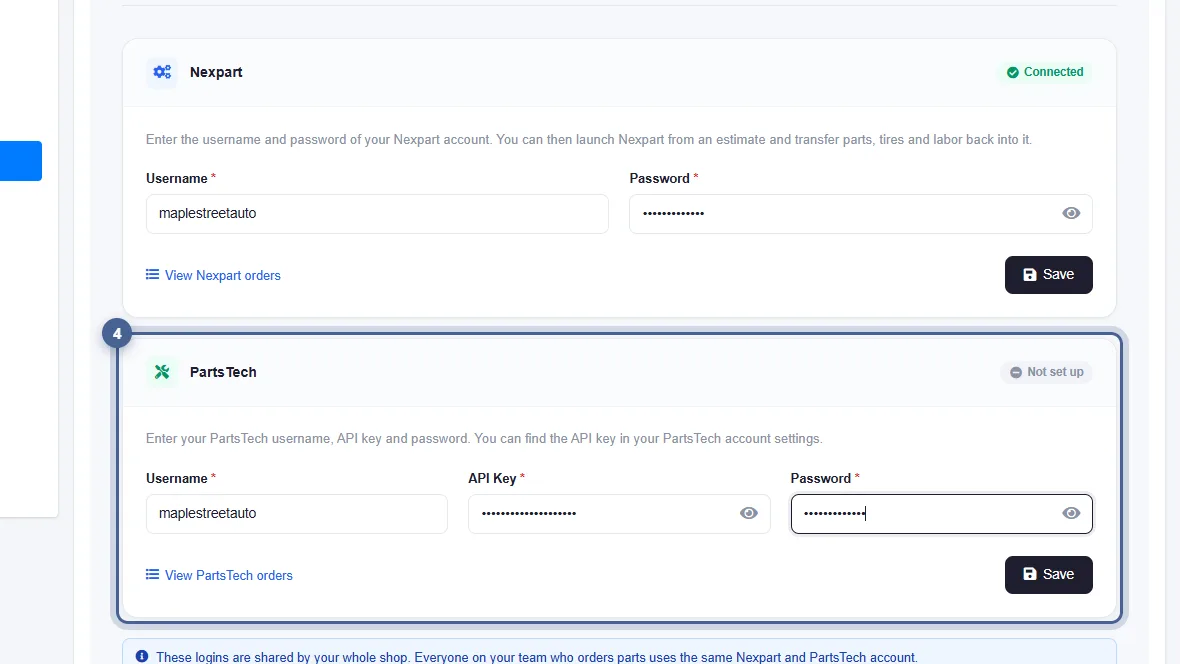 Integrations Set Up PartsTech Set up PartsTech once for the whole shop: enable the integration by connecting your PartsTech account, then search and order parts from all your suppliers straight from an estimate. 6 steps · about 3 min
-
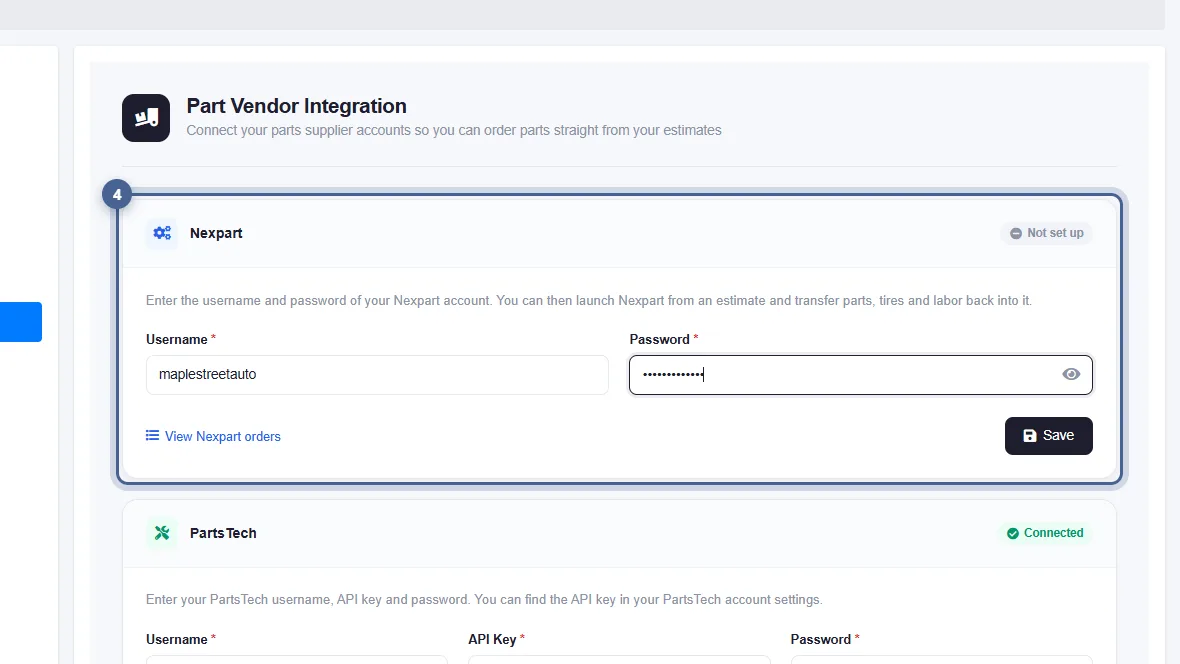 Integrations Set Up Nexpart Set up Nexpart once for the whole shop: connect your Nexpart Multi-Seller account, then find parts from your local suppliers and transfer them into an estimate. 6 steps · about 3 min
-
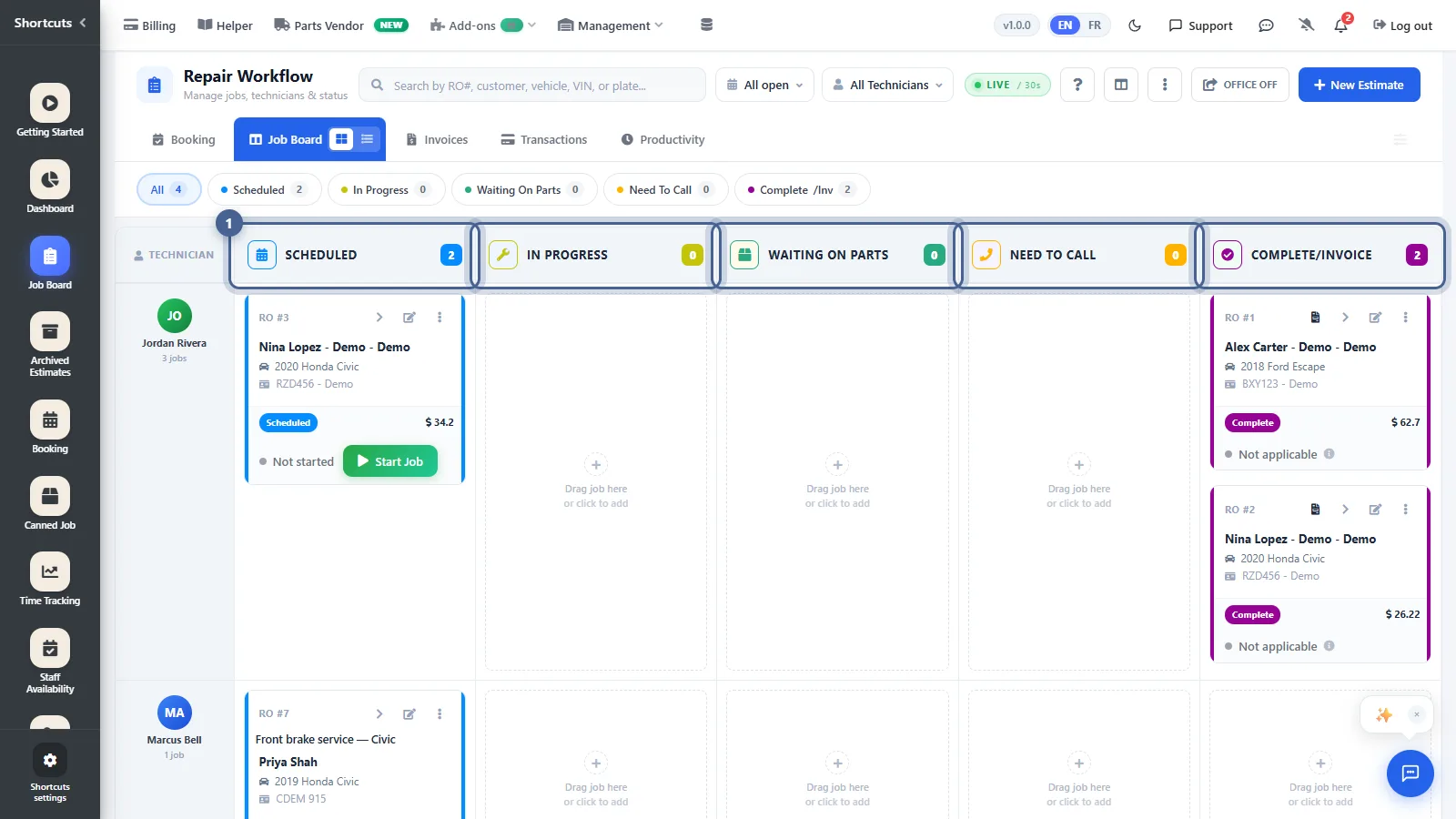 Repairs Workflow Coordinating Your Auto Shop With Workflow Coordinating your shop starts with the Job Board: your shop floor on one screen — every job, every technician, every stage — so everyone knows what’s next. 7 steps · about 4 min
-
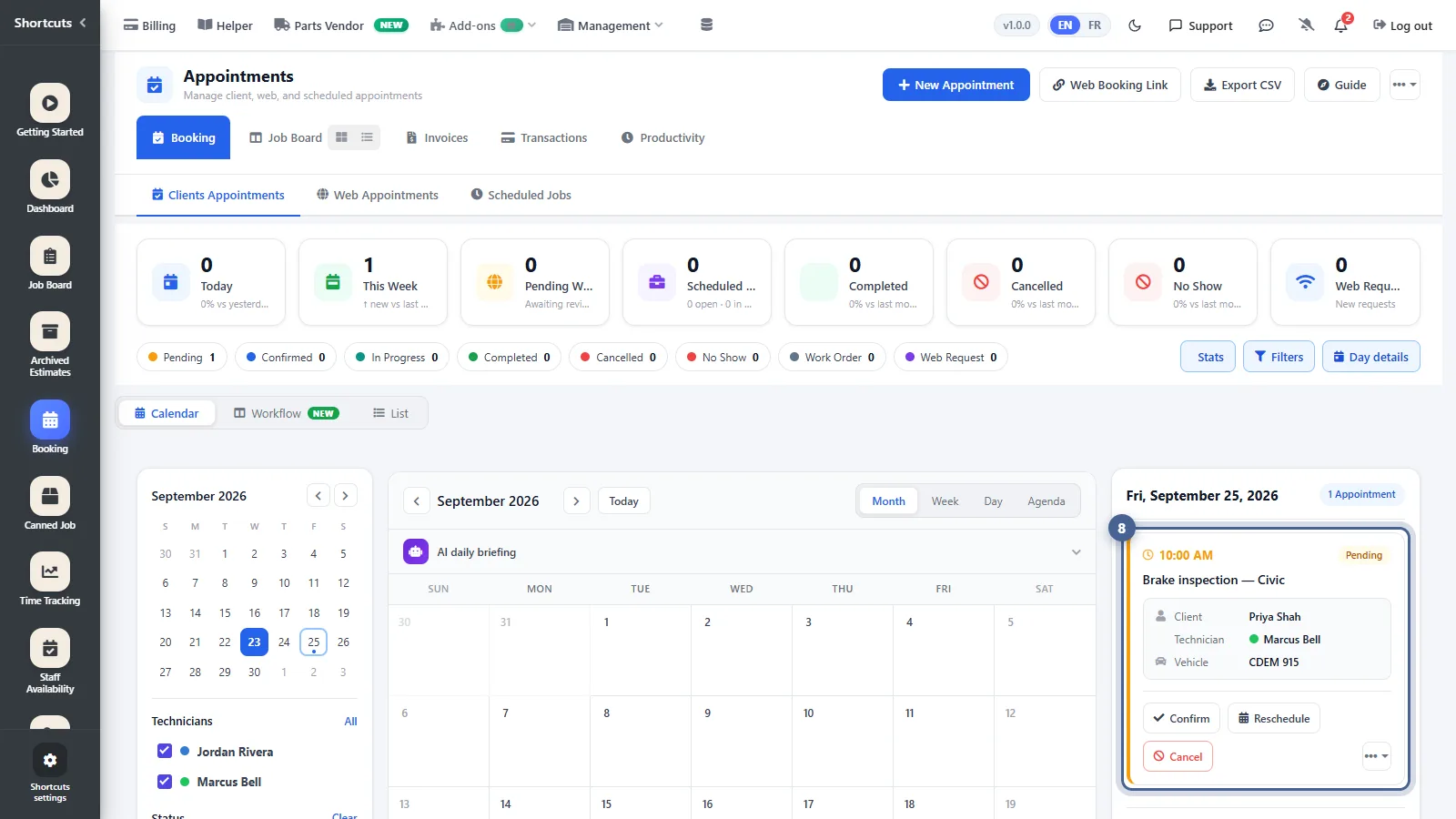 Appointments Manage Your Shop’s Time With Appointments Book customers into the right technician’s schedule, send automatic reminders, and see the whole week at a glance — scheduling for the whole shop in one calendar, so your shop’s time goes where it earns. 8 steps · about 4 min
-
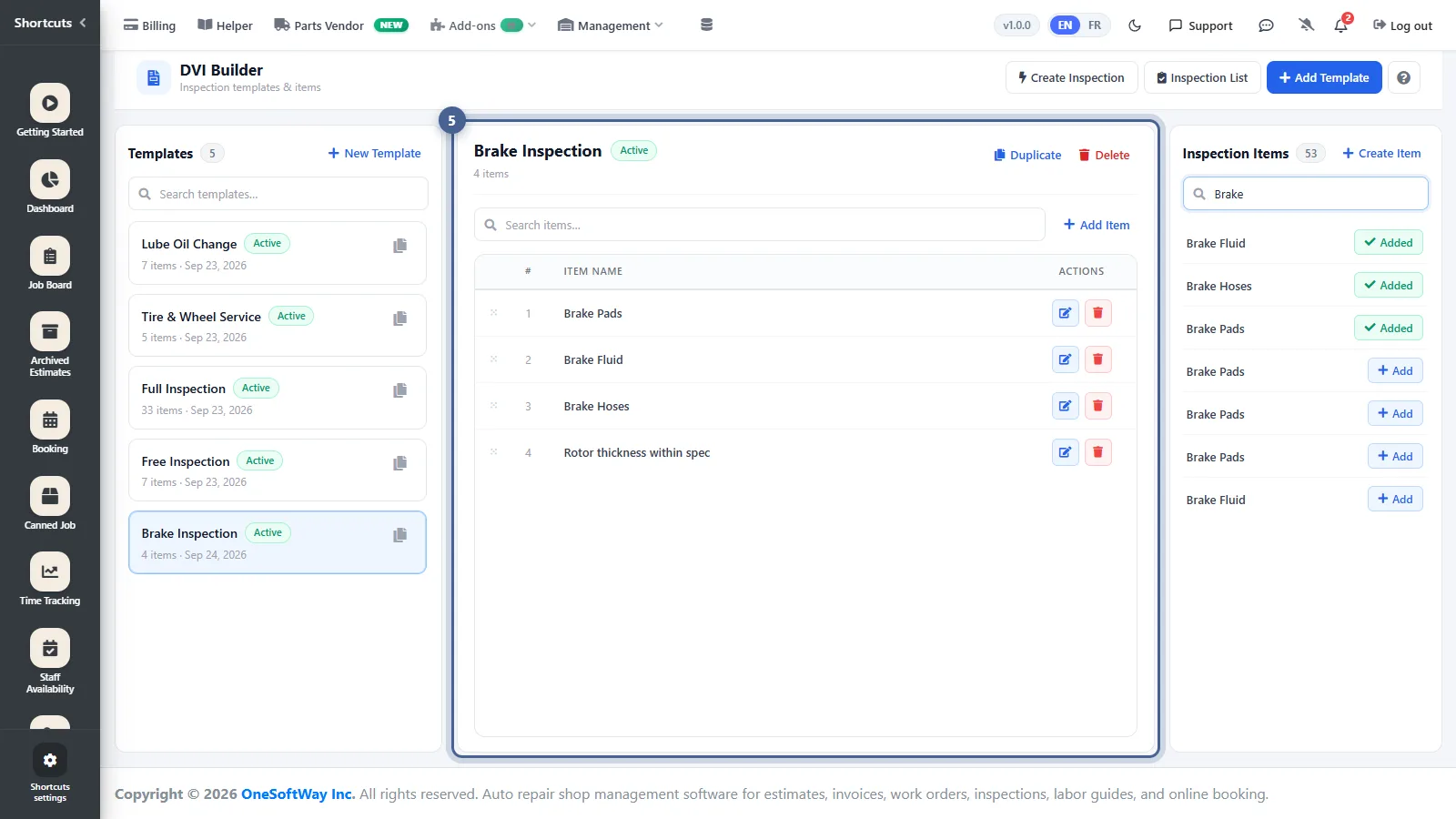 Inspections Creating an Inspection Template Simplify inspections with reusable checklists — oil change, brakes, full multi-point — so every technician inspects every vehicle the same way. 6 steps · about 3 min
-
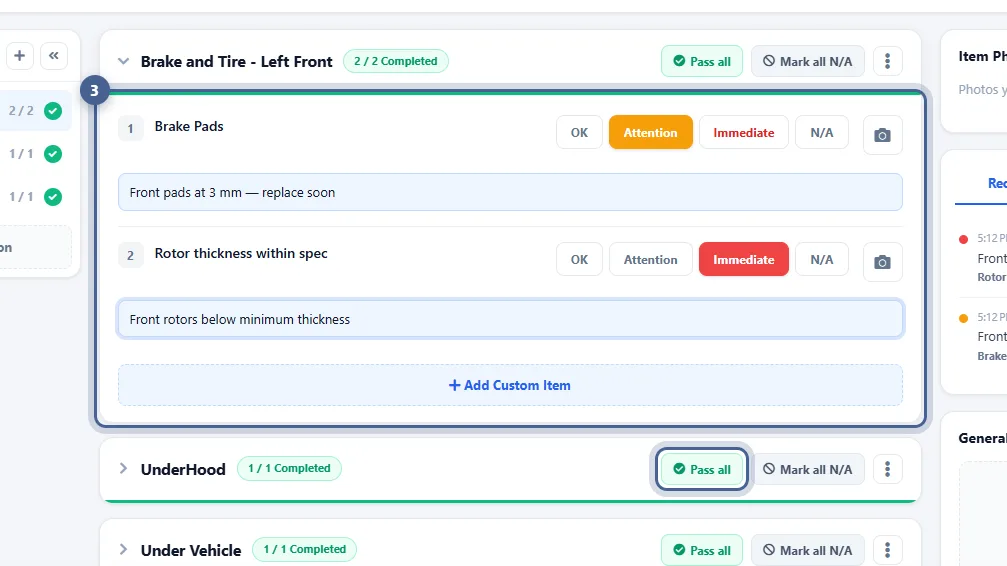 Inspections Creating a Digital Vehicle Inspection Easily inspect a vehicle on a tablet or computer — rate each check, add notes and photos — and send the customer a clear, colour-coded report they can approve. 7 steps · about 4 min
Browse by topic
-
Getting Started
Learn the basic tips on how to use your AutoSoftWay platform.
- Adding Clients 8 steps
- Adding a Client’s Vehicle 7 steps
- Adding Employees 6 steps
- Set Up Your Labor Rates 10 steps
- Managing Your Product Inventory 10 steps
-
Repair Orders and Invoice
Generating work order and invoice for your auto shop will never be as easy as this!
- Creating an Estimate 8 steps
- Creating an Invoice 7 steps
-
Integrations
Learn about AutoSoftWay’s integrations with our guide.
- Set Up NAPA PROLink 6 steps
- Set Up PartsTech 6 steps
- Set Up Nexpart 6 steps
-
Repairs Workflow
This guide will help you master the workflow tool, which helps your management team coordinate tasks between your mechanics.
Browse topic -
Appointments
This short guide will help you better manage your shop’s time using our appointment platform.
Browse topic -
Inspections
Optimize your services with our inspections tool!
- Creating an Inspection Template 6 steps
- Creating a Digital Vehicle Inspection 7 steps
-
Mobile app
Enhance your workflow with our powerful mobile app.
Explore -
Productivity Report
Boost efficiency with the Productivity Report – track job progress and streamline operations effortlessly.
Explore -
Expense Report
Manage your business finances becomes not only simpler but smarter.
Explore -
Location
Location feature allows you to effortlessly add, edit, and filter your business’ locations to stay organized and efficient.
Explore -
Work Request
Track client service requests and manage jobs for technicians.
Explore -
Settings
Manage shop settings, users, and integrations in AutoSoftWay.
Explore