


Integrating QuickBooks Desktop
with AutoSoftWay
Full QuickBooks Desktop access directly from your desktop — keep your accounting workflow simple and familiar while your auto repair shop runs in AutoSoftWay, for an effortless sync.
- Direct Access: Work with QuickBooks Desktop right from your desktop environment, exactly where you need it.
- You Choose What Syncs: Review and select the items you’d like configured in your QuickBooks account.
- Connected by Web Connector: The official QuickBooks Web Connector links AutoSoftWay to your company file.
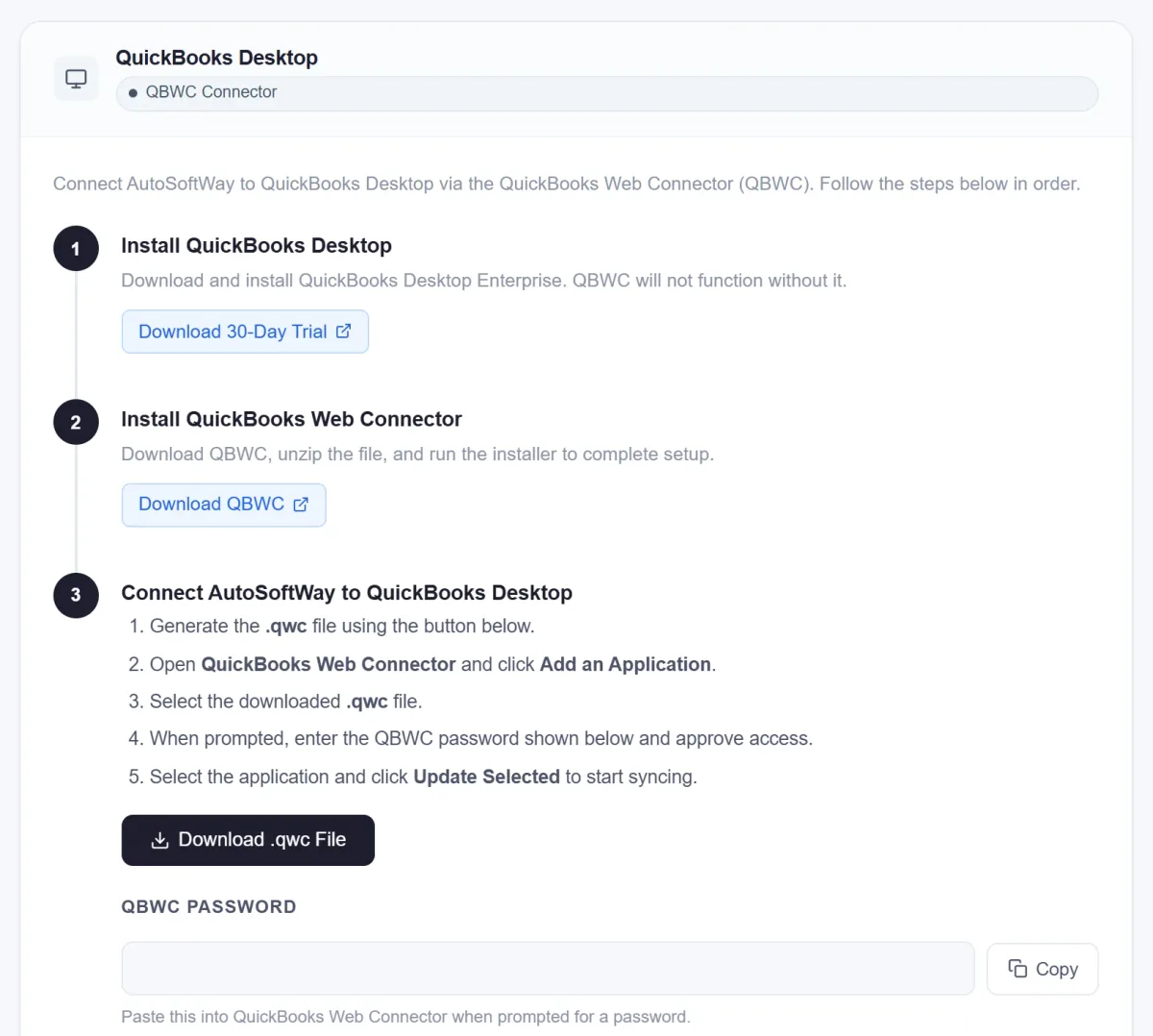
Connect QuickBooks Desktop in 4 Simple Steps
A one-time setup on your Windows PC — after that, syncing is a click away.
-
1
Install QuickBooks Desktop
Install QuickBooks Desktop Enterprise for Windows and open your company file.
-
2
Install Web Connector
Download and install the QuickBooks Web Connector (QBWC).
-
3
Add AutoSoftWay
Generate the .qwc file in AutoSoftWay, add it in Web Connector, enter your QBWC password and approve access.
-
✓
Update Selected
Select AutoSoftWay and click “Update Selected” to start syncing with QuickBooks Desktop.
From Estimates to Invoices,
Accurate and in Sync
Our streamlined QuickBooks Desktop integration keeps everything accurate — the work you do in AutoSoftWay shows up in your books.
- Sync customers, expenses, invoices and payments without manual re-entry.
- Estimates and invoices appear on the customer’s record in QuickBooks Desktop.
- Reduce errors and save time on bookkeeping.
- Keep your accounting workflow simple and familiar.
Everything You Need to Keep
QuickBooks Desktop Up to Date
-
Desktop, Not Cloud
Built for shops that keep their books in QuickBooks Desktop — no need to move to QuickBooks Online.
-
Customer Sync
Customers created in AutoSoftWay are carried over to QuickBooks Desktop — no duplicate typing.
-
Estimates & Invoices
From estimate to invoice, your documents land in QuickBooks Desktop accurately.
-
Expenses & Payments
Expenses and payments sync too, so your books reflect what really happened in the shop.
-
You Stay in Control
Review and select which items you’d like configured in your QuickBooks account.
-
Simple Setup
Install the Web Connector, add the AutoSoftWay file once, and you’re ready to sync.
Frequently Asked Questions About QuickBooks Desktop
QuickBooks Desktop Enterprise installed on a Windows computer, plus the free QuickBooks Web Connector (QBWC). The Web Connector will not work unless QuickBooks Desktop is installed first.
Through the QuickBooks Web Connector. You generate a Web Connector application file (.qwc) in AutoSoftWay, add it in the Web Connector, enter your QBWC password and approve access to QuickBooks.
Yes. Keep QuickBooks Desktop Enterprise open so the Web Connector can exchange information with your company file.
Customers, estimates, invoices, expenses and payments — and you can review and select the items you’d like configured in your QuickBooks account.
Yes. See our QuickBooks Online integration.
Run Your Shop in AutoSoftWay.
Keep Your Books in QuickBooks.
Customers, estimates, invoices, expenses and payments — synced to QuickBooks Desktop without manual re-entry.