QuickBooks Desktop Setup for Auto Repair Shops
Please sign in to your AutoSoftWay account to access this information:
https://app.autosoftway.com/account
Step 1
*Side Note: This step is not required if you have a QuickBooks account
Install QuickBooks Desktop (Required)
- Important: QuickBooks Web Connector will NOT work unless QuickBooks Desktop is installed first.
- Download and install QuickBooks Desktop Enterprise (30-Day Trial) for Windows.
Download QuickBooks Desktop Enterprise Trial - Create the company or sign in with your Intuit account and complete installation.
Step 2
Install QuickBooks Web Connector (QBWC)
- Download the QuickBooks Web Connector.
Download QuickBooks Web Connector - Unzip the downloaded QBWebConnector file.
- Run the installer and complete setup.
Step 3
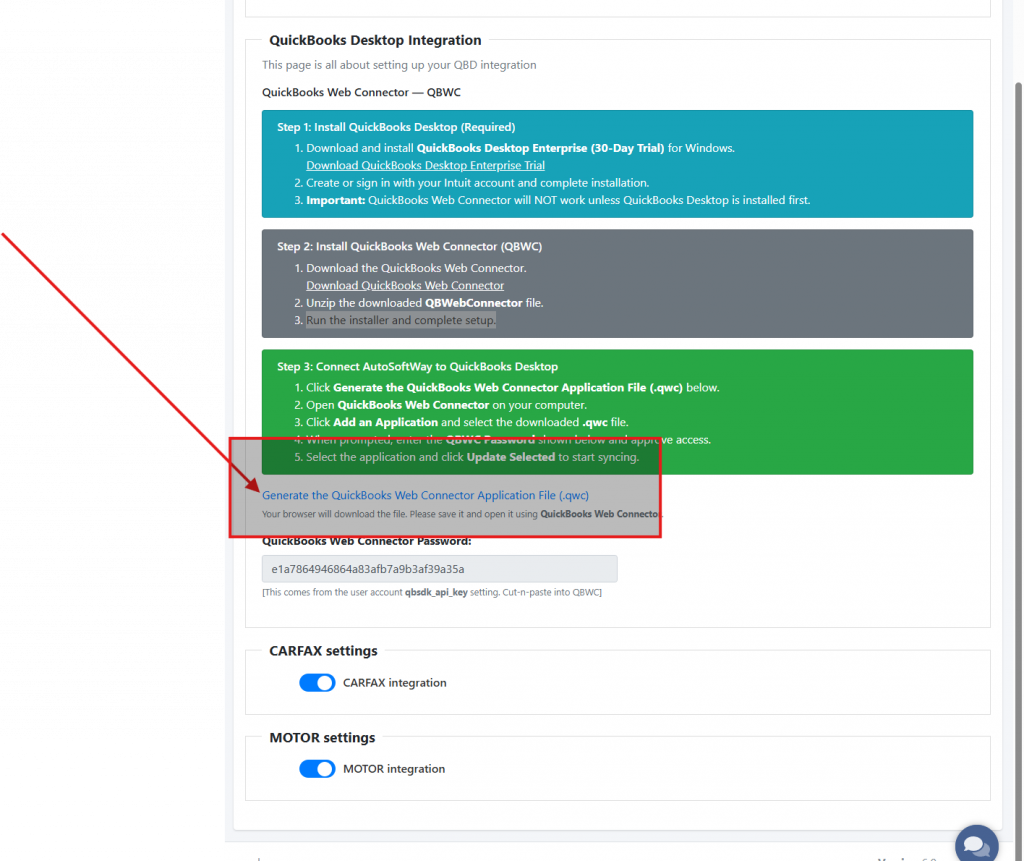
Connect AutoSoftWay to QuickBooks Desktop
- Click Generate the QuickBooks Web Connector Application File (.qwc) below.
- Open QuickBooks Web Connector on your computer.
- Click Add an Application and select the downloaded .qwc file.
- When prompted, enter the QBWC Password shown below and approve access.
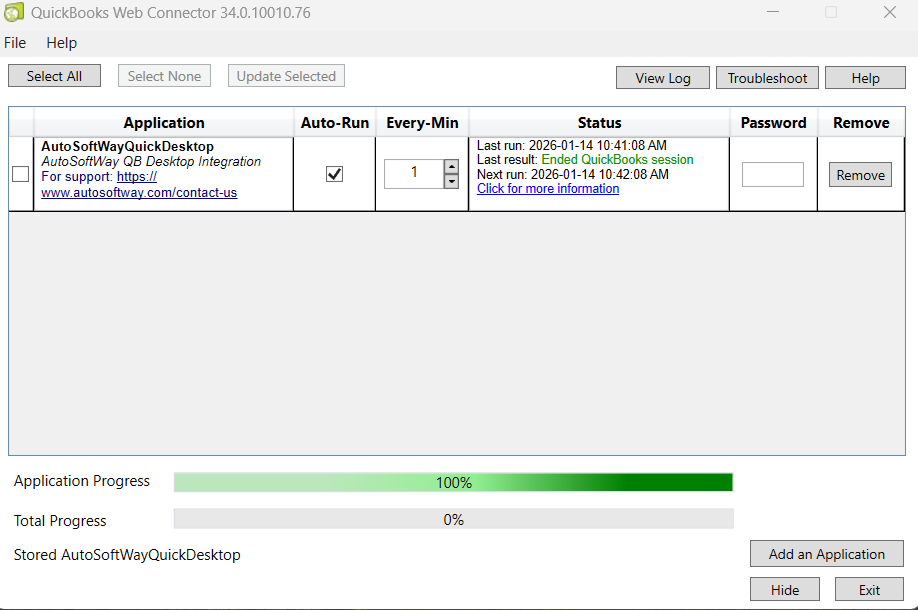
- Select the application and click Update Selected to start syncing.
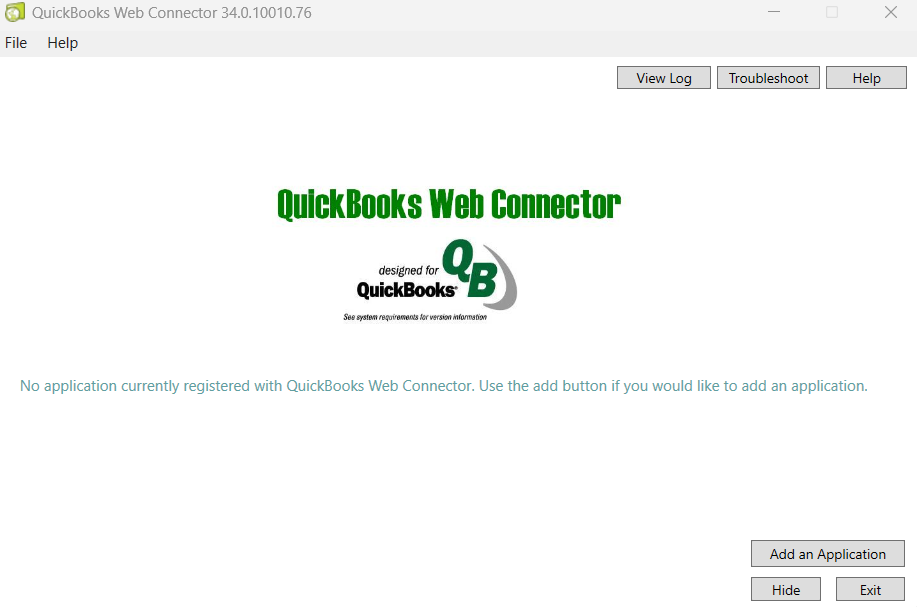
- Make sure QuickBooks Desktop Enterprise is open, as it needs to be running for the system to retrieve the required information.
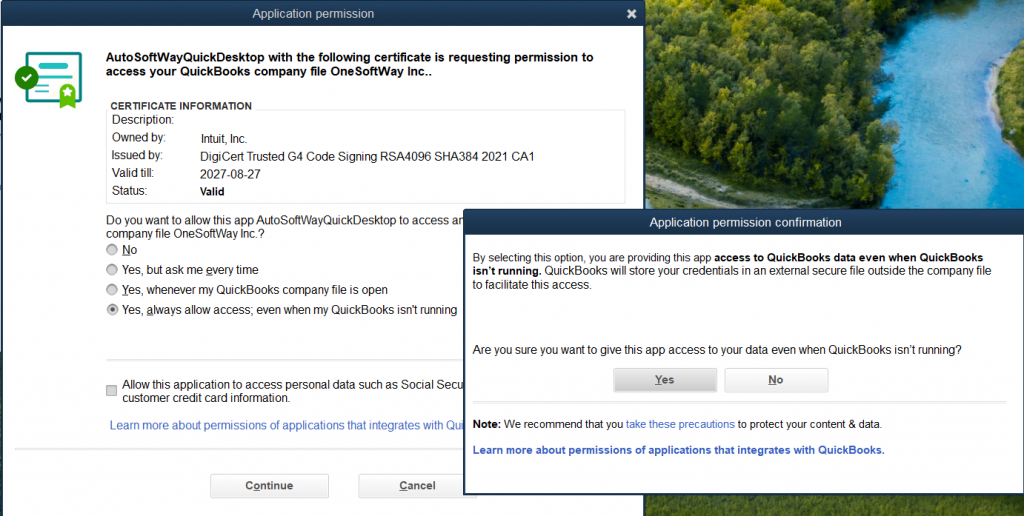
- Once the application has been added, a Certificate will pop up, then click Ok.
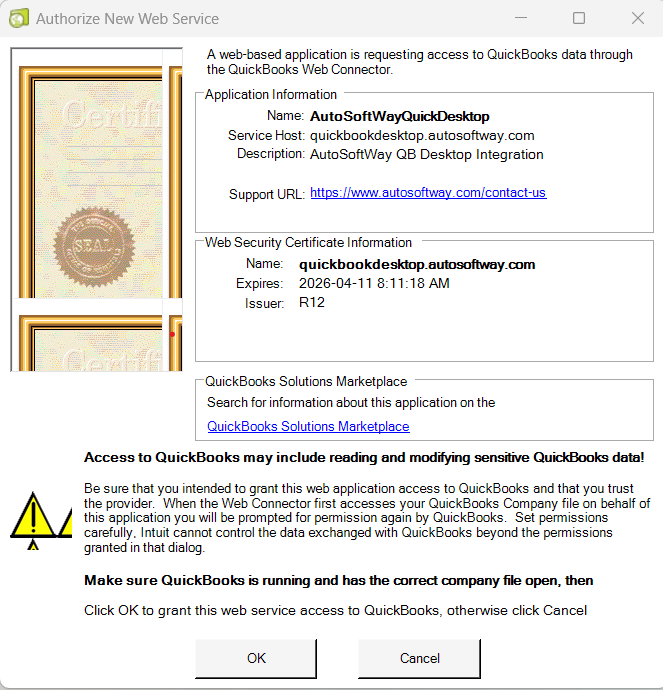
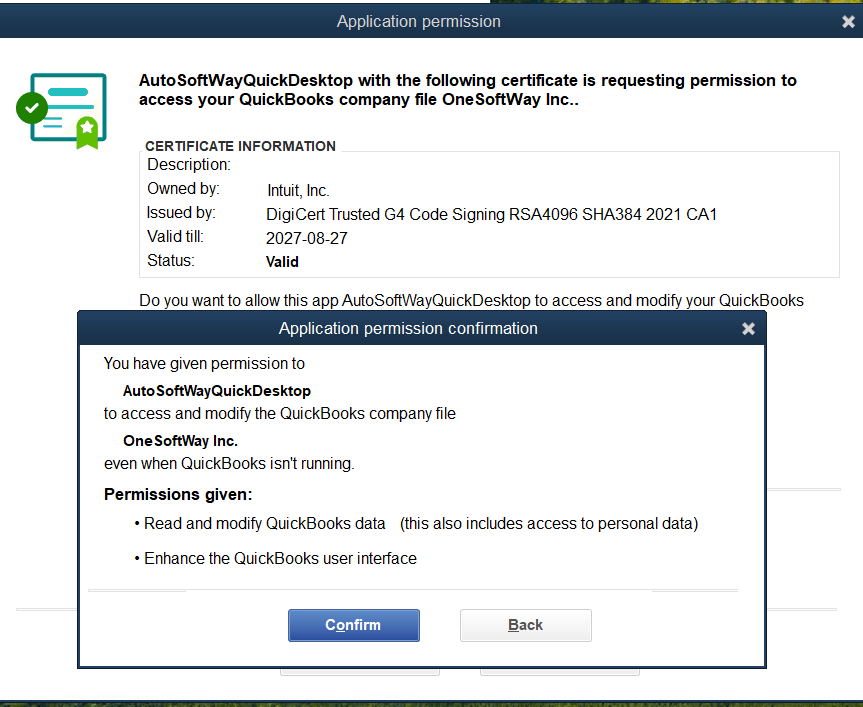
- After clicking OK, you’ll be prompted to grant permission to access QuickBooks. Select Yes, then confirm to continue.
Step 4
Once the setup is complete, you can begin using QuickBooks Desktop to manage your auto repair business efficiently. Make sure you copy the QuickBooks Web Connector password and paste it where it says ‘Password’ and enter.