

See Every Vehicle’s Status —
Right Now, in Real Time
AutoSoftWay’s Job Board shows every open job in the shop — one lane per technician, one column per stage — with the customer, vehicle, total and a live job clock on each card. Drag a job to the next stage and the whole team sees it — no whiteboards, no guesswork, no missed updates. It’s a simple way to streamline auto repair operations from the first stage to the last.
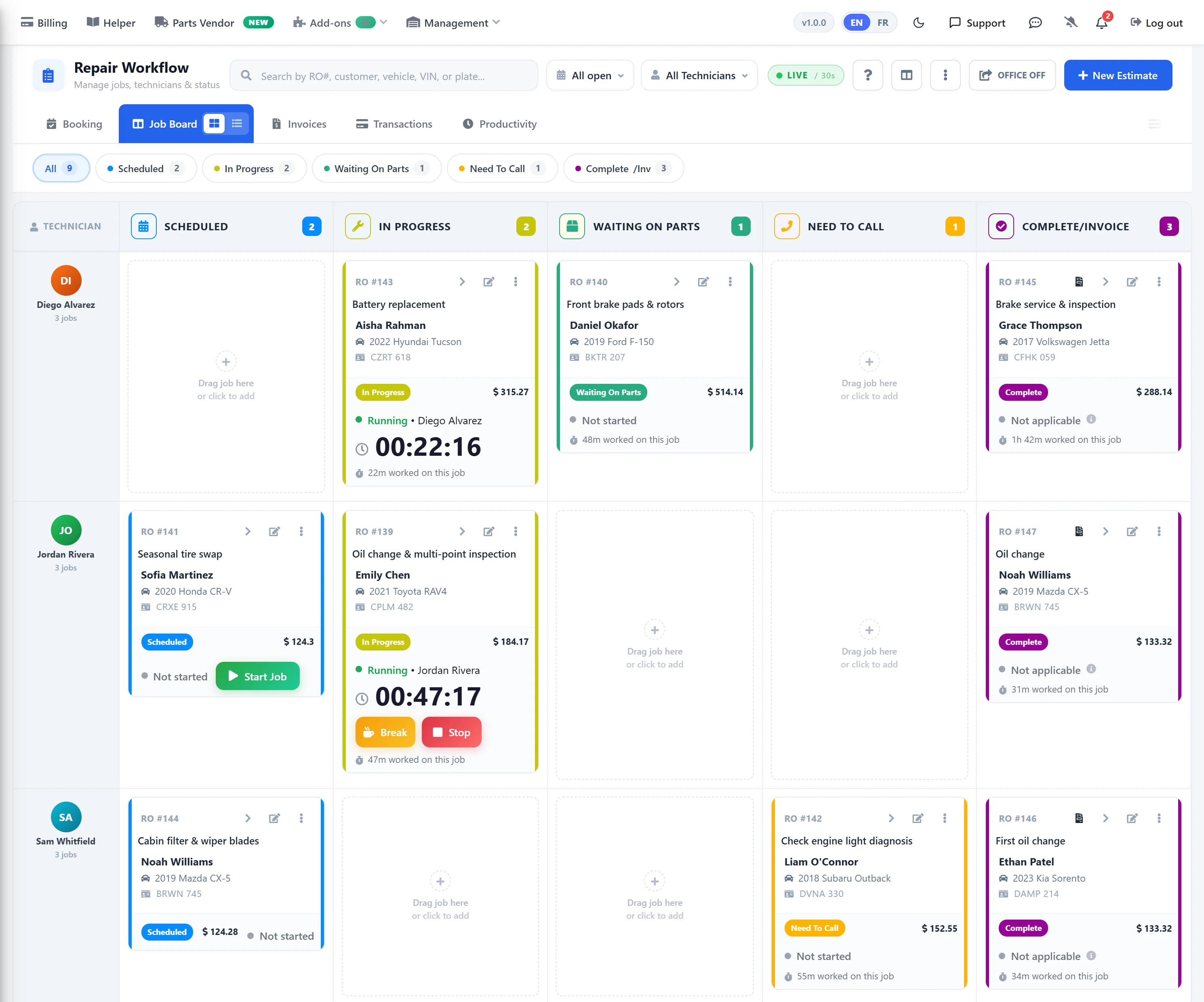
Track Every Vehicle Through Every Stage of the Repair Process
AutoSoftWay’s workflow board keeps the whole shop on the same page — from the moment a vehicle checks in to the moment it’s invoiced and collected. Move vehicles through stages with a single click and eliminate all the guesswork.
- Adjust and manage the repair workflow for every vehicle in the shop with ease
- Transition vehicles through workflow stages as the job progresses — one click per move
- Intuitive process allows seamless status updates visible to the entire team in real time
- Keep the shop well-organised by accurately tracking each vehicle’s position in the workflow
- Save time and reduce confusion with a clear, structured process from intake to completion
- Customize stages to match exactly how your shop operates
Know Exactly How Long Every Job Really Takes
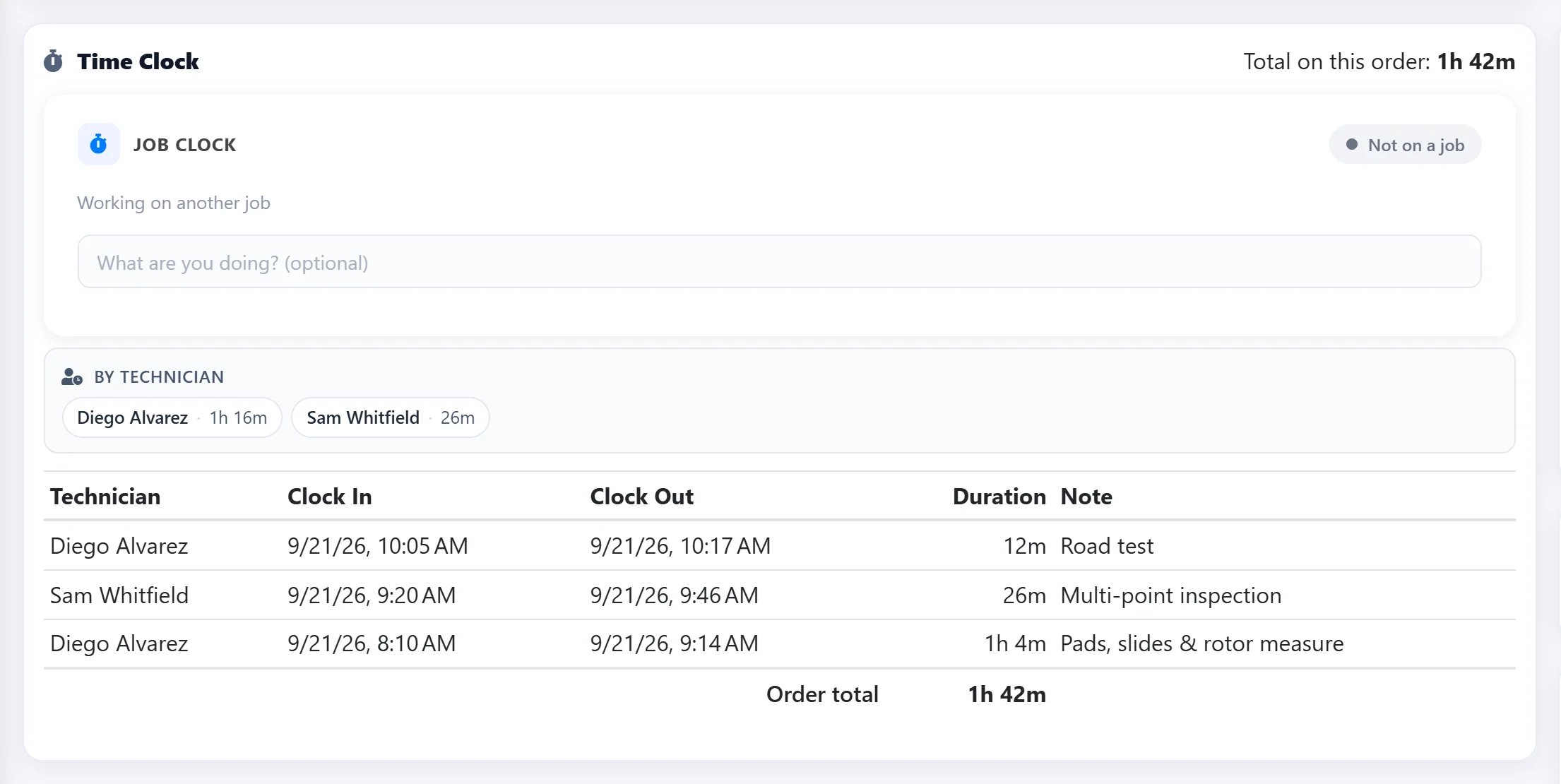
Technicians start, pause and stop a job clock right from the Job Board card, the repair order, or the Time Clock page — on the web or the mobile app. Every minute is logged against the job it was spent on.
- Start Job, Break and Stop on each card — the running time is visible to the whole shop
- Each repair order shows its total time, the split per technician, and every session with its note
- Several technicians on one job? Each one’s time is recorded separately
- Compare actual time with the labour you billed and quote the next job with confidence
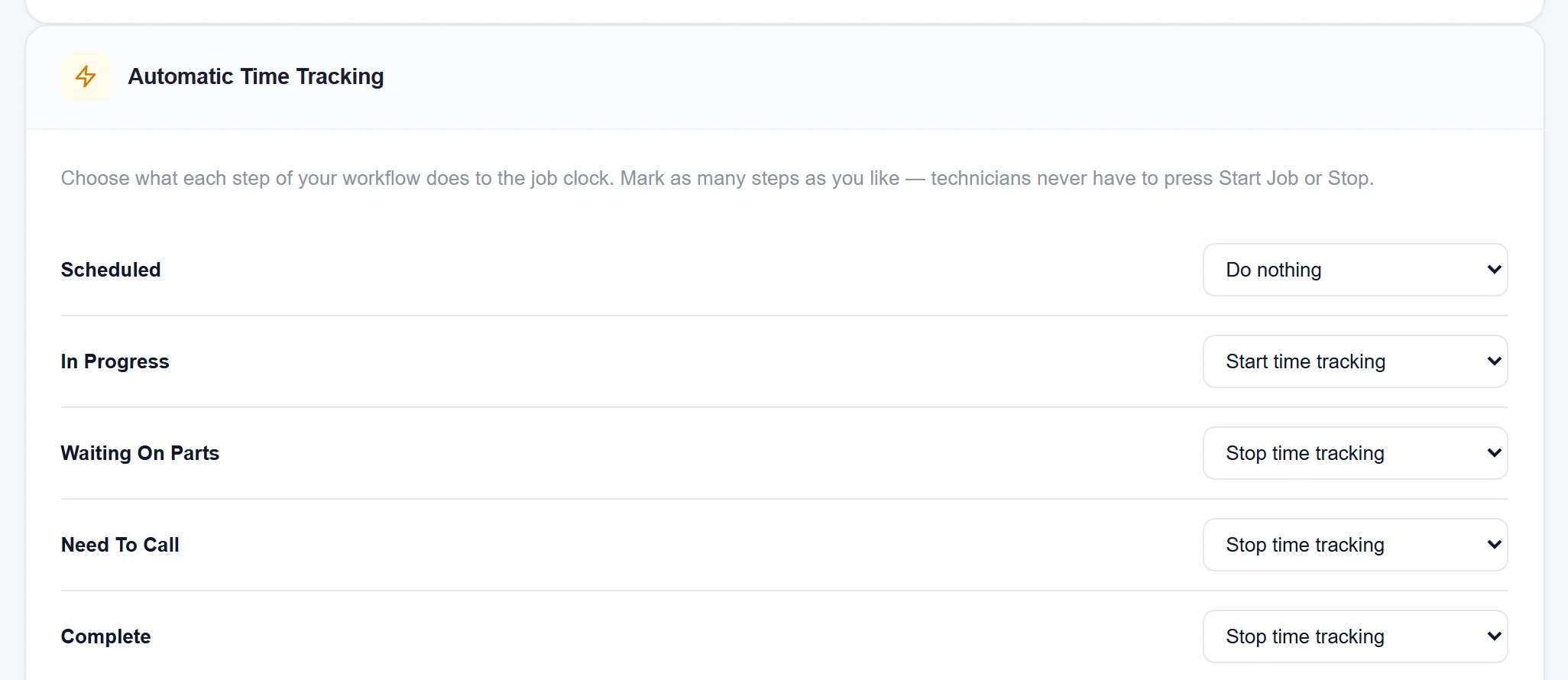
Let the Board Run the Clock for You
Technicians forget to press Start — so let the workflow do it. In Setup, choose what each stage does to the job clock: moving a job into In Progress starts the assigned technician’s clock, and moving it to Waiting On Parts, Need To Call or Complete stops it.
Built to Keep Your Shop Organised, Efficient, and Always Moving
-
Real-Time Shop Overview
A single board shows every vehicle in the shop and exactly what stage it’s in — right now. Managers, service advisors, and technicians all see the same live picture without needing to ask or check paper logs.
Full Visibility -
One-Click Stage Updates
Moving a vehicle to the next stage takes a single click. No forms to fill out, no statuses to type — just drag or click to advance the job and let the rest of the team know immediately.
Instant Updates -
Customizable Workflow Stages
Every shop runs differently. AutoSoftWay lets you define your own workflow stages to match your exact process — whether that’s three steps or seven. The board adapts to you, not the other way around.
Your Process -
Enhanced Shop Organisation
With every vehicle’s progress tracked accurately, your shop floor stays structured and under control. Nothing gets lost, overlooked, or forgotten — every job has a clear owner, a clear status, and a clear next step.
Zero Confusion -
Time Saved Across the Whole Team
When everyone knows where every job stands, time stops being wasted on status checks, hallway questions, and duplicate communication. The board does the communicating — so your team can focus on the work.
Higher Efficiency -
Fully Integrated with AutoSoftWay
Workflow Management connects directly with work orders, estimates, invoices, technician assignments, and client communications. Moving a vehicle through the board is reflected across the entire platform automatically.
Seamless Integration
Frequently Asked Questions About AutoSoftWay Workflow Management
AutoSoftWay’s Workflow Management gives your shop a visual board showing every vehicle currently in the shop and which stage of the repair process each one is in. You can move vehicles between stages with a single click — keeping the entire team aligned on what’s in progress, what’s waiting, and what’s ready for pickup.
Yes. AutoSoftWay lets you customize the workflow stages to match exactly how your shop operates. Whether your process has three steps or seven, you can configure the board to reflect your real repair flow — from intake through to completed and invoiced.
When every vehicle’s status is visible on a single board in real time, there’s no need to ask ‘where’s that car?’ or check paper notes. Technicians, service advisors, and managers can all see the same up-to-date view — eliminating miscommunication and keeping every job moving forward.
Yes. Workflow Management is integrated with the rest of AutoSoftWay — including work orders, estimates, invoices, and technician job assignments. Moving a vehicle through workflow stages is reflected across the platform, keeping everything in sync.
Yes. Technicians start, pause and stop a job clock from the Job Board card, the repair order or the Time Clock page, and every session is saved against that job. Each repair order shows the total time, the time per technician and every clock-in and clock-out. With Automatic Time Tracking, moving a job between stages on the board starts and stops the clock for you.
Yes. If your shop has multiple locations, AutoSoftWay’s Workflow Management can be managed per location — so managers at each branch see only the vehicles relevant to their shop, while head office can get a broader overview.
Stop Guessing Where Every Job Is. See It in Real Time.
A live workflow board, one-click stage updates, time tracked on every job, custom stages, and full integration with your work orders, invoices, and technician assignments.