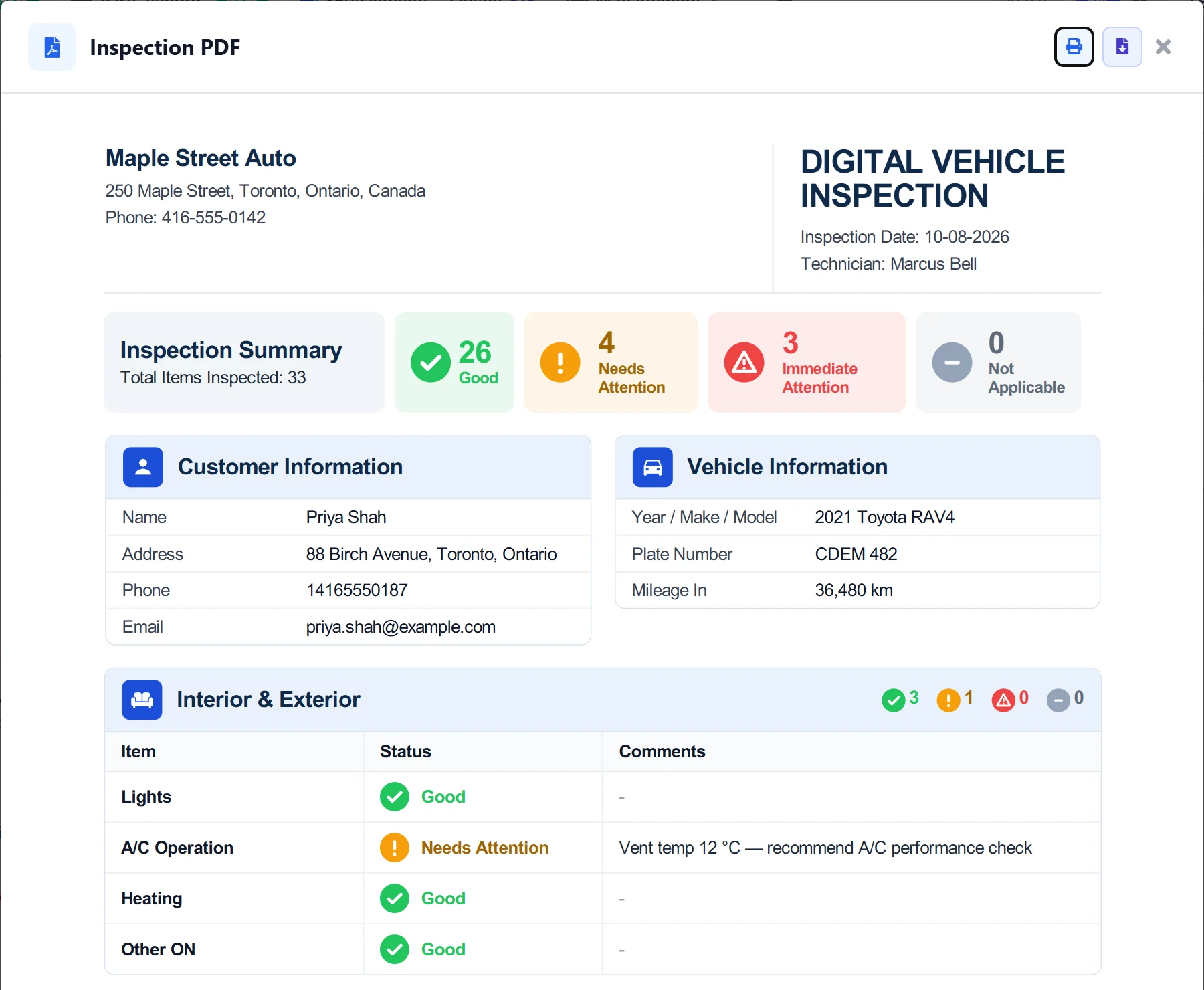


Step 1
Start Right From the Estimate: The client and their linked vehicle are now automatically selected. If the client has multiple vehicles, the technician can simply scroll and pick the correct one. Follow this guide to run a vehicle inspection step by step.

Step 2
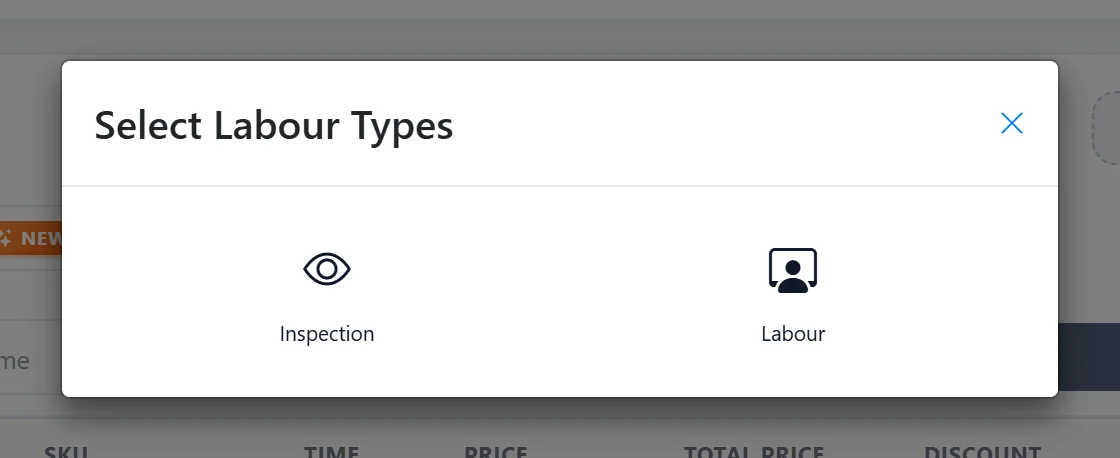
To start an inspection: Scroll to the labor section, click Search, and select Inspection. The technician must complete the required inspection items and templates to start the inspection.
Step 3
By clicking where the arrow is pointing, the technician can view and check all the items included in the inspection.
Step 4
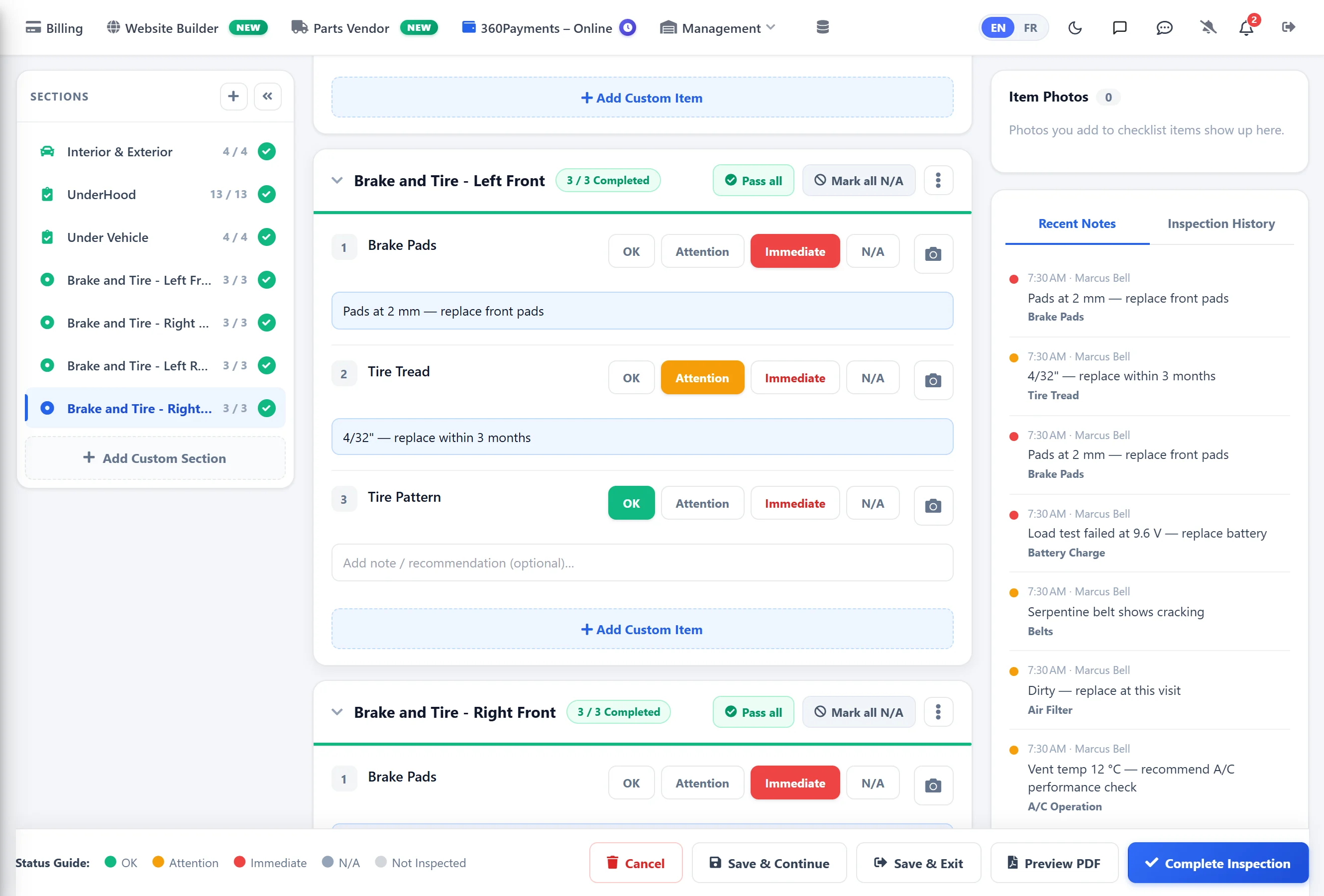
The technician can mark which items have been inspected and highlight anything that needs attention. The client will clearly see what requires fixing, and the estimate can be sent by email for their approval.