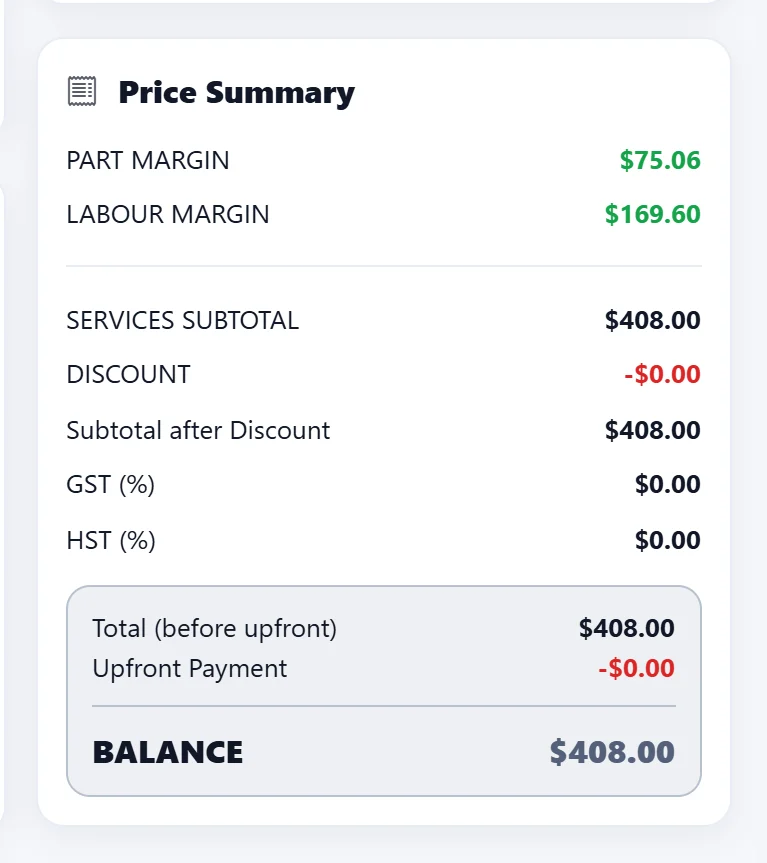


This guide walks shops through setting up eco fees in AutoSoftWay, from shop-wide settings to individual parts and labor.
Step 1
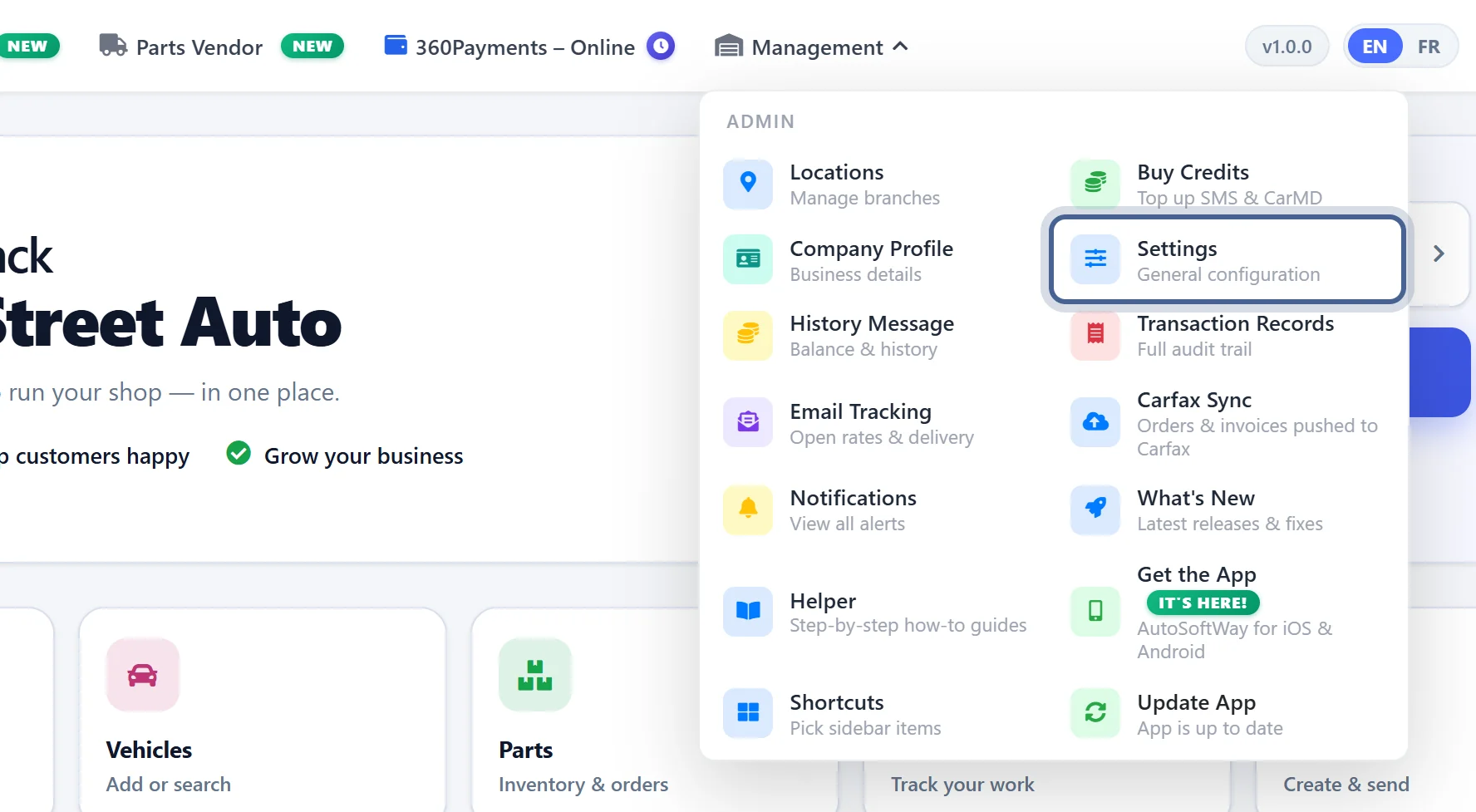
From the Getting Started section, open the Management menu and click Settings.
Step 2
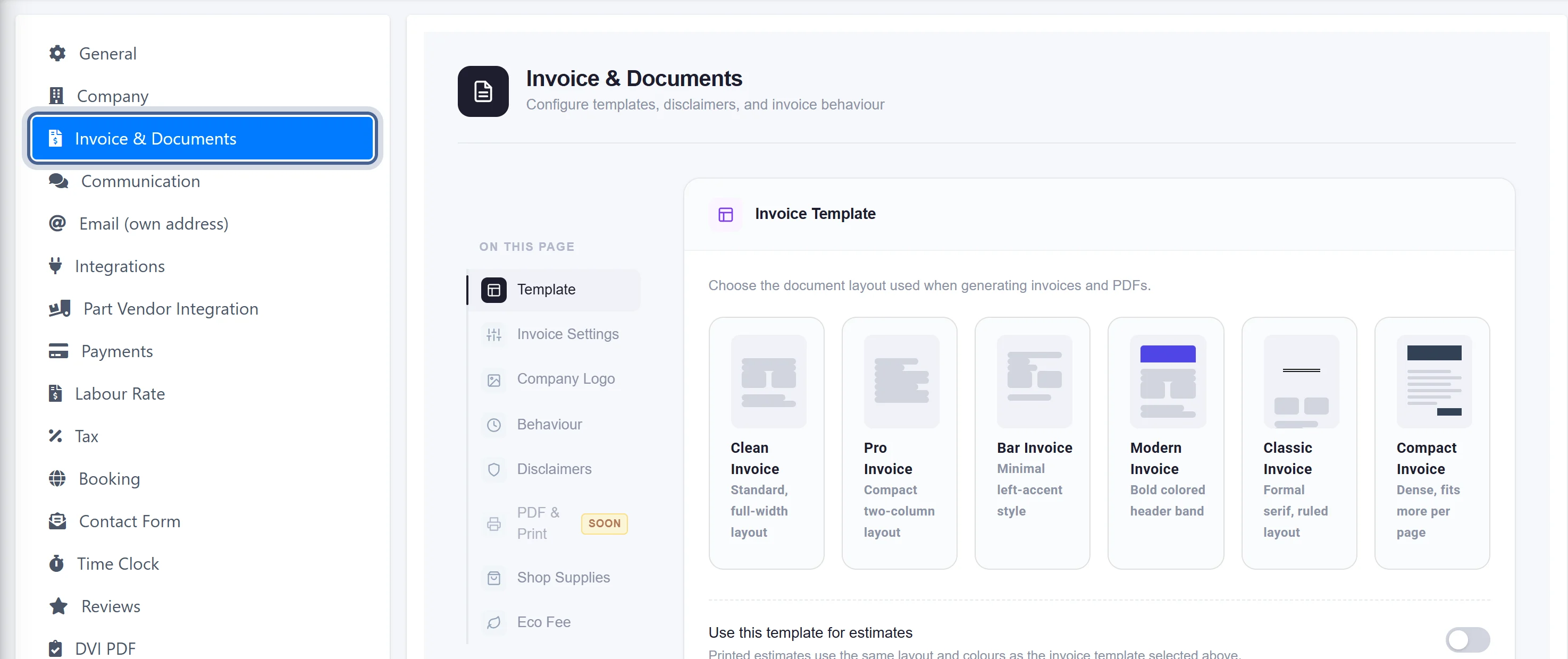
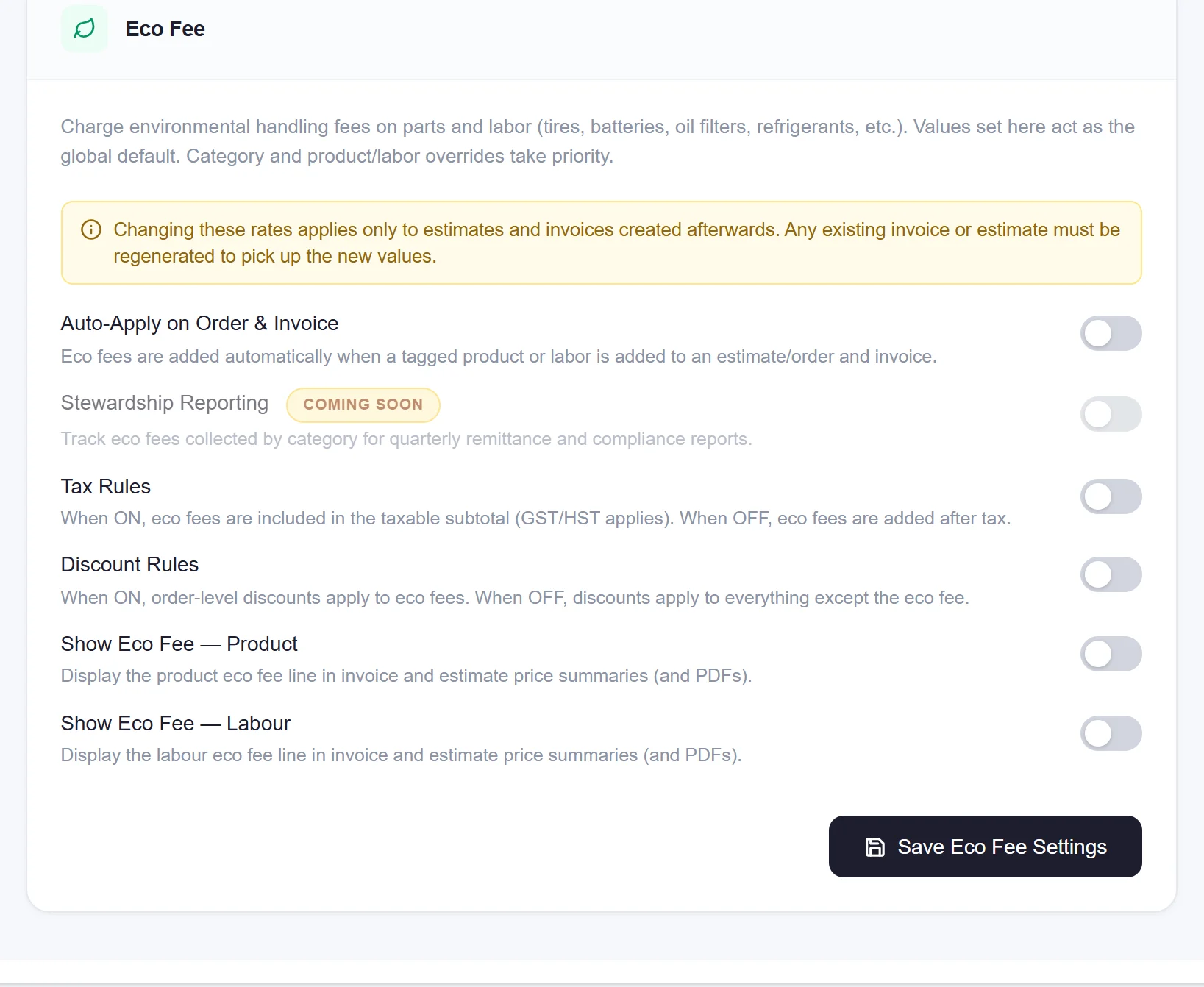
Navigate to Invoice & Documents, then click on Eco Fee. From there, you can set the eco fee percentage your shop would like to charge and enable the desired options, such as Auto-Apply on Orders & Invoices, Tax Rules, Discount Rules, Show Eco Fee — Product, and Show Eco Fee — Labour.
Step 3
Once the parts and labor have been added, enable the Eco Fee option as well. You can set either a percentage or a fixed dollar amount for both parts and labor based on what your shop would like to charge, then confirm the changes.
Step 4
When creating a work order, the eco fees will be automatically applied to the work order based on your configured settings.