


Set your shop’s hourly labour and inspection rates once, then build a catalogue of your common jobs so estimates price themselves with ease.
- 1
Open Settings
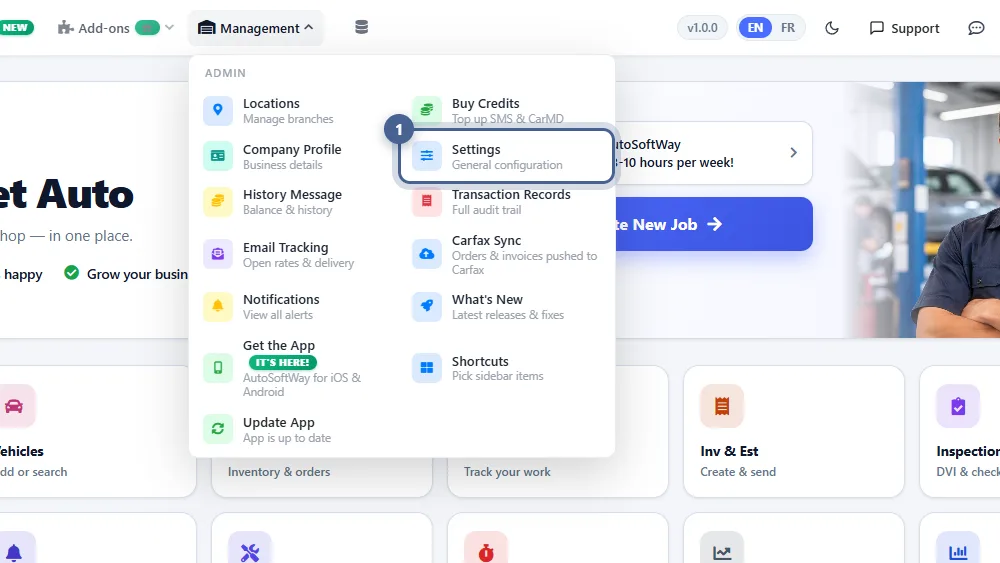
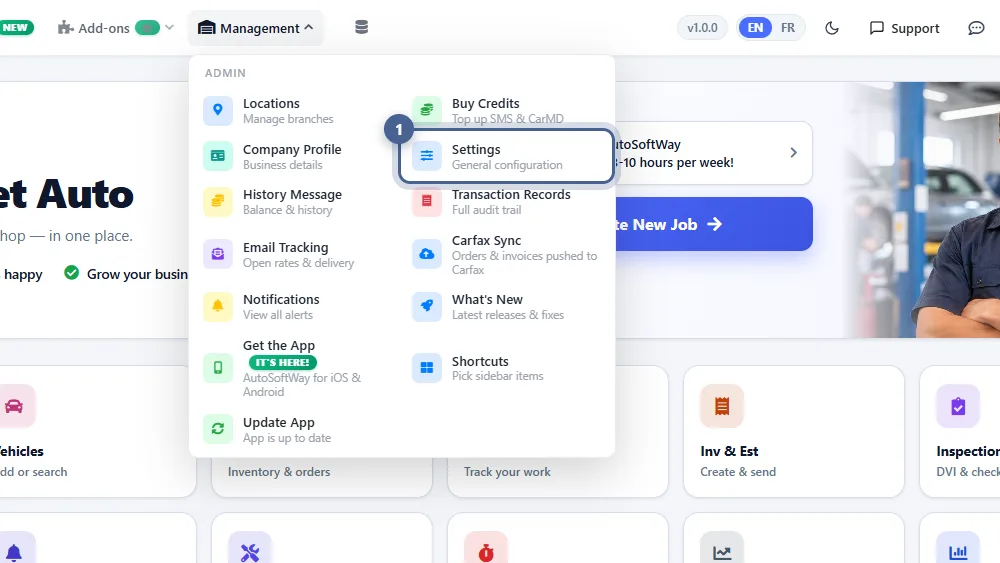
Click Management in the top bar, then Settings.
- 2
Set your hourly rates
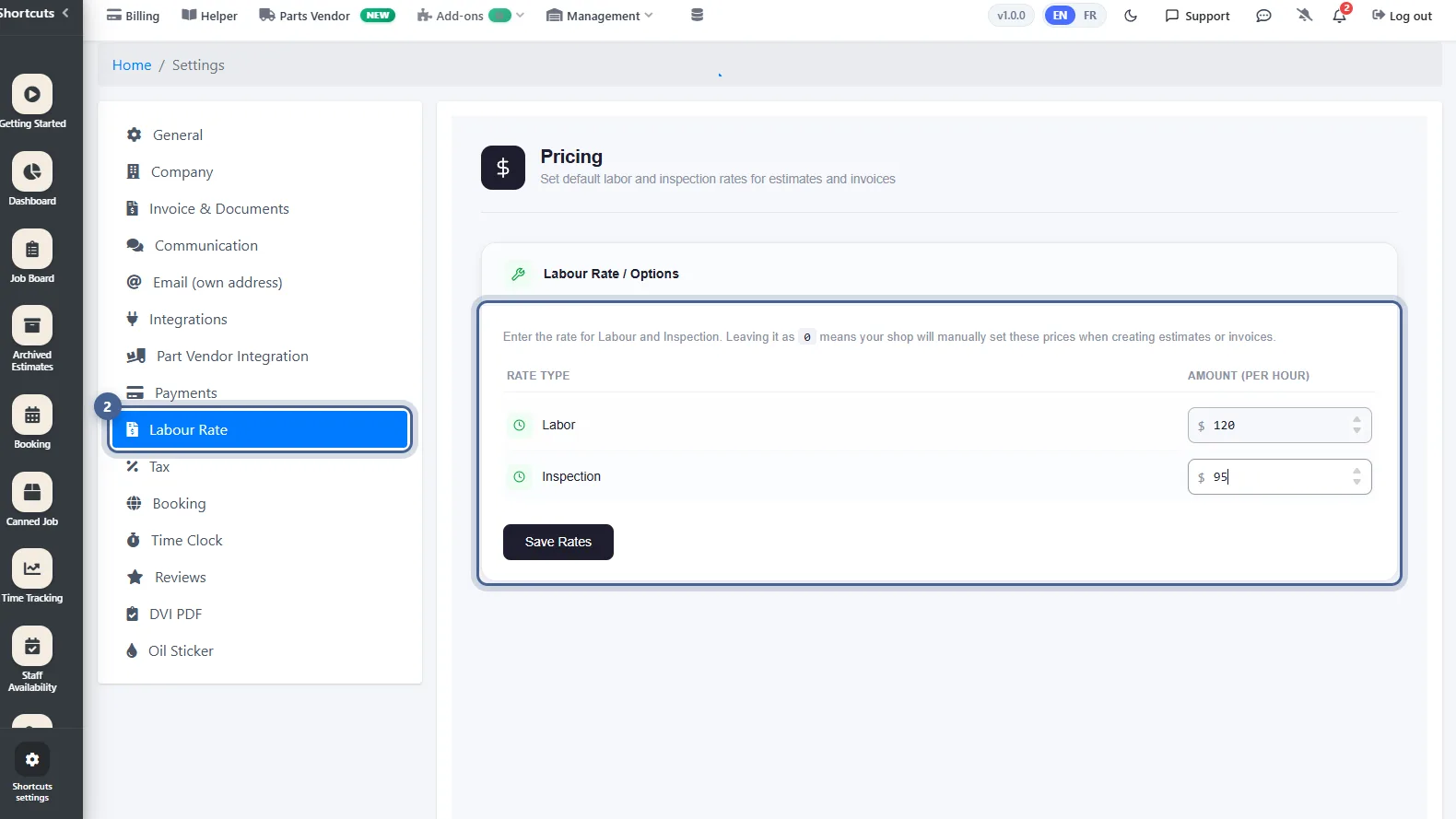
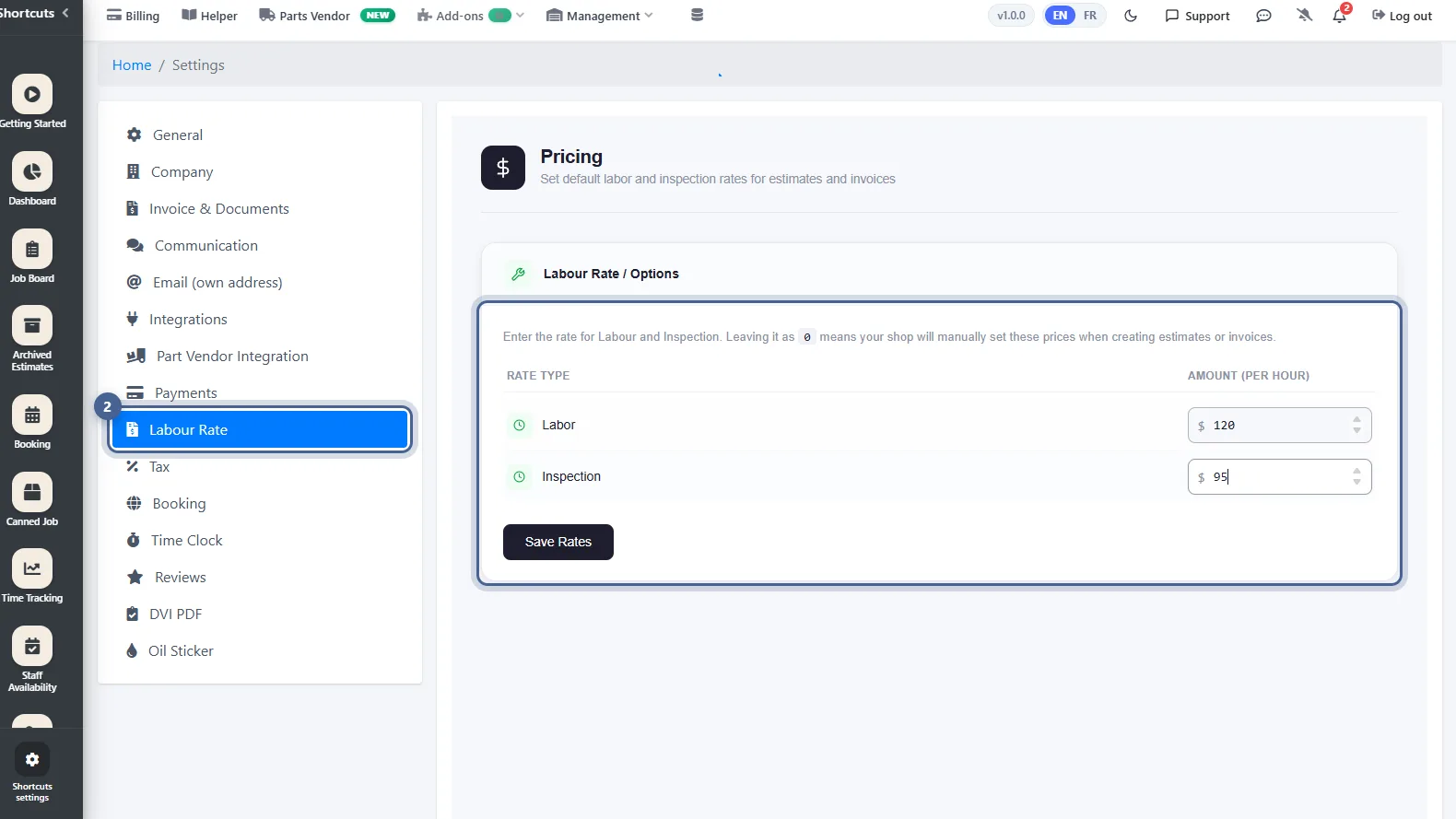
Choose Labour Rate in the settings menu. Enter your shop’s hourly Labor rate and your Inspection rate. These become the default price per hour on every estimate and invoice. Leave a rate at 0 if you prefer to price each job by hand.
- 3
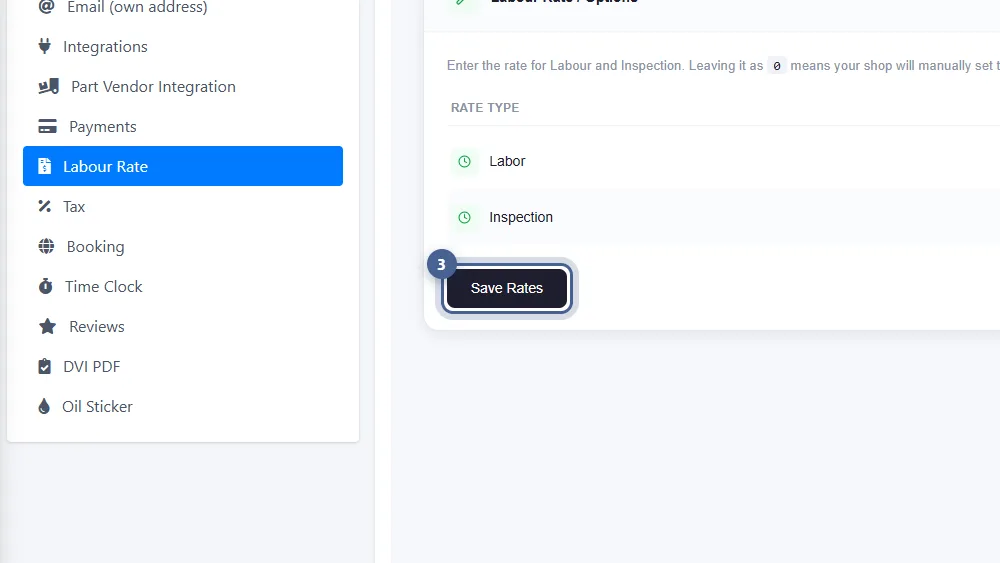
Save the rates
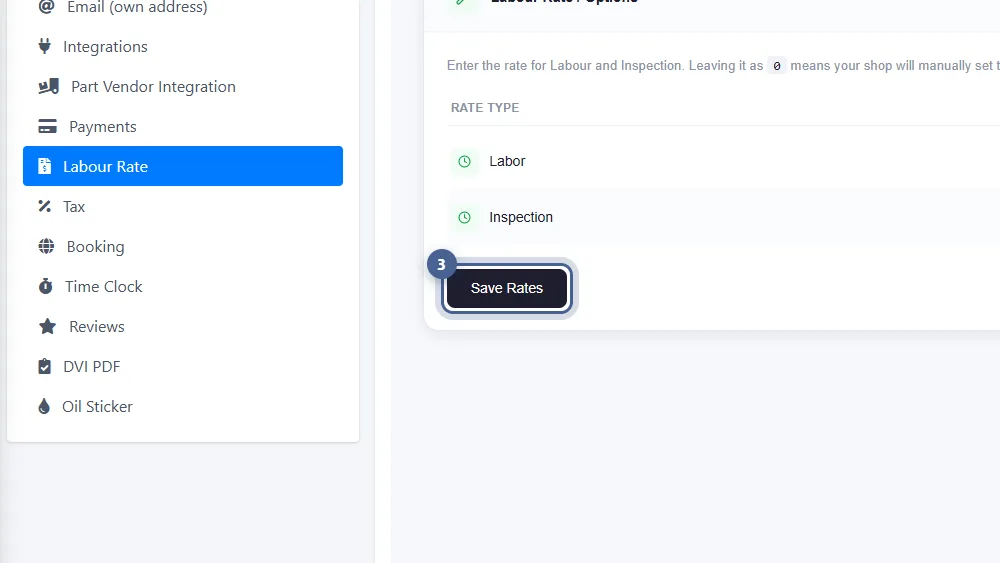
Click Save Rates. New labour lines will now pick up these rates automatically.
- 4
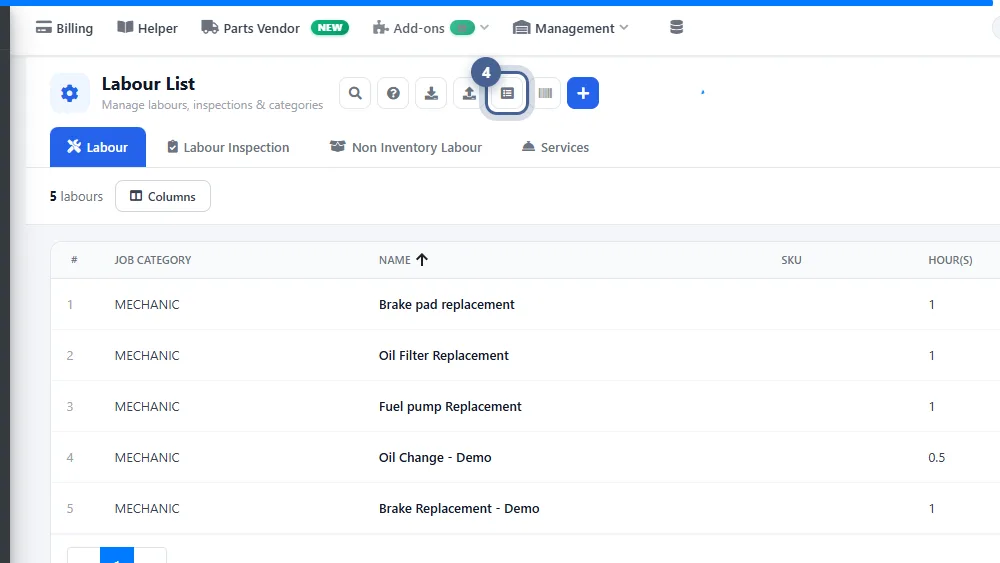
Create a job category (first time only)
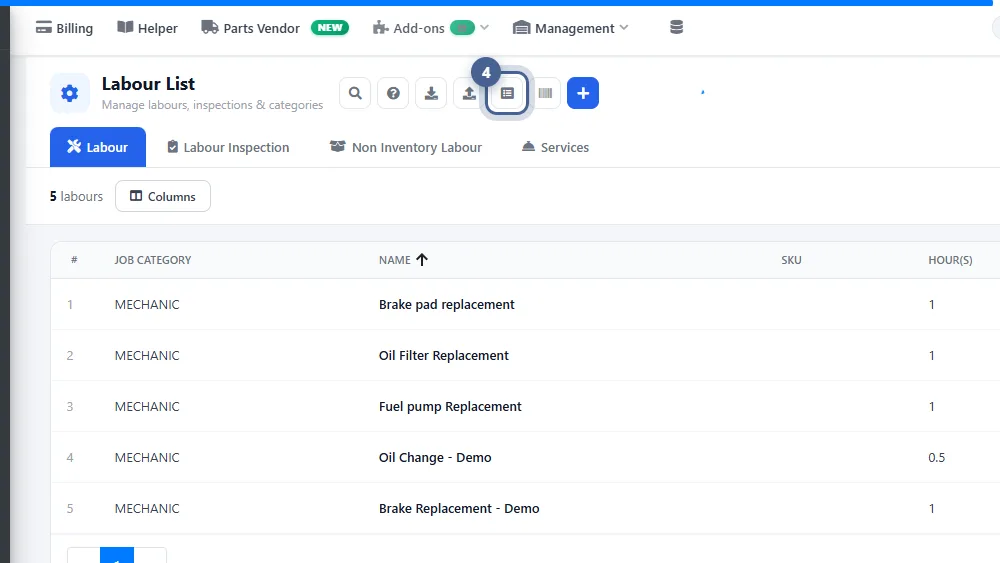
Go to Labour Catalog — it holds the jobs you do most often, so they can be added to an estimate in one click. Every job belongs to a category, so the first time, click the Categories icon, then Add Category.
- 5
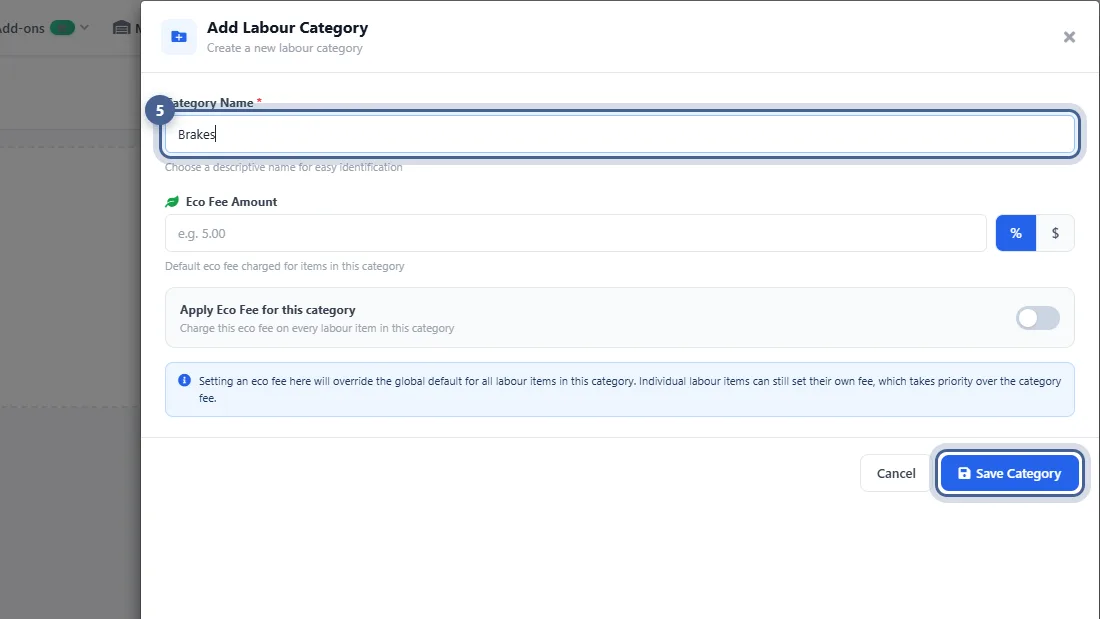
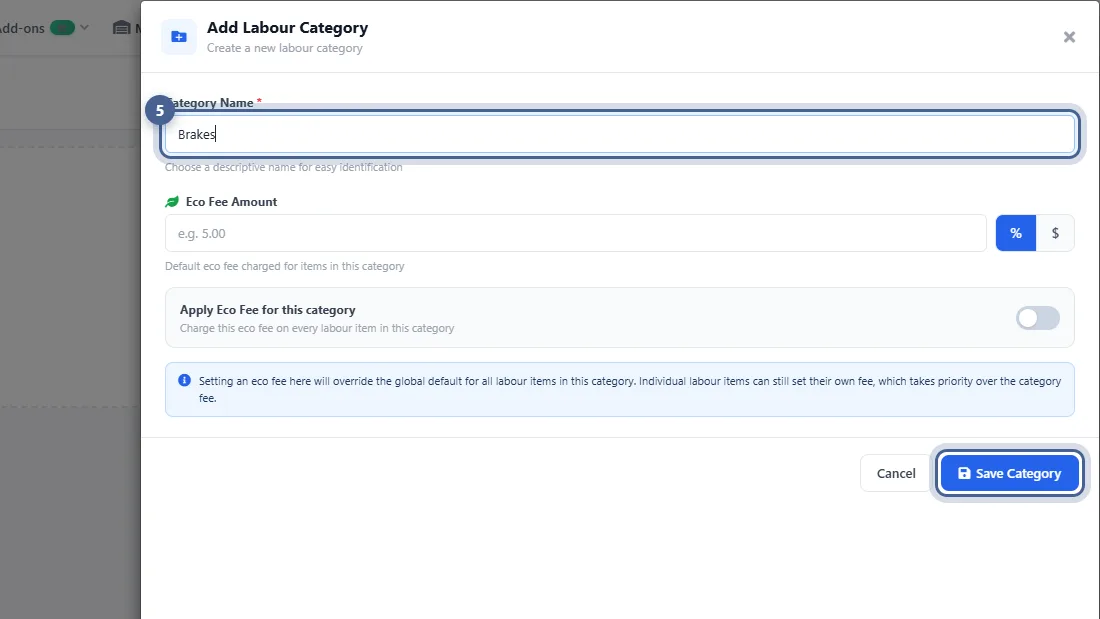
Name the category and save
Enter a Category Name such as “Brakes”, “Engine” or “Diagnostics” and click Save Category. You can also set an Eco Fee that applies to every job in the category.
- 6
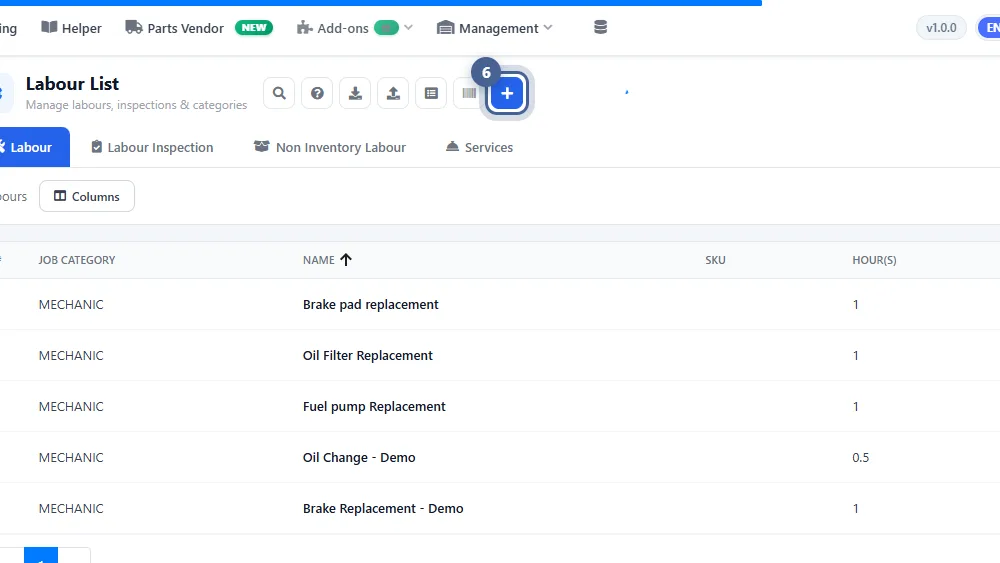
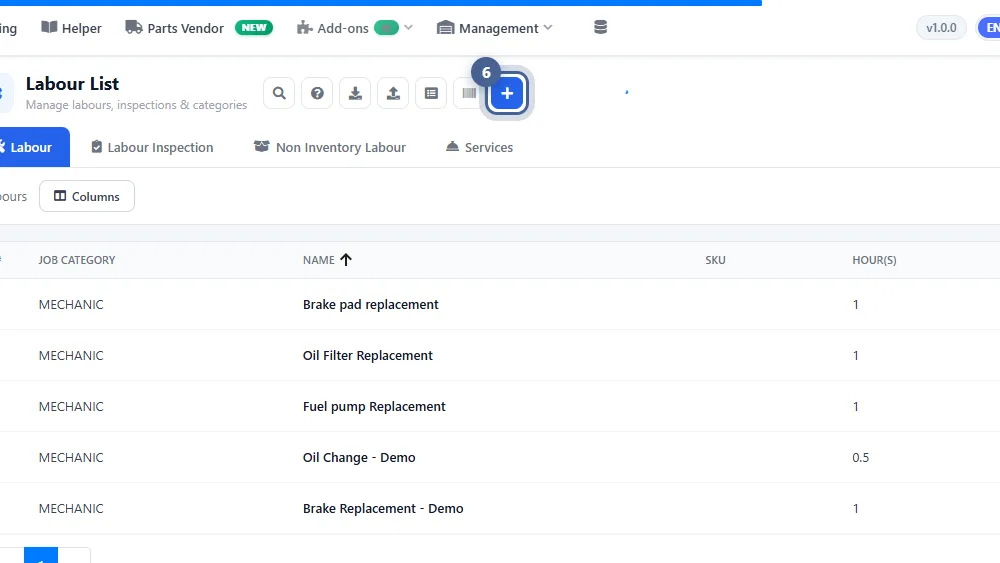
Click “Add Labour”
Back on the Labour List, click the blue + (Add Labour). Add by VIN suggests jobs for a specific vehicle and Import loads a whole list from a spreadsheet.
- 7
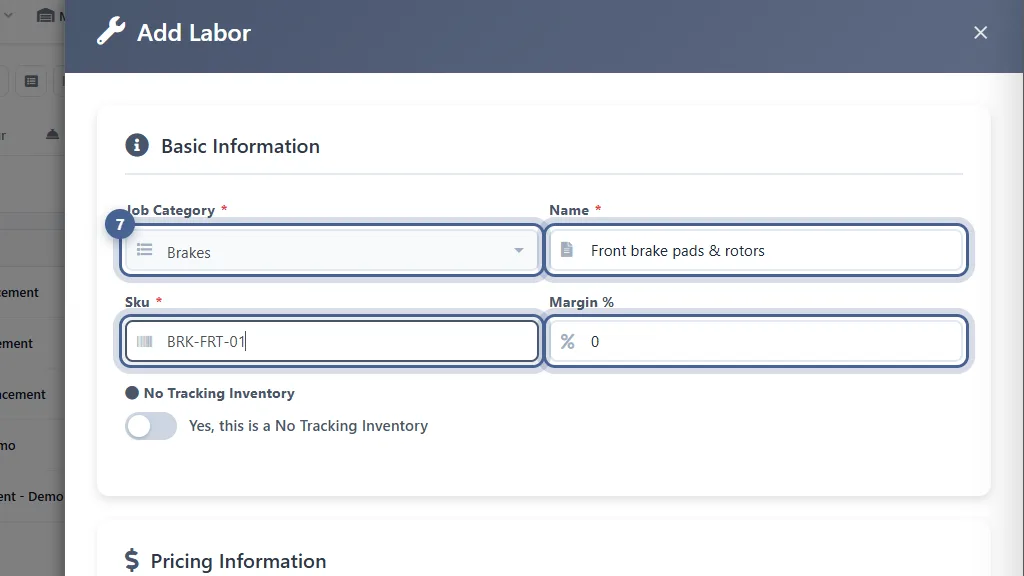
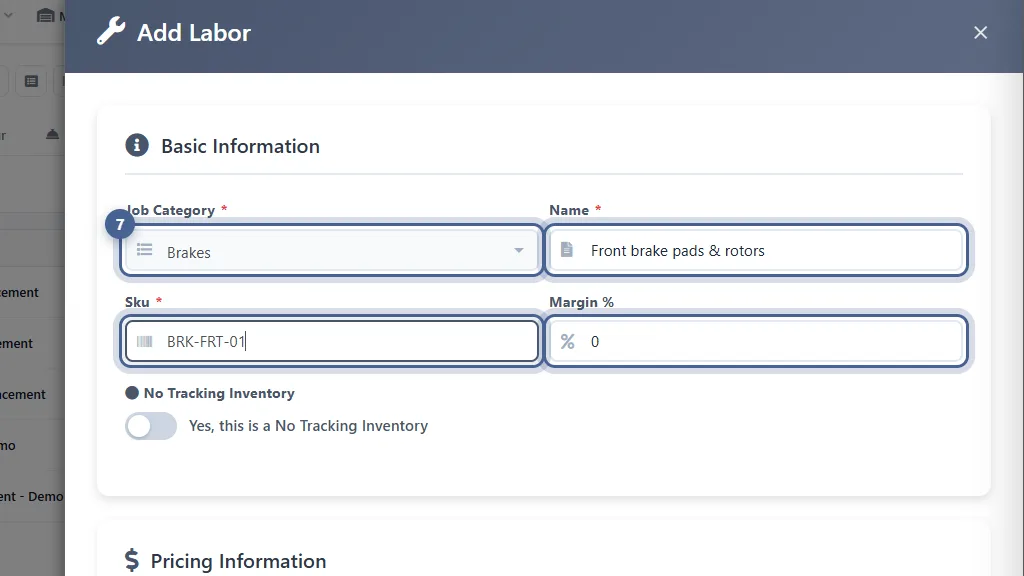
Describe the job
Pick a Job Category, give the job a clear Name (this is what your customer sees on the estimate) and a SKU code. Margin % is optional and adds a markup on top of the labour price.
- 8
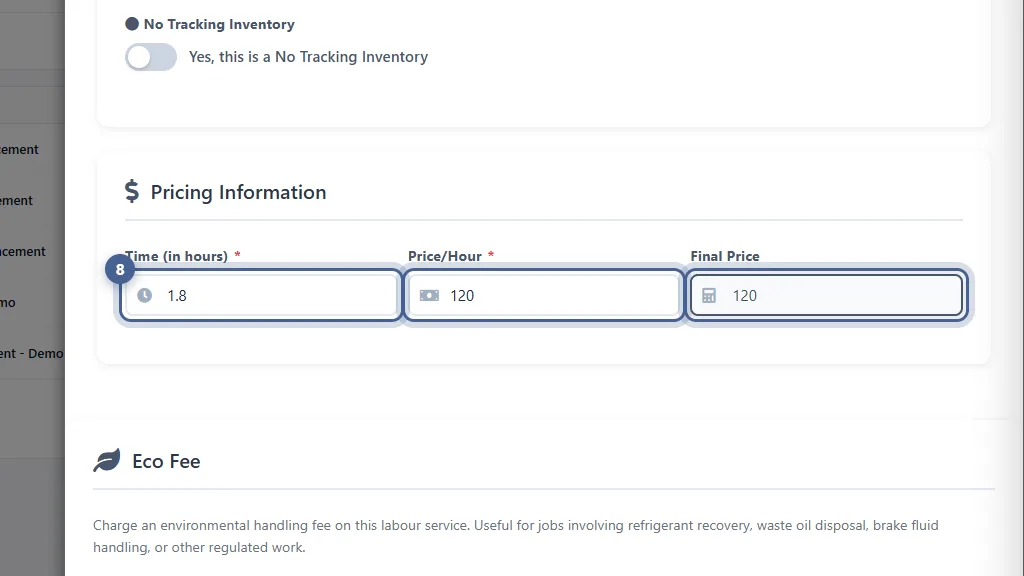
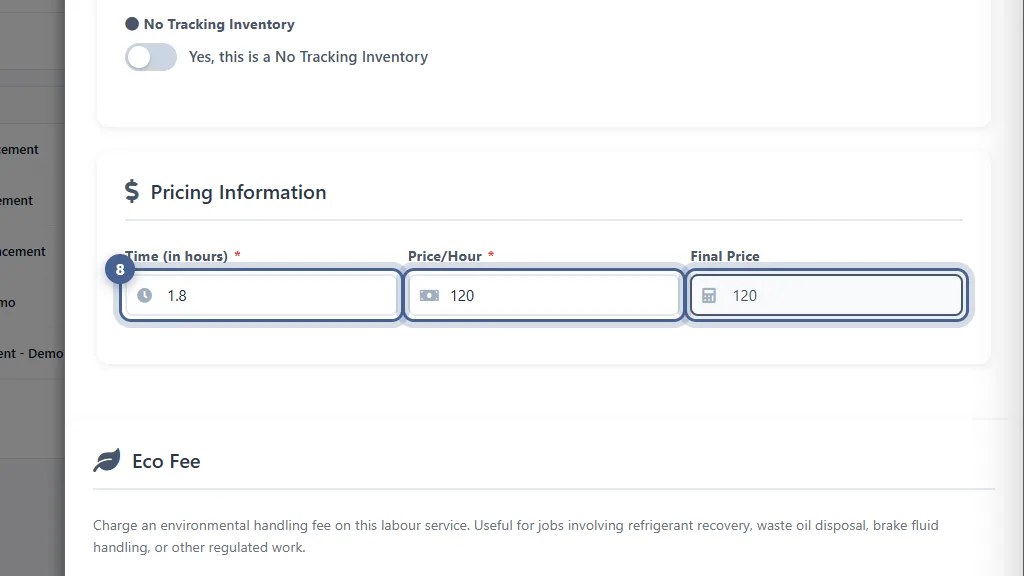
Enter the time and price
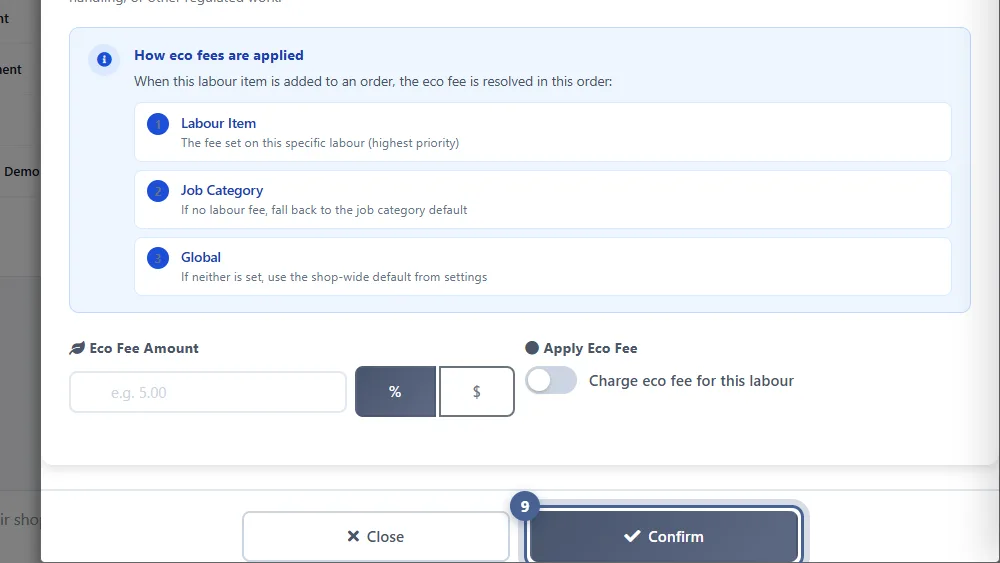
Enter the standard Time (in hours) for the job and the Price/Hour (your shop rate). Final Price is the hourly price including any margin — when you add the job to an estimate, AutoSoftWay multiplies it by the hours. If the job carries an environmental fee, switch on Eco Fee below.
- 9
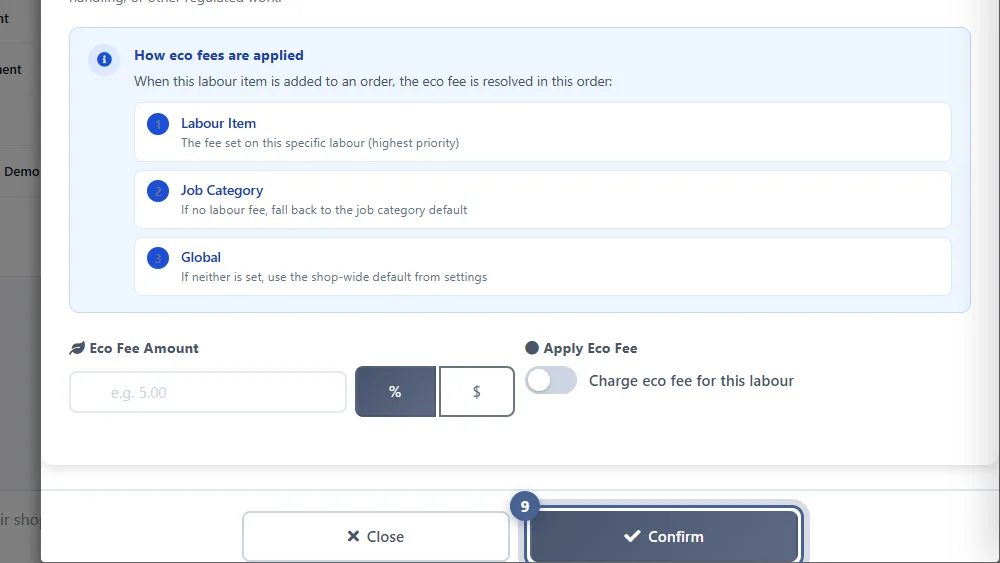
Confirm
Click Confirm. The job is saved to your Labour Catalog. On an estimate, start typing its name and the hours, rate and price fill in automatically.
- 10
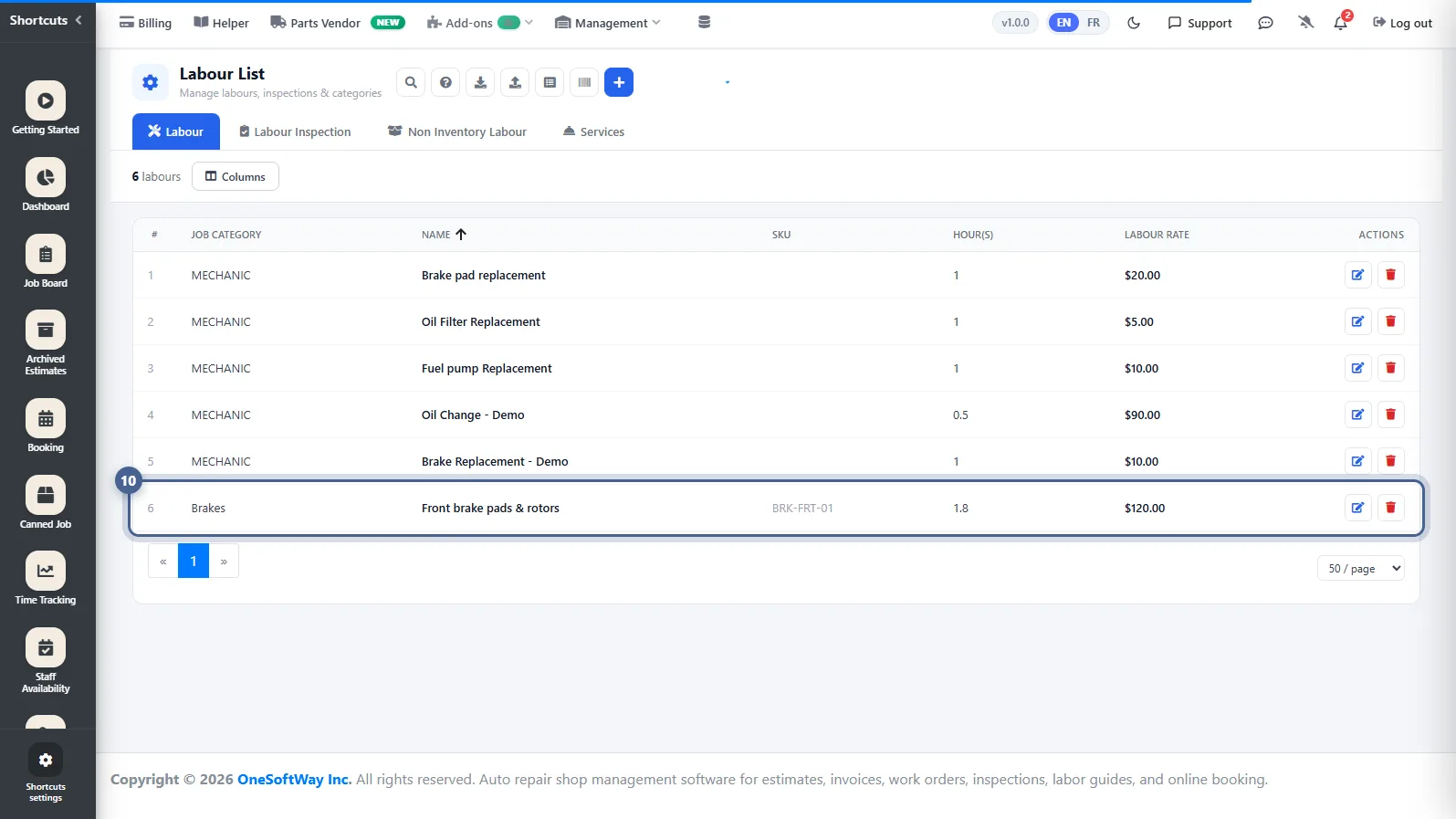
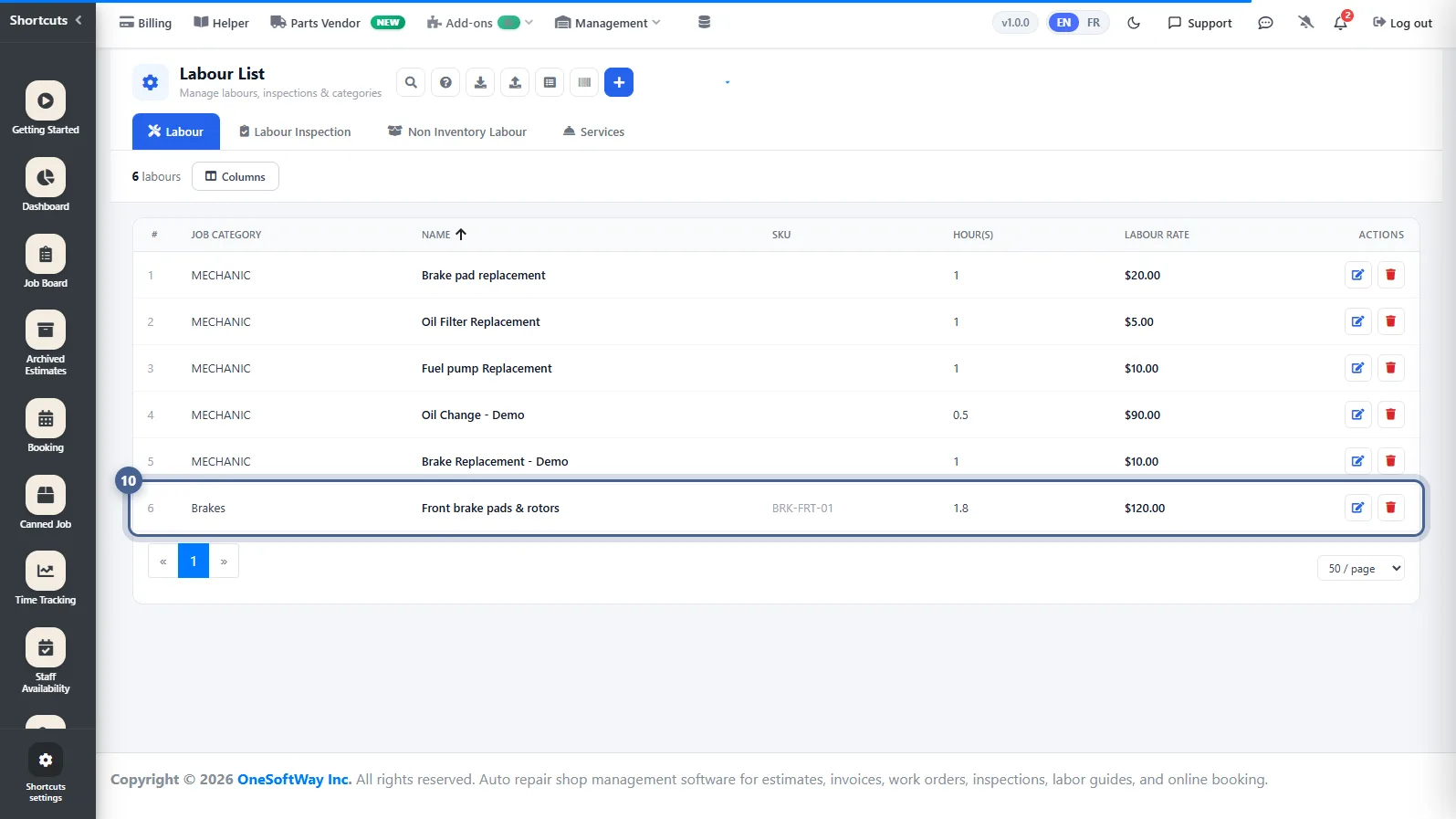
Your job is in the catalogue
The new job appears in the Labour List with its category, SKU, hours and rate. Use Edit to change it later; price changes apply to new estimates only.
Screenshots taken from AutoSoftWay in September 2026 using a demo shop with sample data.